File and folder permissions in Windows 10 control who can open, change, or delete items. To change them, right-click the file or folder and choose Properties. Open the Security tab, click Edit, select a user or group (or click Add), check Allow or Deny for the permissions you want, and click OK. You might need to do this to share a folder with another user on the same PC, fix an “Access denied” error, or lock down private files.
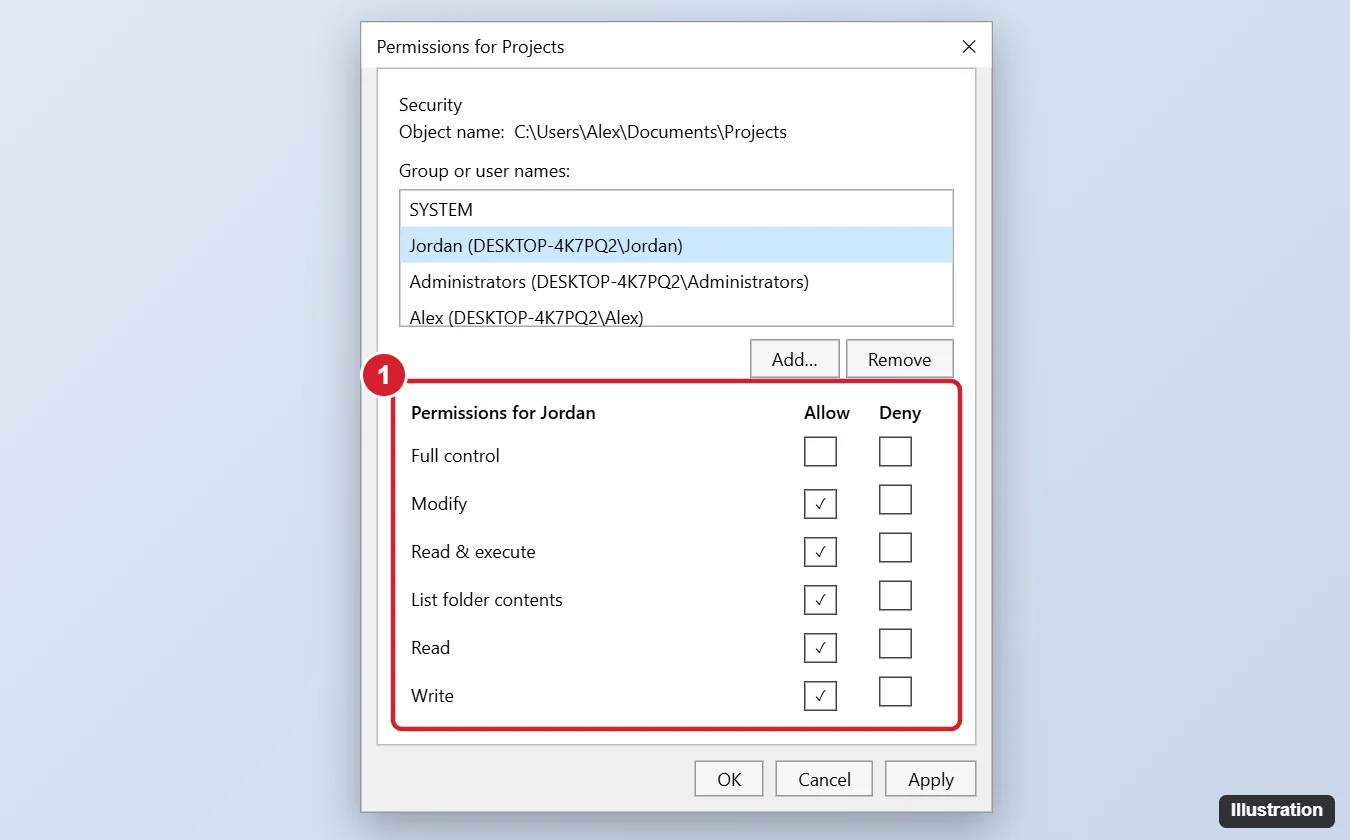
What the Permissions Mean
| Permission | Allows the user to |
|---|---|
| Full control | Do everything, including change permissions and take ownership |
| Modify | Read, write, change, and delete |
| Read & execute | Open files and run programs |
| List folder contents | See what’s inside a folder (folders only) |
| Read | View files and their properties |
| Write | Create files and add data, but not delete |
Deny overrides Allow. Use it sparingly, since a Deny on a group like Users can block you too.
Change Permissions for a User
- Right-click the file or folder and choose Properties.
- Click the Security tab, then Edit. Approve the administrator prompt if asked.
- Select the user or group in Group or user names.
- Check the boxes under Allow (or Deny).
- Click Apply, then OK.
Add a new user or group
- In the Permissions window, click Add.
- Type the user name (for example, Jordan, or Everyone) and click Check Names, then OK.
- Choose their permissions and click OK.
Inheritance: Why Some Boxes Are Grayed Out
Grayed-out checkboxes are inherited from the parent folder. To change them:
Before you break that link, read how to turn off inherited permissions in Windows 10 so you know whether to convert or remove the inherited entries.
- On the Security tab, click Advanced.
- Click Disable inheritance and choose Convert inherited permissions into explicit permissions.
- Now edit the entries freely. For folders, check Replace all child object permission entries to push your changes to everything inside.
Take Ownership (Fix “Access Denied”)
If you can’t open the Security settings for a file from an old drive or another account, take ownership first:
- Right-click the item > Properties > Security > Advanced.
- Next to Owner, click Change.
- Type your user name, click Check Names, then OK.
- For folders, check Replace owner on subcontainers and objects. Click Apply.
- Close and reopen Properties, then grant yourself permissions as above.
Avoid taking ownership of Windows system folders such as C:\Windows or Program Files; it can break updates and apps.
Command Line: icacls
In an administrator Command Prompt:
icacls "C:\Users\Alex\Documents\Projects" /grant Jordan:(OI)(CI)MThis gives Jordan Modify (M) on the folder and everything inside ((OI)(CI) means files and subfolders inherit it). Use F for full control or R for read. Other useful commands:
- icacls “path” shows current permissions.
- icacls “path” /remove Jordan removes a user’s entries.
- icacls “path” /reset /T resets to inherited permissions for all contents.
- takeown /f “path” /r /d y takes ownership recursively.
Sharing vs. Security Permissions
The Security tab controls access on this PC (NTFS permissions). The Sharing tab controls access over the network. For network sharing, a user needs both.
Other Permission Questions
Why is there no Security tab?
The drive uses FAT32 or exFAT (common on USB drives), which don’t support permissions. Only NTFS drives have the Security tab.
How do I make a file read-only?
For a simple lock, right-click > Properties > General and check Read-only. For real protection from other users, remove their Write and Modify permissions.
Can I undo permission changes?
Run icacls “path” /reset /T to restore inherited permissions, or re-enable inheritance in Advanced settings.

Kermit Matthews runs Live2Tech from just outside Philadelphia. He is an IT specialist with over 20 years of experience, from a university help desk to small-business IT, IT management and his own consulting practice, and has written tech guides full time since 2020. Steps are checked against the current software on a real device or the maker’s official documentation. More about Kermit.