To stop the small info box that appears when you rest the pointer on a desktop icon, open File Explorer’s folder options, select the View tab, clear the checkbox for pop-up descriptions of folder and desktop items, and select OK. In the Windows 10 screenshots below it reads Show pop-up description for folder and desktop items. The same box turns the pop-ups off for files and folders inside File Explorer, in current versions of Windows 11 and in Windows 10.
What the pop-up description is
When you hover over an icon on the desktop or a file in a File Explorer window, Windows can show a small box after a moment. It usually lists details such as the item type, size and date modified. For a folder it can list some of the files inside, and for a shortcut it can show where the shortcut points. These boxes are often called infotips or tooltips.
They’re useful when an icon isn’t obvious. If you already know what everything on your desktop is, they can get in the way, especially when the box covers the icon next to the one you’re aiming for. Turning them off doesn’t remove or rename anything; the icon and its label stay exactly as they are.
Turn off pop-up descriptions in Windows 11
Microsoft’s File Explorer help page confirms the first part of this path (See more, then Options). The labels inside the options window aren’t spelled out on Microsoft’s site, so match the wording below to what you see.
- Open File Explorer. Select its icon on the taskbar, find it in the Start menu or press the Windows logo key + E.
- On the ribbon at the top of the window, select See more (the three dots), then Options. The folder options window opens.
- Select the View tab at the top of that window.
- In the Advanced settings list, scroll until you find the checkbox for pop-up descriptions of folder and desktop items. Clear it so there’s no check mark.
- Select Apply, then OK.
Go back to the desktop and hover over an icon for a couple of seconds. No info box should appear.
Turn off pop-up descriptions in Windows 10
Windows 10 is past its end of support, but the setting still works on PCs that run it. File Explorer in Windows 10 has a tabbed ribbon instead of the See more button, so the route into the options window is different.
- Select the folder icon on the taskbar to open File Explorer, or press Windows logo key + E.

- Select the File tab at the top left of the window, then select Change folder and search options. (On the View tab of the ribbon, the Options button opens the same window.)

- Select the View tab at the top of the Folder Options window.

- Scroll down in Advanced settings and clear the box next to Show pop-up description for folder and desktop items.
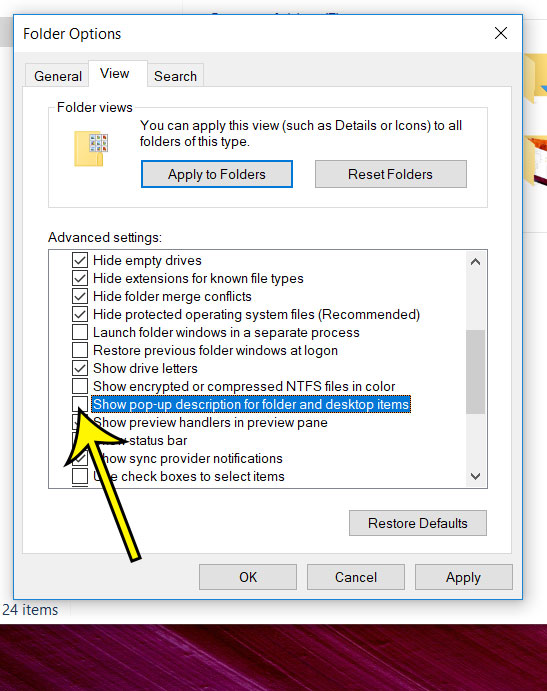
- Select Apply, then OK.
The four screenshots above are from Windows 10. In Windows 11, File Explorer looks different and the options window may not match these images exactly, so look for the checkbox wording rather than its position.
Turn the pop-ups back on
Repeat the steps for your version of Windows and select the checkbox again so the check mark returns, then select OK. Nothing else changes when you switch it back.
If you changed several settings on the View tab and want to start over, the same tab has a Restore Defaults button. Use it carefully: it also resets the other checkboxes on that tab, not just this one.
If the pop-ups don’t go away
Most of the time the change applies as soon as you select OK. If it doesn’t:
- Check that you cleared the right box. The Advanced settings list is long and the checkboxes sit close together. Open the window again and confirm that only the pop-up description box changed.
- Restart File Explorer. These steps show how to restart File Explorer in Windows 11. You can also sign out and back in, then check the desktop again.
- Look at what kind of pop-up it is. If the box appears over a taskbar button or a Start menu item, it isn’t controlled by this checkbox. See the next section.
- Work or school PCs. On a computer managed by an organization, an administrator may control File Explorer settings, so a change might not stick or the option might be unavailable. Ask your IT department rather than trying to work around it.
Some websites suggest editing the registry to switch infotips off. Microsoft doesn’t document that method for this setting, and the checkbox does the same job without the risk, so there’s no reason to use it.
Pop-ups and badges this setting won’t remove
Windows shows several kinds of small boxes and markers, and only the File Explorer and desktop item descriptions are tied to this checkbox. Use this table to work out which one you’re looking at.
| What you see | Controlled by this checkbox? | Where to look instead |
|---|---|---|
| Info box with type, size and date when hovering over a desktop icon or file | Yes | The steps above |
| Name or preview when hovering over a taskbar button | No | Part of the taskbar; this checkbox doesn’t affect it |
| Green check marks or cloud icons on desktop icons | No | OneDrive status icons |
| Tips and suggestions that slide in from the corner of the screen | No | Notification settings in the Settings app |
Those green check marks come from OneDrive, not from File Explorer’s options; here’s how to remove the green check marks from desktop icons.
Other desktop icon tweaks
If the reason you’re tidying up the desktop is that it feels cramped, a couple of other changes may help more than hiding pop-ups:
- Make the icons smaller or larger. Right-click an empty part of the desktop and use the View menu, or follow these steps to change desktop icon size in Windows 11.
- Show file extensions. If the main reason you hovered was to see what type of file something is, you can show file extensions in Windows 11 so the type is part of the name.
Related Windows tips from older posts: how to pin Google Chrome to the Windows 10 taskbar, and how to change touchpad sensitivity in Windows 10.
Icon pop-up questions
Does this only affect the desktop?
No. The same checkbox controls the descriptions for files and folders inside File Explorer windows, so they disappear there too.
Will file names or icons be hidden?
No. Only the hover box goes away. Icon labels, thumbnails and the details shown in File Explorer’s Details view stay the same.
Can I still see a file’s details after turning this off?
Yes. Right-click the file and choose Properties for its size, type and dates. In File Explorer, the Details view also shows those columns for every file at once.
Does the setting apply to every user on the PC?
It’s part of your File Explorer options, so treat it as a per-account preference. Someone else who signs in to the same computer with their own account may need to change it for themselves.
Once the box is cleared, hover over a few desktop icons to check, and keep the steps handy in case you ever want the descriptions back.

Kermit Matthews runs Live2Tech from just outside Philadelphia. He is an IT specialist with over 20 years of experience, from a university help desk to small-business IT, IT management and his own consulting practice, and has written tech guides full time since 2020. Steps are checked against the current software on a real device or the maker’s official documentation. More about Kermit.