Windows 10 switches to Ethernet by itself in most cases. Plug an Ethernet cable into your PC and router, and Windows uses the wired connection because it’s usually faster. If traffic still goes over Wi-Fi, turn Wi-Fi off, or set the Ethernet adapter’s interface metric to a lower number so Windows prefers it.
You’ll need an Ethernet port on your PC (or a USB-to-Ethernet adapter) and a cable to your router or a wall jack.
Windows 10 reached end of support on October 14, 2025. Consumer Extended Security Updates (ESU) now run until October 12, 2027.
Step 1: Connect the Cable and Check the Status
- Plug one end of the Ethernet cable into your PC and the other into your router, modem, or a network wall jack.
- Wait a few seconds. The network icon in the taskbar changes to a small monitor shape.
- Press Windows + I and open Network & Internet.
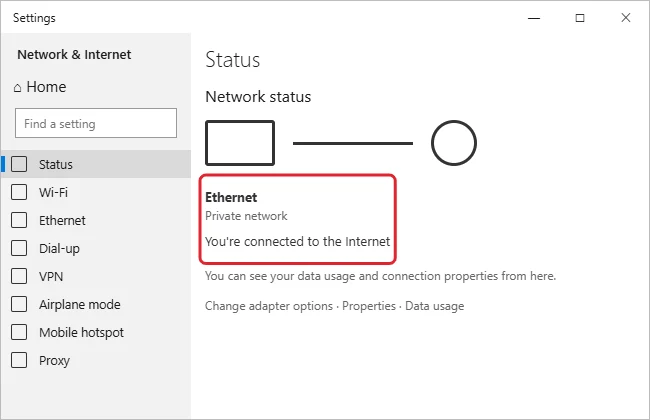
- On the Status page, check that Ethernet is listed with “You’re connected to the Internet.”
Step 2: Turn Off Wi-Fi (Simplest Way to Force Ethernet)
- Select the network icon at the right end of the taskbar.
- Select the Wi-Fi tile to turn it off.
Now only the cable can carry traffic. Turn Wi-Fi back on the same way when you unplug.
Step 3: Make Windows Prefer Ethernet (Keep Both On)
If you want Wi-Fi as an automatic backup, lower the Ethernet adapter’s interface metric. Windows uses the connection with the lowest number. On a Windows 11 PC, the same interface metric idea also works in the other direction, as shown in making Wi-Fi the first choice over Ethernet in Windows 11.
- Press Windows + R, type
ncpa.cpl, and press Enter to open Network Connections. - Right-click Ethernet and choose Properties.
- Select Internet Protocol Version 4 (TCP/IPv4), then Properties.
- Select Advanced, clear Automatic metric, and type 10 in Interface metric.
- Select OK three times.
- Repeat steps 2 to 5 for the Wi-Fi adapter, but enter 50.
- If your network uses IPv6, repeat for Internet Protocol Version 6 (TCP/IPv6) on both adapters.
Wired vs. Wireless at a Glance
| Ethernet | Wi-Fi | |
|---|---|---|
| Speed | Usually faster and steady | Varies with distance and walls |
| Latency (ping) | Lower | Higher, with spikes |
| Best for | Gaming, video calls, big downloads | Moving around the house |
| Needs | A cable and a free port | Being in range of the router |
A cable is also the fastest way to move big folders between two computers. See how to transfer files between PCs with an Ethernet cable.
On an ASUS laptop, here’s how to turn Wi-Fi back on.
When the Wired Connection Won’t Work
- “Network cable unplugged”: Reseat both ends, try another port on the router, or try another cable.
- Ethernet shows “No internet”: Restart the router and PC. If that doesn’t help, reset the network adapter.
- No Ethernet adapter in Network Connections: Open Device Manager, expand Network adapters, and check that the wired adapter isn’t disabled. Install the latest driver from your PC maker if it’s missing.
- Not sure which connection is in use? Check your IP address: the adapter that has one is the active connection.
Switching back later? Here’s how to turn Wi-Fi back on in Windows 10 if the wireless option disappears.
Related: Disable Ethernet in Windows 10.

Kermit Matthews runs Live2Tech from just outside Philadelphia. He is an IT specialist with over 20 years of experience, from a university help desk to small-business IT, IT management and his own consulting practice, and has written tech guides full time since 2020. Steps are checked against the current software on a real device or the maker’s official documentation. More about Kermit.