A picture someone sends you in Messenger lives only in that chat until you save it. On iPhone, open the picture in the chat and use Messenger’s save option; Meta confirms you can individually save photos and videos you receive to your device. The first time, iOS asks whether Messenger may add photos to your library, and saving works only if you allow it. In end-to-end encrypted chats, Meta also offers an Auto-save photos setting.
Save one picture to your iPhone
Meta’s help article confirms that photos you receive can be saved one at a time, but it doesn’t spell out the buttons, and Messenger’s layout shifts between versions. These are the controls the iPhone app usually offers:
- Open Messenger and go to the chat with the picture.
- Tap the picture to open it full screen.
- Tap the save or download button (often an arrow pointing down). If you don’t see one, look for a menu button, such as three dots, and choose the save option there.
- If iOS asks whether Messenger can access or add to your photos, allow it. Without that permission, the save fails.
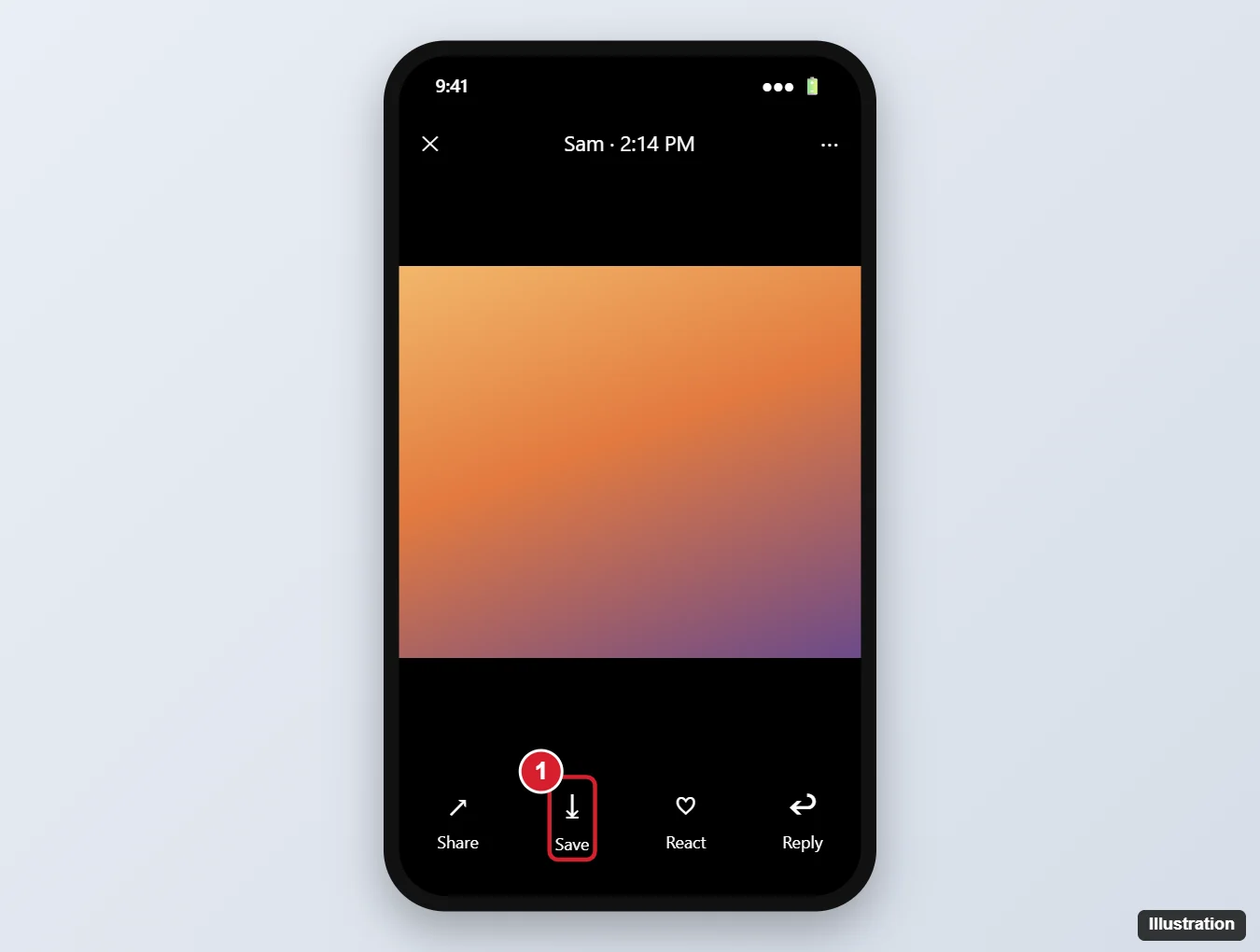
Many versions also let you skip the full-screen view: touch and hold the picture in the conversation and look for a save option in the menu that pops up. If the menu shows only reactions and reply options, use the full-screen route instead.
To keep several pictures from the same chat, repeat the save for each one. Meta’s article describes saving individually and doesn’t document a “save all” button, so don’t count on one being there.
Save every photo automatically in an encrypted chat
Meta documents one automatic option, and it’s tied to end-to-end encrypted chats. Meta’s wording is that in those chats, you can turn on auto-save to automatically download photos to your device. Here are Meta’s steps for iPhone:
- From your inbox, open an end-to-end encrypted chat.
- Tap the chat name at the top.
- Under Actions, tap Auto-save photos.
- Tap the toggle next to Save photos you receive. Tap it again whenever you want to turn auto-save off.
Because the setting sits inside each chat, you choose which conversations save pictures automatically. That’s useful for a family chat full of photos you want to keep, and less useful for a busy group where every meme would land in your library.
Don’t see Auto-save photos? Meta notes that auto-save is only available when message sharing permissions are on, so if those permissions are off, the option won’t appear.
Older guides send you to a Photos & media page in Messenger’s main settings with Save photos and Save videos switches. Meta’s current article doesn’t describe that path, so use the per-chat setting above.
Auto-save can fill your iPhone faster than you expect. If space gets tight, optimizing iPhone storage for photos explains how iCloud Photos can keep smaller copies on the phone.
Let Messenger add pictures to your library
iOS decides whether an app can touch your photo library, and Messenger can’t save anything without that permission. Apple’s iPhone User Guide says you control whether third-party apps have access to information in apps such as Photos, and that you can change access later. To check Messenger’s permission:
- Open the Settings app.
- Tap Privacy & Security, then tap Photos.
- Tap Messenger and pick an option that lets the app add photos to your library.
The wording of the choices has changed across iOS versions, so read each option. Any choice that lets Messenger add photos is enough for saving. If Messenger has no access to Photos, saving to your library won’t work.
If Messenger isn’t listed under Photos, it hasn’t asked yet. Try saving a picture once and answer the prompt.
When a save doesn’t work
| What happens | Likely cause | What to try |
|---|---|---|
| You tap save and nothing shows up in Photos | Messenger isn’t allowed to add photos | Change the permission in Settings > Privacy & Security > Photos |
| Saves fail or stop partway | Your iPhone is nearly full | Check your storage and clear space |
| No save option for a picture | An older app version | Update Messenger from the App Store and try again |
| Auto-save photos is missing from the chat | The chat isn’t end-to-end encrypted, or message sharing permissions are off | Use individual saving, or check the chat type and permissions |
| You’re on a computer and see no save option | Meta says saving and auto-saving aren’t available on computers | Save from Messenger on your iPhone |
For the storage check, checking your iPhone storage shows where to see how much space is left and what’s using it.
A screenshot can stand in for a quick personal copy if saving isn’t possible, but the person who sent the picture may not expect it to leave the chat, so keep it private and ask before sharing it anywhere else.
Find the picture after you save it
Open the Photos app and look at your library; a picture you just saved is usually among the newest items. If it isn’t there, save it again from the chat and check the permission step above.
Messenger photo saving questions
Can I save Messenger pictures on a computer instead?
Meta’s article says saving and auto-saving photos isn’t available on computers and is available on mobile devices (iPhone, iPad and Android). Save the picture on your iPhone.
Does auto-save keep photos I send too?
Meta’s toggle is labeled Save photos you receive, and its article describes saving photos you receive. It doesn’t say the setting covers photos you send, which are usually already on your phone.
Will turning off auto-save remove pictures it already saved?
Meta’s steps describe the toggle only as turning auto-save off and on, and don’t say it removes anything already saved. Delete any pictures you don’t want from the Photos app.
Can I save a photo from a group chat?
Meta’s article describes saving photos you receive without treating group chats separately, so use the same steps. Auto-save follows the same rule as any chat: the option appears only in end-to-end encrypted chats with message sharing permissions on.
A few related tasks: sending a Word file in Messenger, removing a word effect in Messenger if a chat keeps throwing emoji across the screen, saving a GIF from Google, posting a Live Photo on Facebook, adding Google Photos pictures to Facebook, seeing birthdays on Facebook and managing more than one Facebook account on an iPhone. WeChat handles media a little differently, and saving videos from WeChat chats covers its Search Chat History and Favorites options. Meta’s steps are on its Save or auto-save shared photos in a Messenger chat page, and Apple’s permission settings are in the iPhone User Guide.

Kermit Matthews runs Live2Tech from just outside Philadelphia. He is an IT specialist with over 20 years of experience, from a university help desk to small-business IT, IT management and his own consulting practice, and has written tech guides full time since 2020. Steps are checked against the current software on a real device or the maker’s official documentation. More about Kermit.