Upload the file to a group or share a link. Meta’s Help Center documents adding a file to a group post and attaching files in Messenger, but no file option for a profile or Page post, where you can share a link, a photo or a video instead. If you share a link from OneDrive, turn off Allow editing in the link settings so people can read the document but not change your copy.
The steps below use current Facebook on a computer and current Microsoft 365 Word.
Pick the route that fits who should read it
Meta’s Help Center documents a file option for group posts and an Attach files option in Messenger. It does not document a file option for a profile or Page post, so the right method depends on where your readers are and what they need to do with the document.
| Your situation | Best route | What readers get |
|---|---|---|
| Members of a group should download the original .docx | Upload the file in a group post | A file they can download from the post |
| One person or a small chat needs it | Attach it in Messenger | The file in the conversation |
| You want it on your profile or a Page | Post a view-only OneDrive link | A link that opens the document in a browser |
| Layout must look the same on every phone | Save it as a PDF first, then share the PDF | A fixed-layout copy that looks the same on every device |
| A one-page flyer people should see in the feed | Post it as an image | A picture that shows right in the post |
A short notice can also be pasted straight into the post as text. That is the quickest option, but tables, columns and most formatting won’t survive the paste.
Upload the Word file in a Facebook group
Group posts are the one place on Facebook where Meta describes adding a file directly. These are the computer steps from Meta’s article on how to upload or remove a file in a Facebook group:
- From your Feed, click Groups in the left menu and select the group.
- Click Write something… to open the post composer.
- Click Options, then select Add File.
- Click Choose File and pick your .docx file from your computer.
- Type a line about the file if you want (what it is, and whether people should fill it in and send it back), then click Post.
The illustration below shows an older layout of the composer, where the file option sat under a More button. Current menus may look different; look for Options and then Add File.
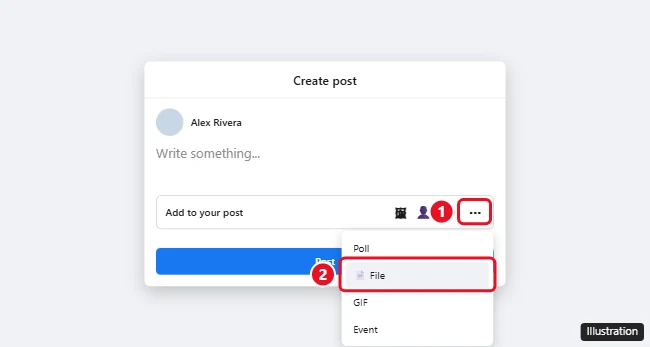
Uploaded files also show up in the group’s Files section. Meta says that if you don’t see Files, click More and select Files; from there you can also delete a file you posted by mistake.
When the file option is missing
If there is no Add File choice, the group’s admins may not allow that kind of post. Meta’s article says that a missing post option can mean the admins have turned it off for the group. Ask an admin, or share a link instead (next sections). Meta’s help article also has separate Android, iPhone and iPad tabs, so check the tab for your device if you are working from the app, since the labels there can differ from the computer layout.
Attach the document in a Messenger chat
For one person or a small group chat, Messenger is often simpler than a public post. Meta’s page on sending photos, stickers and files on Messenger describes the options on a computer:
- Open the conversation.
- Find the options at the bottom, next to the text box. If you don’t see them, click Open more options next to the text box.
- Choose Attach files, select the Word document, and send it.
Meta notes that Attach files may be unavailable in some countries in Europe. If you can’t find it, send a OneDrive link in the chat instead. If the person mostly uses WhatsApp, see how to send a Word document from a laptop to WhatsApp.
A link works anywhere Facebook takes text: a profile post, a Page post, a comment or a group. Readers open the document in their browser, and you keep one master copy that you can fix later without reposting.
Microsoft’s sharing tools need the file in the cloud first, so save the document to OneDrive before you start. Then follow Microsoft’s steps to share files and folders in OneDrive:
- On the OneDrive website, select the document and select Share.
- Open the link settings (the gear icon) and choose Anyone, which gives access to anyone who receives the link.
- Uncheck Allow editing. It is on by default; with it unchecked, people can view, copy or download the document but can’t change your file.
- Save the setting and select Copy link.
- On Facebook, click What’s on your mind? at the top of your Feed, paste the link, add a sentence about what it is, and click Post.
On a phone, the Word app’s Share icon also has Copy Link; leave Can Edit turned off if readers should only view the file.
Work and school accounts can behave differently. An admin may turn off Anyone links, in which case the option appears grayed out and you can’t share the file publicly from that account. If you want a group of collaborators to edit together rather than read, see how to create a shared Word document your team can edit, and for more on link types, how to create a link for a Word document.
Stop sharing the link later
In Word for the web, select Share > Manage access and remove the sharing link. The Facebook post stays up, but the link stops opening the document. Microsoft 365 subscribers can also set an expiration date or a password on the link when they create it.
Save a PDF copy first
A PDF keeps fonts, page breaks and tables the way they look in Word, which matters when readers open the file on a phone. Microsoft gives these steps:
- Word for Windows: If the file is already saved, select File > Save a Copy (for an unsaved file, Save As or Save a Copy). Select Browse, choose PDF in the file type list, and select Save. More Options > Options lets you save only some pages and leave out document properties.
- Word for Mac: On the File menu, select Save As, choose PDF in the File Format box, and select Export.
- Word for the web: Select File > Export > Download as PDF, then Download.
Microsoft’s page on how to save or convert to PDF in Office desktop apps lists every option. Then share the PDF the same way as the .docx: as a file in a group, in Messenger, or as a OneDrive link.
Post it as an image when people should see it in the feed
A file or link makes readers tap through. For a one-page flyer, event notice or sign-up sheet, an image shows the page right in the post. Word can’t save straight to JPEG, so follow the routes in converting a Word document to JPEG, then add the picture with Facebook’s photo option. The same posting steps apply to other pictures, such as when you post a Live Photo on Facebook. Keep the text large, because small print is hard to read once Facebook scales the image for phones.
Check privacy before you click Post
- Who sees the post: check the post’s audience on your profile, and whether the group is public or private before you share a file there.
- Who can open the link: an Anyone link works for whoever it reaches, including people a reader forwards it to. Use Allow editing off for read-only access.
- What the file carries: Word saves your name in the document’s properties, and drafts can hold comments or tracked changes. Clear those first; see how to remove the author from a Word document.
- Personal details: remove phone numbers, addresses and signatures from anything you post publicly.
Facebook document answers
Why is there no attach-file button in my profile post?
Meta’s Help Center lists adding a file as a group post format, and its link-sharing page describes posting a link from What’s on your mind?. Meta’s Help Center doesn’t describe a file option for profile or Page posts, so a link, a PDF shared by link, or an image are the reliable choices there.
Will readers need Word to open it?
Not with a OneDrive link: it opens the document in a web browser, and Microsoft’s sharing page says that with Allow editing unchecked people can view it without signing in. A downloaded .docx from a group or Messenger needs an app that opens Word files, which is why a PDF is the safer format for a mixed audience.
Is there a file size limit?
Meta’s group and Messenger file articles don’t state one. For a long document full of pictures, a OneDrive link avoids the question entirely, because Facebook only carries the link.
Can I replace the file after people have seen it?
With a OneDrive link, yes: edit the document and the same link shows the new version. A file uploaded to a group or sent in Messenger is a separate copy, so you would post the new version and delete the old one.
If you delete a post by accident while tidying up old versions, here’s how to find the Trash on Facebook and restore it.

Kermit Matthews runs Live2Tech from just outside Philadelphia. He is an IT specialist with over 20 years of experience, from a university help desk to small-business IT, IT management and his own consulting practice, and has written tech guides full time since 2020. Steps are checked against the current software on a real device or the maker’s official documentation. More about Kermit.