Accept that there is no reset button: Forza Horizon 5 has no in-game option to start a new game, and your progress is kept with your Xbox or Steam account, not only on the PC. Starting over takes deleting your save the way Forza Support describes, and that deletion is permanent. Below are the PC steps for the Xbox app (Microsoft Store) version and the Steam version, plus what you lose and what support can and cannot return.
What Forza Horizon 5 does and does not let you reset
The game menus have no “New Game,” “Reset Progress” or second save slot. What exists is a support article from the Forza Support Team, I’ve lost all my progress, what do I do?, which covers Forza Horizon 4, 5 and 6. Its list of commonly reported issues includes “I want to start my game over from the beginning” and points those players to the section titled “Delete your Forza Horizon save from everywhere.”
That section carries a blunt warning: deleting will wipe your save from everywhere, you will be starting fresh, and there is no way to recover your old save. Read the rest of this page before you run any step.
Where your progress lives
A PC copy of Forza Horizon 5 keeps a local save, but the version you bought also syncs that save online. That is why deleting the game, or a folder you think holds the save, usually achieves nothing: the next time you sign in, the cloud copy comes back.
| Your version | Where the save syncs | Forza Support’s route |
|---|---|---|
| Xbox app / Microsoft Store (including Game Pass) | Xbox cloud saves on your Microsoft account | Go offline, reset the app, create a new local save, then reconnect |
| Steam | Steam Cloud | Turn off Steam Cloud sync, delete the game’s save folders, then turn sync back on |
Forza Support also notes that cross save is not available on Forza Horizon 5. A Steam save and an Xbox app save are separate, so only follow the steps for the version you actually play.
Before you delete anything
- Be sure. Forza Support says the old save cannot be recovered, and Steam Support says it is unlikely to be able to recover lost saves either.
- Record what you want to remember. Screenshots of your garage or a favorite livery are easy to grab first; press Windows key + G to open Xbox Game Bar and use its capture widget.
- Know which account you use. The steps clear the save for the Microsoft account or Steam account the game is signed in with.
- Keep the game installed. None of the steps require uninstalling Forza Horizon 5.
Start over in the Xbox app or Microsoft Store version
These steps follow Forza Support’s “Xbox for Windows” instructions. The trick is to make a new local save while the PC is offline, so the cloud copy is replaced rather than downloaded again.
- Make sure Offline Permissions is turned on. Forza Support places this in the Microsoft Store under your profile picture, then settings.
- Start Forza Horizon 5 and wait for the start screen (the first screen with the start game and settings options).
- Disconnect the PC from the internet (turn off Wi-Fi or unplug the network cable).
- Reset the app. On current versions of Windows 11, Microsoft’s route is Start > Settings > Apps > Installed apps, find Forza Horizon 5 in the list, open its Advanced options and select Reset. Forza Support’s article still words this as the Windows 10 path (Settings > Storage > Apps & games > Forza > Advanced Options > Reset); both lead to the same Reset button. See Microsoft’s page on how to repair or reset apps in Windows.
- While still offline, launch the game and play for a few minutes so it creates a new local save.
- Reconnect to the internet.
- If you are asked to pick a save, choose LOCAL this one time. Forza Support says to choose Cloud from then on.
Choosing the wrong save at the last step brings the old progress back, so read the prompt carefully. If you also want to free disk space or move the install, that is a separate job covered in how to move games to another drive in Windows 11.
Start over in the Steam version
On Steam, the cloud copy is what restores an old save. Forza Support’s Steam steps switch sync off first, delete the local save folders, then switch sync back on. Forza Horizon 5’s Steam App ID is 1551360.
- In Steam, open Settings, go to the Cloud tab and turn off Enable Steam Cloud Sync for applications that support it. Steam Support describes this toggle in its Steam Cloud FAQ.
- Exit Steam completely.
- In File Explorer, open C:\Program Files (x86)\Steam\userdata, then the folder named with your numeric Steam ID, then 1551360, then remote. Delete the numbered folder inside remote (its name is about 16 digits). If any of these folders is missing, skip this step.
- Open C:\Users\<name>\AppData\Local\ForzaHorizon# (Forza Support writes the game’s number in place of the #) and delete the folders and files inside it.
- Reopen Steam and launch Forza Horizon 5 until you reach gameplay on a new save.
- Once you are on the new save, turn Steam Cloud sync back on.
If Steam is installed on another drive, the userdata folder is under that Steam folder instead; finding it is covered in how to find the Steam folder on Windows 11. AppData is hidden by default, so type the path into the File Explorer address bar. If you are setting up Steam on a new PC instead, start with how to download and install Steam.
What you lose and what Forza Support can return
A fresh save means the Horizon Festival begins again: cars, credits, houses, levels and earned rewards on that save are gone. Deleting a save is not the same as removing the game or its add-ons from your library.
Forza Support has a Lost Saved Data ticket for players whose progress disappeared. According to the support article, it can return identifiable inventory only (cars, credits, vanity items and Wheel Spins) and cannot return Forzathon Points, Skill Points, level, experience, tokens, houses, gameplay or playlist progress, or credits spent on houses or upgrades. It asks players to file the ticket after finishing the steps, playing on the new save and reaching online mode. Treat that as a route for lost saves, not a way to reverse a reset you chose.
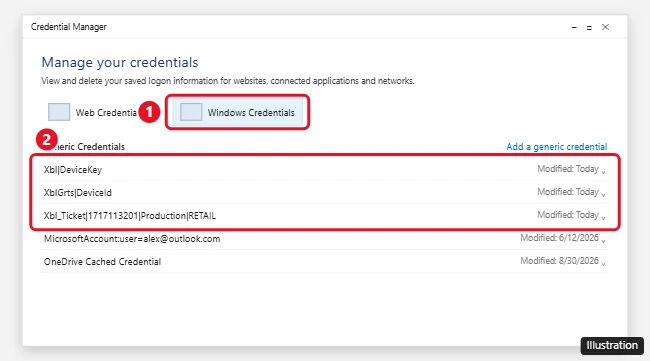
The illustration below comes from an older version of this page, which suggested removing Xbox sign-in entries from Credential Manager; that is not part of Forza Support’s steps and does not delete or reset a save.
Consoles, Cloud Gaming and PlayStation 5
- Xbox console: Forza Support’s steps are My games & apps, highlight the game, press the Menu button, then Manage game > Saved Data, select your gamertag and choose Delete everywhere, which removes the save from the console, the cloud and other consoles.
- Xbox Cloud Gaming: on xbox.com/play, select your profile picture, the Settings icon, the Manage games tab, select Forza Horizon 5, then Delete Game Saves. If the game is not listed, play it through cloud gaming first. Xbox’s page on managing cloud gaming saves covers that storage.
- PlayStation 5: the same Forza Support article has its own section for deleting a Forza Horizon 5 save on PS5.
Forza restart answers
Does uninstalling and reinstalling reset my progress?
No. The save syncs with your Xbox or Steam account, so a reinstall downloads it again. Only the offline reset or the Steam Cloud steps above clear it.
Will these steps touch my other games?
The app reset applies only to Forza Horizon 5, and the Steam steps target the 1551360 folder. Turning Steam Cloud off pauses syncing for every game while it is off, so switch it back on when you finish.
Can I keep my old save and start a second one?
Forza Support does not describe a second save slot. Its documented options are keeping your save or deleting it.
What if the old progress comes back?
On the Xbox app version, the cloud copy was probably chosen when you reconnected; repeat the steps and pick LOCAL. On Steam, check that Cloud sync was off before you deleted the folders.
If you only wanted a quieter screen for a fresh run rather than a new save, turning off the overlay with the steps to disable Xbox Game Bar is a gentler change.

Kermit Matthews runs Live2Tech from just outside Philadelphia. He is an IT specialist with over 20 years of experience, from a university help desk to small-business IT, IT management and his own consulting practice, and has written tech guides full time since 2020. Steps are checked against the current software on a real device or the maker’s official documentation. More about Kermit.