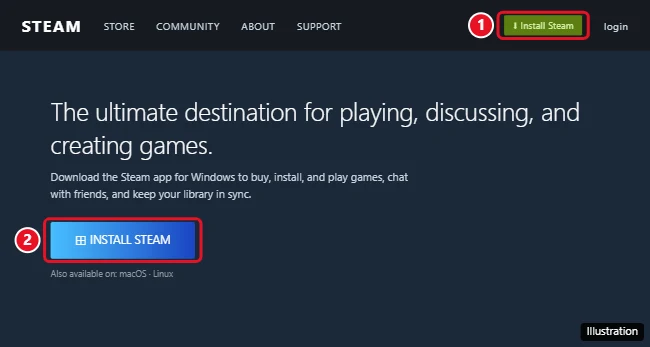
To download Steam on Windows 11 or Windows 10, go to store.steampowered.com/about and click Install Steam. Open the downloaded SteamSetup.exe file, click Next through the installer, choose a language and install folder, and click Install, then Finish. Steam updates itself the first time it opens. After that, sign in or create a free account, and you can start downloading games. Steam is free and only needs a 64-bit version of Windows 10 or 11.
What you need
- A 64-bit version of Windows 10 or Windows 11. Steam stopped supporting 32-bit Windows on January 1, 2026, and Windows 7 and 8 in 2024. To check, go to Settings > System > About and look at System type.
- About 1 GB of free space for Steam itself, plus room for your games.
- An internet connection and an email address for your Steam account.
How to download and install Steam
- Open a web browser and go to store.steampowered.com/about. Only download Steam from Valve’s official site.
- Click Install Steam. The file SteamSetup.exe downloads to your Downloads folder.
- Open SteamSetup.exe. Click Yes if User Account Control asks for permission.
- Click Next, choose your language, and click Next again.
- Keep the default install folder, C:\Program Files (x86)\Steam, or click Browse to pick another drive. Click Install.
- Click Finish. Steam opens and downloads its latest update, which can take a few minutes.
Install Steam with a command instead
If you prefer the command line, open Terminal or Command Prompt and run:
winget install Valve.Steam
Windows Package Manager (winget) downloads the official installer and sets it up for you.
Sign in or create a Steam account
- When Steam finishes updating, you’ll see the sign-in window.
- If you have an account, sign in with your username and password, or scan the QR code with the Steam Mobile app.
- If not, click Create a Free Account and follow the steps. You’ll need to confirm your email address.
- Turn on Steam Guard with the Steam Mobile app for extra security.
How to download your first game
- Click Store at the top of Steam and find a game. Free-to-play games have a Play Game button.
- Buy the game or click Play Game, then choose where to install it.
- Find it under Library and click Play when the download finishes.
Want games on a different drive? In Steam, go to Steam > Settings > Storage and add a new library folder. To move games later, see how to move games to another drive on Windows 11.
If Steam won’t download or install
- “This app can’t run on your PC.” You’re probably on 32-bit Windows or an old version. Steam needs 64-bit Windows 10 or 11.
- Stuck on “Updating Steam.” Close Steam, restart your PC, and try again. Temporarily turning off a VPN can help.
- Blocked by antivirus. Make sure you downloaded from store.steampowered.com, then allow SteamSetup.exe in your security software.
- Download is slow. In Steam, go to Settings > Downloads and change the Download Region to a nearby location.
- Not enough space. Free up space or install Steam and games on another drive.
Frequently asked questions
Is Steam free to download?
Yes. Steam and a Steam account are free. You only pay for games you buy.
Is Steam in the Microsoft Store?
No. Download it from Valve’s website or install it with winget.
Can I install Steam on a different drive?
Yes. Choose the folder during installation, or add a library folder on another drive later.
Does Steam work on Windows 11 in S mode?
No. S mode only allows Microsoft Store apps. You’d need to switch out of S mode, which is free but can’t be undone.

Kermit Matthews runs Live2Tech from just outside Philadelphia. He is an IT specialist with over 20 years of experience, from a university help desk to small-business IT, IT management and his own consulting practice, and has written tech guides full time since 2020. Steps are checked against the current software on a real device or the maker’s official documentation. More about Kermit.