A frame-rate number is stuck in the corner of your game or stream, and you never knowingly turned it on. How the numbers look usually gives away which program drew them: Xbox Game Bar, your graphics card software, Steam, a monitoring tool or the game itself. Match yours in the table below, or run the one-minute test if you can’t tell, then switch it off in that program.
Work out who is drawing the numbers
Each overlay has a recognizable look. Compare what’s on your screen with this table before changing any settings.
| What you see | Likely owner | Where to go |
|---|---|---|
| A small floating panel with CPU, GPU, RAM and FPS tabs or graphs, which you can drag around | Xbox Game Bar Performance widget | Windows + G |
| A compact line or block of stats in a corner, appearing after a driver install or update | NVIDIA app overlay or AMD Software metrics overlay | Alt + Z (NVIDIA) or Ctrl + Shift + O (AMD) |
| Small FPS figures or graphs only in games you launch from Steam | Steam Performance Monitor | Steam > Settings > In Game |
| Many lines of numbers (temperatures, clock speeds, frame time) in one color | MSI Afterburner with RivaTuner Statistics Server, or a similar monitoring tool | The tool’s tray icon |
| Numbers that appear in one game only and look like that game’s fonts | The game’s own setting | The game’s Video, Display or Interface options |
If the counter also sits on your desktop, outside any game, it’s almost always a monitoring tool or a pinned Game Bar widget rather than a game setting.
A one-minute elimination test
When the look doesn’t give it away, rule out sources one at a time:
- Press Windows + G. If a Performance widget is pinned, Game Bar is the owner; jump to the Game Bar section.
- Press Ctrl + Shift + O. If the counter vanishes, it was AMD’s overlay.
- Press Alt + Z. If the NVIDIA overlay panel opens, check its Statistics settings.
- Click the ^ arrow at the right end of the taskbar and look for monitoring tools you recognize, such as MSI Afterburner or RivaTuner.
- Press Ctrl + Shift + Esc to open Task Manager and look through the Processes page for overlay or monitoring apps. Close candidates one at a time with End task and check whether the counter disappears.
If you only kept an overlay to watch the graphics card, Task Manager’s Performance page shows GPU load too; see how to check GPU usage in Task Manager (written for Windows 10, same steps on Windows 11).
If it came from Windows: Game Bar’s Performance widget
A pinned Performance widget stays on screen over games even after you close Game Bar.
- Press Windows + G to open Game Bar.
- Find the Performance widget. If it isn’t showing, open the Widget menu on the top bar and choose Performance.
- Select the pin icon in the upper-right corner of the widget so it’s no longer pinned.
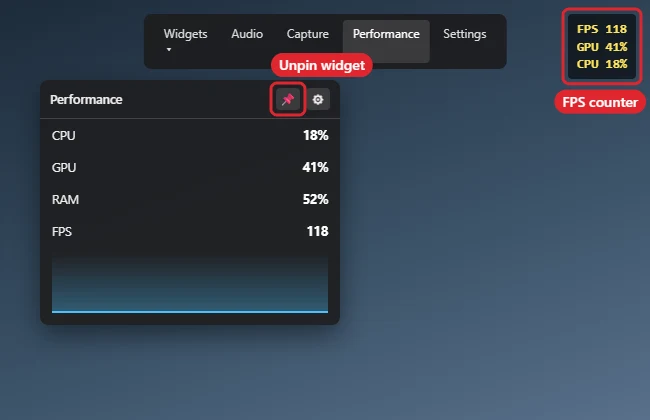
- Close the widget, then press Windows + G again to close Game Bar.
- Go back to your game and check that the counter has gone.
Some versions of the widget also have an options button for choosing which metrics appear, so you can drop FPS and keep the others. The layout has changed between Game Bar updates, so if you don’t see that option, unpinning is the reliable route.
To stop the frame-rate reading from working at all, remove the access that Request access granted: Xbox Support says to open Computer Management, go to Local Users and Groups > Groups > Performance Log Users, choose your account and select Remove. Most people don’t need to go that far.
For more on the overlay itself, see how to open Xbox Game Bar on Windows 11. If you’d rather not have Game Bar at all, the options in how to disable or remove Xbox Game Bar were written for Windows 10; on Windows 11 the related switches are under Settings > Gaming > Game Bar.
If it came from your graphics card software
NVIDIA app
The NVIDIA app replaced GeForce Experience, and its overlay shows real-time FPS and performance stats (see the NVIDIA app page).
- Press Alt + Z, or click the overlay button at the top right of the NVIDIA app window, to open the NVIDIA Overlay.
- Open the Statistics screen. It controls which stats are shown, their position, color and size.
- Turn the statistics display off, or remove FPS from the list of stats shown.
- Close the overlay and return to the game.
A statistics hotkey pressed by accident is a common way the counter appears. Check the current shortcuts under the Settings cog at the top of the overlay panel (Change hotkeys) rather than relying on a key you read about elsewhere.
AMD Software: Adrenalin Edition
Press Ctrl + Shift + O to hide AMD’s metrics overlay straight away. To keep it off, AMD’s support article on the performance metrics overlay gives this path:
- Open AMD Software and search for Metrics.
- Select Performance Metrics, then the Overlay tab.
- Switch Show Metrics Overlay off. The same toggle also appears on the Settings tab.
If you keep pressing Ctrl + Shift + O by accident, search for Hotkey in AMD Software and change the shortcut in Hotkey Settings. AMD also uses Ctrl + Shift + L for metrics logging, which is a separate feature.
PCs with Intel graphics may also have Intel’s graphics software, which can include an overlay. Not sure which graphics hardware you have? See how to check your GPU on Windows 11.
If it came from a game launcher or chat app
Steam: Steam’s old FPS counter is now part of a Performance Monitor that can also show CPU, GPU and RAM information. Open Steam > Settings > In Game, find the Performance Monitor setting and switch it off. You can also change its screen position and detail level there if you’d rather keep a smaller version. Restart the game if the counter is still visible.
Discord, EA app, Ubisoft Connect and other launchers: each has its own in-game overlay. Open the app’s settings, find the overlay section, and switch off any FPS or performance option, or the whole overlay if you don’t use it.
The game itself: many games have a Show FPS, Performance stats or Debug info option in their Video, Display or Interface menu. These only affect that game.
If you installed a monitoring tool
- MSI Afterburner with RivaTuner Statistics Server: the on-screen numbers come from RivaTuner. Turn off the on-screen display in Afterburner’s monitoring settings, or right-click the RivaTuner tray icon and exit it. Quitting only RivaTuner removes the overlay without changing Afterburner’s other settings.
- Other tools (Razer Cortex, Overwolf apps, older utilities such as Fraps): exit them from the tray or turn off their overlay option.
- Your PC maker’s utility: gaming laptops and desktops often ship with a control app that can include its own performance overlay. If nothing else explains the counter, check that app’s settings.
Make it stay gone
- Stop the tool from starting with Windows. If a monitoring app launches every time you sign in, the counter returns each session. Disable it using the steps in how to stop apps from opening on startup in Windows 11.
- Check again after updates. A graphics driver update or a major app update can reset overlay preferences. After you update NVIDIA drivers or AMD Software, open a game and confirm the counter is still off.
Show it again later
Reverse the step you used: pin the Game Bar Performance widget again, turn Statistics back on in the NVIDIA overlay, press Ctrl + Shift + O or switch Show Metrics Overlay on in AMD Software, or choose a Performance Monitor detail level in Steam’s Settings > In Game.
Frame-rate overlay questions
Will turning off the counter make my games run faster?
Probably not by a noticeable amount, since a single counter is light. Running several overlays at once is a different matter: they can conflict, and closing the ones you don’t use is worth doing.
Is a frame-rate counter on my desktop a sign of malware?
Usually not. It’s typically a monitoring tool that starts with Windows or a pinned Game Bar widget. Use the elimination test above, and if a process you don’t recognize is responsible, look it up before ending it.
Why does the Game Bar Performance widget show no FPS reading?
Xbox Support says the FPS counter needs Game Bar version 3.34.11002.0 or later and that you may have to select Request access and restart the PC before it works.
Next, check the switches under Settings > Gaming > Game Bar if you want to decide whether Game Bar runs at all.

Kermit Matthews runs Live2Tech from just outside Philadelphia. He is an IT specialist with over 20 years of experience, from a university help desk to small-business IT, IT management and his own consulting practice, and has written tech guides full time since 2020. Steps are checked against the current software on a real device or the maker’s official documentation. More about Kermit.