Tighten the right setting. Most unwanted space in a Word document is paragraph spacing, the extra points Word adds before or after each paragraph, and not the line spacing itself. To clear it, open Line Spacing Options from the Home tab and set Before and After to 0 pt. To pull the lines inside a paragraph closer, choose 1.0 on the same Line and Paragraph Spacing button or press Ctrl + 1.
Find out which gap you have
Three different causes look the same on the page, so check first.
- Press Ctrl + Shift + 8 (or the ¶ button on the Home tab) to show formatting marks. Every ¶ is the end of a paragraph.
- Look between two lines that are too far apart. Two ¶ marks in a row mean an empty paragraph; a single ¶ means the gap is spacing.
- Click inside a paragraph with a gap below it and open Home > Line and Paragraph Spacing > Line Spacing Options. Read the Before, After and Line spacing boxes.
| What you see | What causes it | Go to |
|---|---|---|
| Lines inside one paragraph sit far apart | Line spacing above 1.0 (1.15, 1.5, Double) or an Exactly value | Tighten the lines inside a paragraph |
| A gap appears every time you press Enter | Spacing Before or After the paragraph | Close the gaps between paragraphs |
| Two or more ¶ marks between paragraphs | Empty paragraphs | Delete the extra marks |
| One line is much taller than the rest | A large inline picture, equation or bigger font on that line | Shrink the object, or give a picture a wrapping option so it floats |
Empty paragraphs are the easy case: click after the extra ¶ and press Backspace, or clear dozens at once with the Find and Replace steps in deleting blank lines in Word. For half-empty pages and other stray space that isn’t between lines, see removing other kinds of extra space in Word. Wide gaps between words rather than lines are a different problem: see removing extra spaces between words.
Close the gaps between paragraphs
Microsoft’s remove double line spacing page says current Word starts with 1.15 line spacing and 10 points of space after each paragraph. Those 10 points are why a short list or an address block looks double spaced even though the line spacing is fine. Documents built from older templates may use other numbers, so trust what the Paragraph dialog shows.
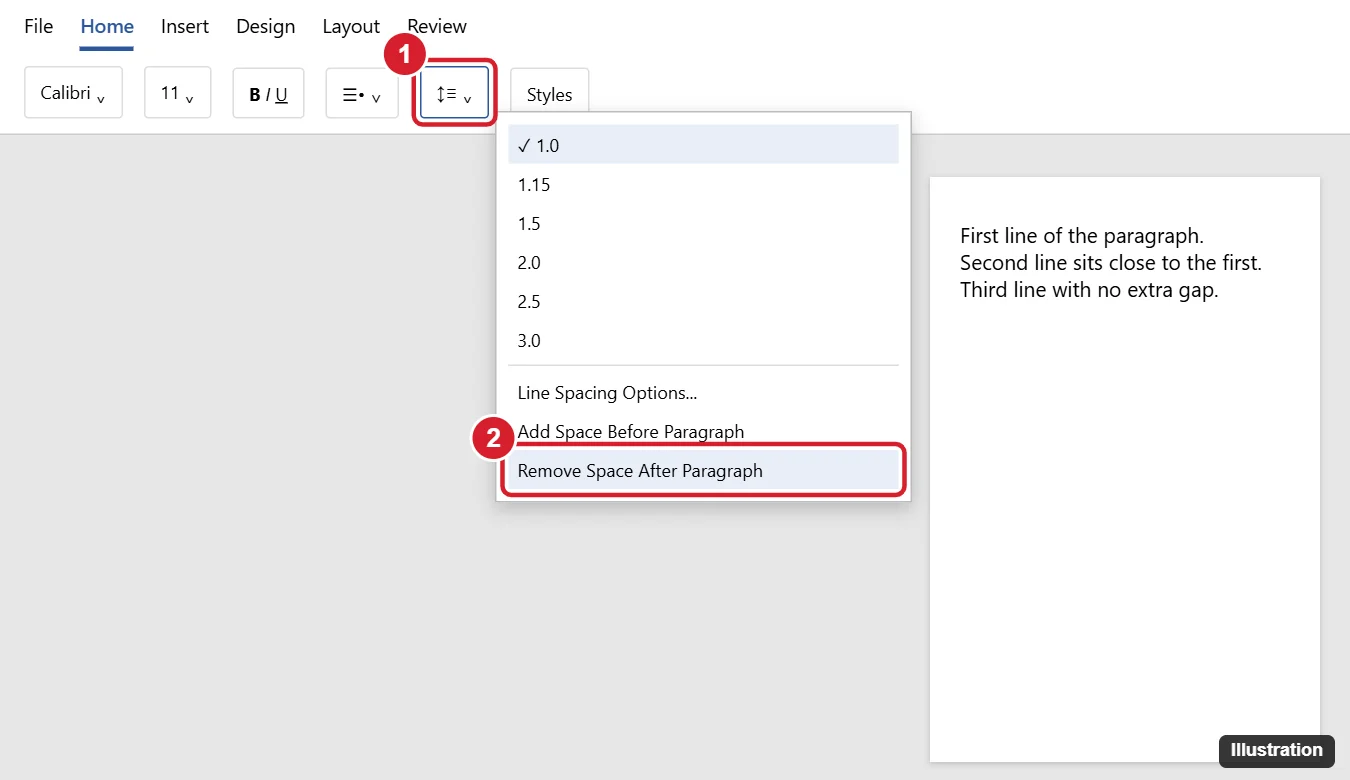
From the Line and Paragraph Spacing menu
- Select the paragraphs (or press Ctrl + A for the whole document).
- On the Home tab, click Line and Paragraph Spacing.
- Choose the option at the bottom of the menu that removes the space after the paragraph. If the menu also offers to remove space before the paragraph, open it again and choose that too.
From the Paragraph dialog (exact control)
- Select the paragraphs and choose Home > Line and Paragraph Spacing > Line Spacing Options.
- Under Spacing, set Before and After to 0 pt. You can also type a small value such as 3 pt if you want a hint of separation.
- Optional: tick Don’t add space between paragraphs of the same style.
- Click OK.
That check box is more selective than it sounds. According to Microsoft’s adjust indents and spacing page and the matching style property, it removes the space only between neighboring paragraphs that share a style. Take a resume where the job bullets use List Paragraph and the job titles use a heading style: with the box ticked, the bullets close up, but the space above and below each title stays. That is usually the look people want.
Tighten the lines inside a paragraph
When the gap is inside a paragraph, line spacing is the setting to change.
- Single spacing: select the text and choose 1.0 from Line and Paragraph Spacing, or press Ctrl + 1. Microsoft’s Word keyboard shortcuts list also gives Ctrl + 5 for 1.5 lines and Ctrl + 2 for double.
- Tighter than single: in Line Spacing Options set Line spacing to Multiple and type a value below 1, such as 0.9. Check print preview, because tall letters can clip at low values.
For other values and what each option means, see adjusting line spacing in Word; for papers that need the opposite, double spacing in Word has the steps.
Apply one setting to the whole document
Selecting everything and changing the spacing overrides each paragraph’s own formatting. The Design tab changes the spacing built into the document’s styles instead.
- Select Design > Paragraph Spacing.
- Choose No Paragraph Space, which Microsoft describes as the way to single-space the document. Pick Custom Paragraph Spacing instead if you want to type your own Before, After and line values.
Microsoft’s change the line spacing page notes that this overrides the settings of the style set you’re using. To put things back, return to Design > Paragraph Spacing and choose the option listed under Style Set (or press Ctrl + Z straight away). Paragraphs you formatted by hand keep their own spacing either way, so fix those individually.
Keep new documents tight
To make new blank documents start without the gaps, open Line Spacing Options, set the spacing, click Set as Default, choose All documents based on the Normal template and click OK, as Microsoft’s change the default line spacing page shows. Documents you already saved keep their spacing; the Design tab route and the rest of the setup are in single spacing in Word.
Start a new line without a new paragraph
Pressing Enter ends a paragraph, and the next one brings its own spacing with it. Pressing Shift + Enter inserts a line break instead: the text moves to a new line inside the same paragraph, so no paragraph spacing appears. That suits addresses, signature blocks and poem lines, where you want separate lines without gaps and without changing any settings.
Use it sparingly in body text, since lines joined by breaks count as one paragraph. If a pasted document is full of them, removing line breaks in Word turns them back into normal text flow.
When the gaps will not close
- Spacing is At least: At least lets lines grow to fit their largest content, so a single big character still stretches the line. Switch to Single or Multiple.
- Lines sit on an invisible grid: in the Paragraph dialog, clear Snap to grid when document grid is defined. Microsoft lists it there; it matters mostly in documents set up with a document grid.
- Headings or lists kept their gaps: headings, lists and quotes often use their own styles, each with its own Before and After values. Click one, check its numbers in Line Spacing Options, and change that style or those paragraphs too.
- Spacing came back after pasting: undo the paste and paste again with the text-only paste option (Keep Text Only in many versions), so the text takes on the surrounding paragraph’s spacing.
- The gap is inside a table: a row height set to Exactly, or space after the paragraphs inside the cells, can keep rows tall. Check the row height in the table’s properties and the paragraph spacing inside the cells.
If you use Word on a Mac or in a browser
Mac: the Home tab has the same Line and Paragraph Spacing button with Line Spacing Options, and Design > Paragraph Spacing works the same way for the whole document. Select everything with Command + A. You can also open the Paragraph dialog from Format > Paragraph.
Web: the button on the Home tab is called Line Spacing, and its Line Spacing Options entry opens the Before and After settings. Microsoft notes one limit: you can change spacing in a document, but the next time you create a new document, Word for the web goes back to 1.15 line spacing. For a lasting default, use the desktop app.
Line spacing answers
Will Before and After at 0 pt make headings run into the text?
If you select the whole document, yes, headings lose their breathing room too. Select only body paragraphs, use the same-style check box, or give your heading style a few points of space before it so sections stay easy to scan.
When the spacing looks right, turn formatting marks off again with Ctrl + Shift + 8 and print-preview a page: no doubled ¶ marks and 0 pt where you wanted it means the gaps are gone for good.

Kermit Matthews runs Live2Tech from just outside Philadelphia. He is an IT specialist with over 20 years of experience, from a university help desk to small-business IT, IT management and his own consulting practice, and has written tech guides full time since 2020. Steps are checked against the current software on a real device or the maker’s official documentation. More about Kermit.