Text that’s crammed together or spread too far apart is one of the most common reasons a slide looks off. PowerPoint lets you control line spacing (the space between lines in a paragraph) and paragraph spacing (the space before and after each paragraph or bullet) in any text box or placeholder. This guide shows the quick Line Spacing button, exact settings in the Paragraph dialog, how to stop AutoFit from overriding your spacing, and how to set spacing for a whole presentation.
Quick Answer
Select the text box (or the lines inside it), then go to Home > Line Spacing (the icon with lines and up/down arrows) and choose 1.0, 1.5, 2.0, or another value. For exact control, choose Line Spacing Options. In the Paragraph dialog, set Line Spacing to Multiple or Exactly, adjust Before and After spacing, and click OK.

Method 1: Quick Line Spacing Button
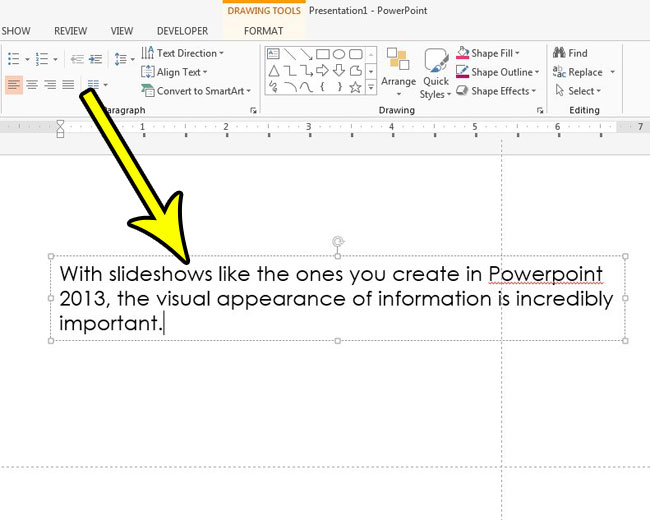
- Click the border of the text box to change all of its text, or select specific lines.
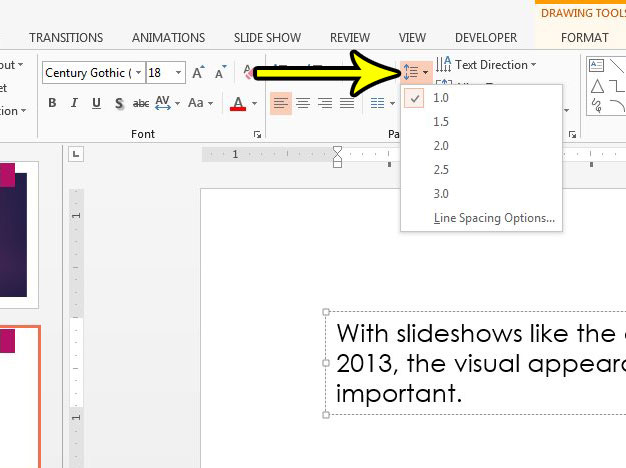
- On the Home tab, in the Paragraph group, click Line Spacing.
- Choose 1.0, 1.15, 1.5, 2.0, 2.5, or 3.0.
Method 2: Exact Spacing in the Paragraph Dialog
- Select the text box or text.
- Click Home > Line Spacing > Line Spacing Options, or click the small arrow in the corner of the Paragraph group.
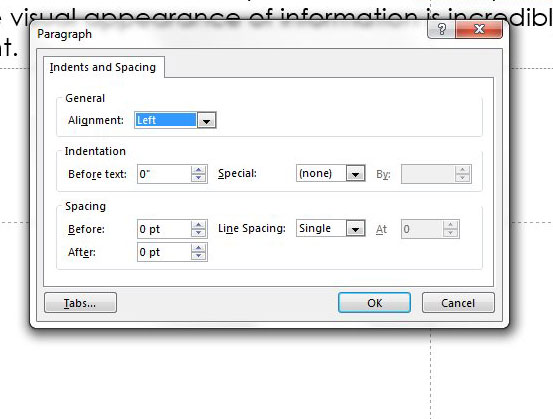
- Under Spacing, set these options:
- Before and After: space above and below each paragraph or bullet, in points.
- Line Spacing: Single, 1.5 lines, Double, Exactly (a fixed point value), or Multiple (any value, such as 0.9 or 1.2).
- Click OK.
Line Spacing Options Explained
| Setting | What it does | Good for |
|---|---|---|
| Single (1.0) | Standard spacing based on font size | Most body text |
| Multiple 0.8 to 0.9 | Tighter than single | Large headlines that look too spread out |
| Multiple 1.1 to 1.3 | Slightly airier | Readable bullet lists |
| Exactly (points) | Fixed distance regardless of font size | Consistent layouts. Large text may get clipped if the value is too small. |
| Before/After | Space between paragraphs, not between lines | Separating bullets without loosening wrapped lines |
For bullet lists, a good starting point is Multiple 1.1 with 6 pt Before. Wrapped lines stay together, while bullets are clearly separated.
Stop AutoFit from Changing Your Spacing
When text overflows a placeholder, PowerPoint’s AutoFit can shrink the font and line spacing automatically, undoing your settings.
- Right-click the text box border and choose Format Shape.
- Go to Text Options > Text Box (the third icon).
- Choose Do not Autofit, or Resize shape to fit text.
You can also click the AutoFit Options button (a small icon with arrows) that appears next to overflowing text and choose Stop Fitting Text to This Placeholder.
Set Line Spacing for the Whole Presentation
Placeholders (titles and body text)
- Go to View > Slide Master.
- Select the top (parent) master slide, and click the border of the body text placeholder.
- Set line and paragraph spacing as above.
- Click Close Master View. All slides based on those layouts update.
New text boxes
Format one text box with the spacing you want, right-click its border, and choose Set as Default Text Box. New text boxes in this presentation use the same settings.
PowerPoint for Mac and the Web
- Mac: use Home > Line Spacing, or Format > Paragraph for exact settings.
- Web: use Home > Line Spacing. Line Spacing Options offers Before, After, and line spacing values in most versions.
Troubleshooting
Spacing changes only one line
You had the cursor in one paragraph. Click the text box border (solid line) to select the whole box, then apply spacing.
Extra gaps between bullets won’t go away
Check the Before and After values, and look for empty paragraphs. Turn on formatting marks by selecting the text and looking for blank lines.
Text is cut off at the top
Exactly is set too small for the font size. Switch to Multiple or increase the value.
Frequently Asked Questions
Does line spacing affect text in shapes and tables?
Yes. The same Line Spacing tools work on text inside shapes and table cells.
Summary
- Select the text box and use Home > Line Spacing.
- Open Line Spacing Options for Multiple, Exactly, Before, and After.
- Turn off AutoFit if PowerPoint keeps shrinking your spacing.
- Use the Slide Master or Set as Default Text Box for consistent spacing.

Kermit Matthews is a freelance writer based in Philadelphia, Pennsylvania with more than a decade of experience writing technology guides. He has a Bachelor’s and Master’s degree in Computer Science and has spent much of his professional career in IT management.
He specializes in writing content about iPhones, Android devices, Microsoft Office, and many other popular applications and devices.