Quick Access is the first thing you see in Windows 10’s File Explorer. It lists pinned folders, frequently used folders, and recent files, which some people find cluttered or a privacy concern on shared PCs. Windows doesn’t have an off switch for it, but you can make File Explorer open to This PC, stop it from showing recent items, clear its history, unpin folders, and even hide it from the navigation pane completely with a registry change. Each option is covered below, from simplest to most thorough.
Your Options at a Glance
| Goal | Method | Difficulty |
|---|---|---|
| Stop opening to Quick Access | Open File Explorer to This PC | Easy |
| Hide recent files and folders | Uncheck the Privacy options and clear history | Easy |
| Remove pinned folders | Unpin from Quick access | Easy |
| Remove Quick Access from the sidebar entirely | Registry change (HubMode) | Advanced |
Is this the same in Windows 11?
Mostly. In Windows 11, Quick Access is called Home, and the same Folder Options settings apply.
Step 1: Open File Explorer to This PC
- Open File Explorer (Windows + E).
- Click the View tab, then Options (or File > Change folder and search options).
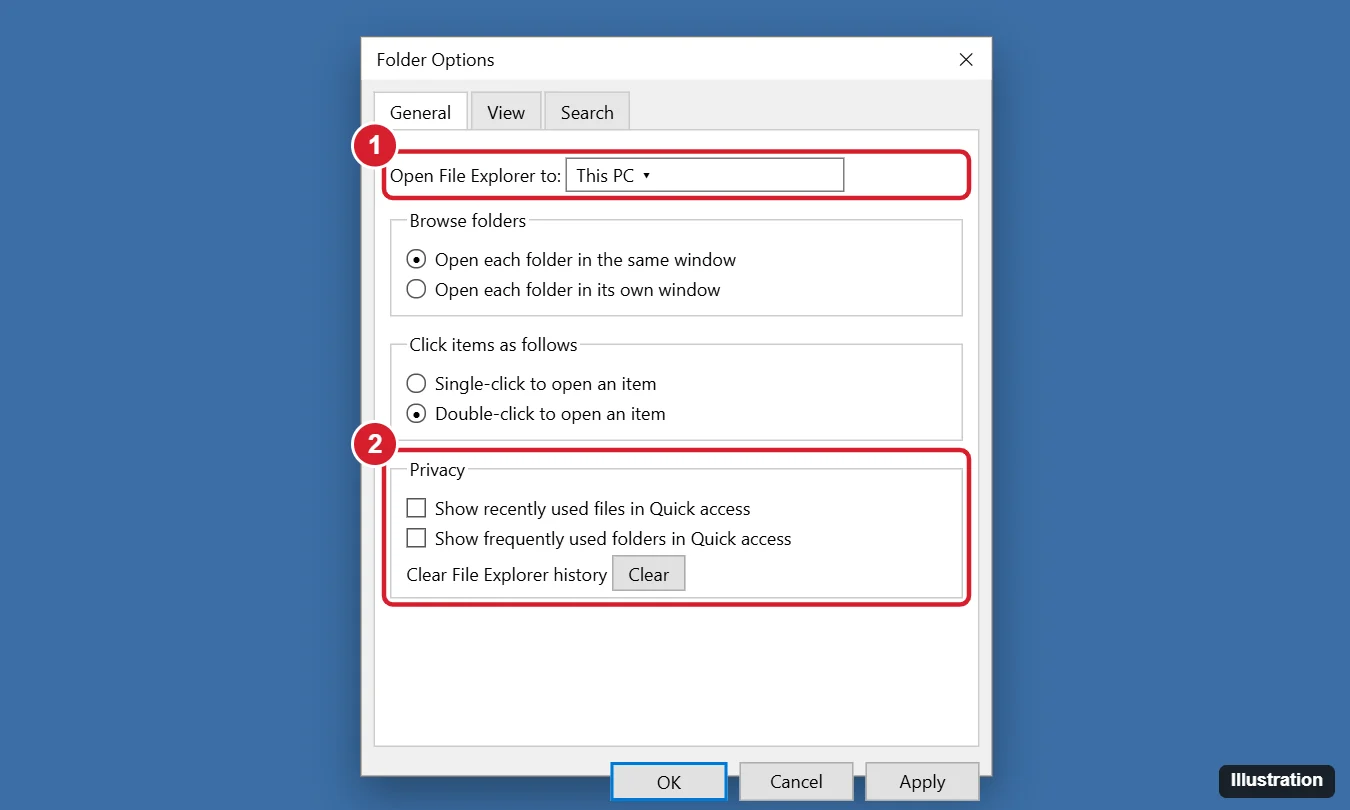
- On the General tab, set Open File Explorer to to This PC.
- Click Apply.
Step 2: Stop Showing Recent Files and Frequent Folders
- In the same Folder Options window, under Privacy, uncheck Show recently used files in Quick access.
- Uncheck Show frequently used folders in Quick access.
- Click Clear next to Clear File Explorer history.
- Click OK.
Quick Access now shows only folders you pin yourself.
Step 3: Unpin Folders
In the left pane, expand Quick access, right-click each pinned folder (it has a pin icon), and choose Unpin from Quick access. To remove a default folder that isn’t pinned, choose Remove from Quick access.
Does removing Quick Access delete my files?
No. Quick Access only shows shortcuts. Your files stay where they are.
This requires editing the registry. Back it up first (File > Export in Registry Editor) and follow the steps exactly.
- First complete Step 1, so File Explorer opens to This PC. Otherwise File Explorer may show errors when opening.
- Press Windows + R, type
regedit, and press Enter. - Go to
HKEY_LOCAL_MACHINE\SOFTWARE\Microsoft\Windows\CurrentVersion\Explorer. - Right-click Explorer and choose New > DWORD (32-bit) Value. Name it
HubMode. - Double-click HubMode, set the value to
1, and click OK. - Close all File Explorer windows and reopen File Explorer, or restart the PC.
To bring Quick Access back, delete HubMode or set it to 0. Future Windows updates may change or undo this behavior.
If Quick Access Still Misbehaves
Recent files still appear
Also check Settings > Personalization > Start and turn off Show recently opened items in Jump Lists on Start or the taskbar and in File Explorer Quick Access.
File Explorer won’t open after the registry change
Set Open File Explorer to This PC (Step 1), or delete the HubMode value.
Quick Access is slow or shows errors
Clear its history (Step 2). If the problem persists, delete the files in %AppData%\Microsoft\Windows\Recent\AutomaticDestinations. This resets Quick Access and jump lists.

Kermit Matthews runs Live2Tech from just outside Philadelphia. He is an IT specialist with over 20 years of experience, from a university help desk to small-business IT, IT management and his own consulting practice, and has written tech guides full time since 2020. Steps are checked against the current software on a real device or the maker’s official documentation. More about Kermit.