To get Calculator back in Windows 10, open the Microsoft Store, search for Windows Calculator, and click Get or Install. If it’s installed but won’t open or crashes, go to Settings > Apps > Apps & features > Calculator > Advanced options and click Repair, then Reset if needed. You can usually fix it without reinstalling Windows, and PowerShell or winget can help when the Store won’t.
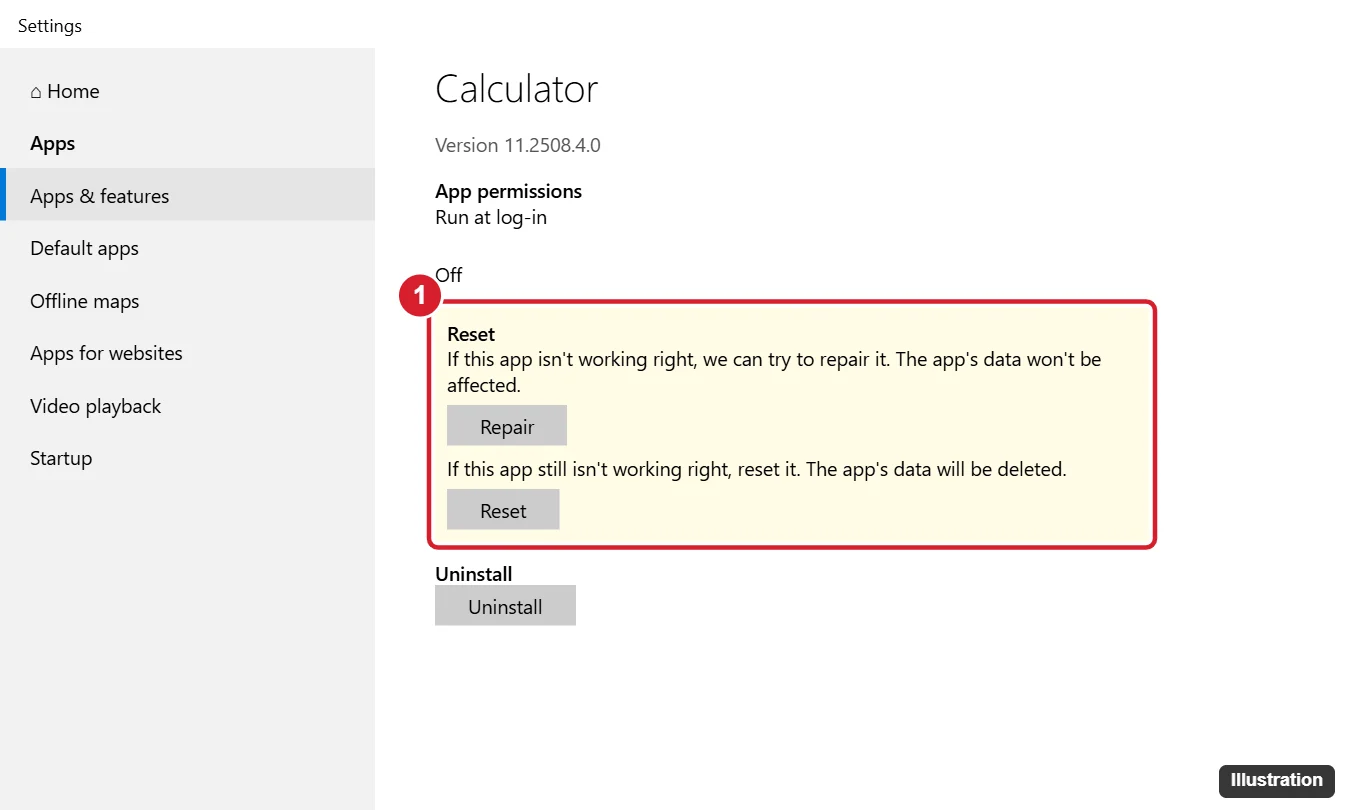
Method 1: Repair or Reset Calculator
- Go to Settings > Apps > Apps & features.
- Find Calculator and click it, then Advanced options.
- Click Repair and try opening Calculator.
- If it still fails, click Reset. This clears settings and history.
Method 2: Reinstall From the Microsoft Store
- If Calculator is installed, uninstall it first: Settings > Apps > Apps & features > Calculator > Uninstall.
- Open the Microsoft Store and search for Windows Calculator, published by Microsoft Corporation.
- Click Get or Install.
If the Store won’t open or download, run wsreset from the Run box (Windows + R) to reset its cache, then try again.
Method 3: Reinstall With winget
Windows 10 version 1809 and later can use the Windows Package Manager if App Installer is present. Open Command Prompt or PowerShell and run:
winget install 9WZDNCRFHVN5That ID is the Microsoft Store listing for Windows Calculator. Accept the agreements when prompted.
Method 4: Re-Register With PowerShell
If Calculator is present but won’t launch, re-register it:
- Right-click Start and choose Windows PowerShell (Admin).
- Run:
Get-AppxPackage -AllUsers *WindowsCalculator* | Foreach {Add-AppxPackage -DisableDevelopmentMode -Register "$($_.InstallLocation)\AppXManifest.xml"} - Restart the PC and try again.
To remove it completely before reinstalling from the Store:
Get-AppxPackage *WindowsCalculator* | Remove-AppxPackageOther Fixes
- Update Windows: Settings > Update & Security > Windows Update.
- Run the Store apps troubleshooter: Settings > Update & Security > Troubleshoot > Additional troubleshooters > Windows Store Apps.
- Repair system files: run sfc /scannow in an admin Command Prompt.
- Try a new user account: if Calculator works there, your profile’s app data is the problem.
- Work PCs: your organization may have removed Store apps; ask IT.
Ways to Open Calculator
- Type calc in Start or the Run box.
- Press the Calculator key if your keyboard has one.
- Right-click it in Start and choose Pin to taskbar.
- Create a keyboard shortcut: right-click a desktop shortcut to Calculator > Properties > Shortcut key.
Other Calculator Questions
Can I get the old Windows 7 calculator?
Microsoft doesn’t offer it for Windows 10. Third-party copies exist, but downloading system files from unofficial sites is risky. The current app includes Standard, Scientific, Programmer, Graphing and converter modes.
Why is Graphing mode missing?
It may be turned off by policy on work PCs, or your version needs an update from the Store.
Does this work in Windows 11?
Yes, with Settings under Apps > Installed apps. Windows 10 reached end of support on October 14, 2025.

Kermit Matthews runs Live2Tech from just outside Philadelphia. He is an IT specialist with over 20 years of experience, from a university help desk to small-business IT, IT management and his own consulting practice, and has written tech guides full time since 2020. Steps are checked against the current software on a real device or the maker’s official documentation. More about Kermit.