Pins in Apple Maps mark any spot you touch and hold on the map, and tapping Pin saves that spot to Places so it stays after you close the app. To mark the place where you are standing right now, touch and hold the Maps icon on the Home Screen and choose Mark My Location.
The steps below cover iPhone first, then a short section for the Maps app on a Mac.
Mark the place you are standing right now
This is the quickest route when you want to remember a parking spot, a trailhead or the entrance of a building you just found. Apple’s pin guide describes it as a shortcut you can use without opening Maps first:
- Go to the Home Screen and find the Maps icon.
- Touch and hold the icon until the quick actions menu opens.
- Choose Mark My Location.
Apple’s general page on quick actions on iPhone uses the Maps icon as an example too, but it names the option Send My Location, which is for sharing rather than marking. The two Apple pages word this menu differently, so use whichever of the two labels your menu shows.
If the menu does not offer either option, open Maps, find the blue dot that shows where you are, and use the touch and hold method in the next section on that spot. Maps can only mark where you are when it can find your location, so check your Location Services settings on iPhone if the blue dot is missing or far from where you stand.
Mark any other spot on the map
Use this when the place you care about is somewhere else: a meeting point across town, a campsite or a field with no address.
- Open the Maps app and zoom in on the area.
- Touch and hold the map until a pin marker appears.
- To refine the location, tap Move, then drag the map until the pin sits where you want it.
- Tap Pin to keep it.
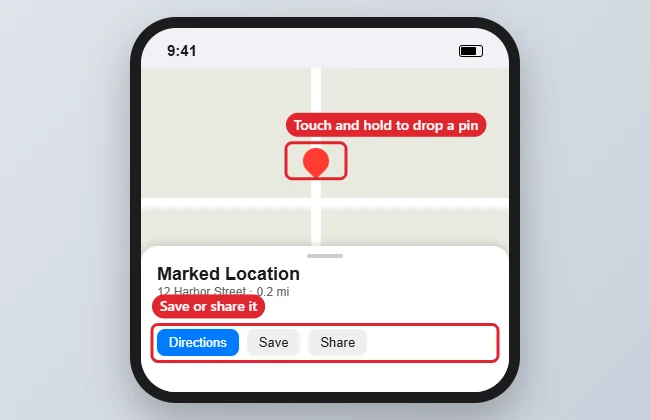
The illustration above shows an older version of Maps; current screens may look different, and the card now offers a Pin button. To get directions, tap the pin, then tap the directions button. If Maps keeps choosing driving when you usually walk, you can set your preferred transportation type once instead of changing it on every route.
Keep a pin so the next one does not replace it
Only one pin appears at a time unless you save it. If you drop a pin, skip the Pin button and then drop another, the first one is gone. Apple’s advice is simple: to mark several places with pins, save each pin as you drop it.
Saved pins appear as a row of icons in your Places when you open Maps. To see them as a list, tap Places, then tap Pinned.
Older versions of iOS used different labels. Apple’s guide for iOS 17, for example, saves a dropped pin with Add to Favorites and clears it with Remove Pin. If you see those instead of a Pin button, your Maps app is an older version, and the idea is the same: drop the pin, then save it before you drop the next one. The current wording is in Apple’s iPhone guide to marking places with pins in Maps.
Rename, move or delete a pinned place
Labels make pins easier to tell apart once you have several. To add one:
- Tap Places, then tap Pinned.
- Tap the edit button.
- Tap in the Label field to give the pin a name, such as “Trailhead parking”.
- To make the pin your Home, Work or School address, choose an option below Type.
Apple notes that if you change your Home, Work or School address after Maps prompts you to sync with My Card, you may need to update the address in both Maps and Contacts.
To delete a pin, go to Places > Pinned, swipe left on the pinned location, then tap Delete. You can also tap the edit button and choose Unpin.
Apple’s iPhone guide describes Move only while you drop a pin. To put a saved pin somewhere else, drop and save a new pin in the right spot, then delete the old one.
Copy a pin’s coordinates
Coordinates help when the other person uses a different map app, or when you need to type the location into a form or a GPS device.
- Tap Places, tap Pinned, then tap the pin.
- Swipe up to Coordinates.
- Touch and hold the coordinates, then tap Copy.
You can then paste the latitude and longitude into a message, a note or another app.
Send a pin to someone
There are two ways to share a pin from Maps:
- A pin you just dropped: touch and hold the map until the pin marker appears, then tap the share button at the top of the card.
- A saved pin: tap Places, tap Pinned, swipe left on the pin, then tap Share.
Either way, you then choose how to send it, for example by Messages or Mail.
You can also start from a conversation in Messages: tap the Plus button, tap Location, tap the Map Pin button, place the pin, then tap Send Pin. If you want someone to follow where you are as you move, that is live location sharing rather than a pin; Apple explains it in Share your location with iPhone.
Marking a location on a Mac
The Maps app on a Mac uses its own wording:
- Control-click a location on the map, then choose Mark Location.
- To keep it, click Pin in the place card.
- To move a pin, click it, click Move, drag the map to place the pin, then click Done.
- To remove one, click Pinned in the sidebar, click Edit, click the Delete button, click Delete, then click Done. On a trackpad you can instead swipe left with two fingers on the pin, then click Delete.
As on iPhone, you can have only one unsaved, marked location on the map at a time. Apple’s Mac pin guide covers renaming pins from the same Pinned list.
Apple Maps pin questions
Where do I find a pin I dropped yesterday?
If you tapped Pin, it is in Places > Pinned. If you did not save it, it is gone; drop it again and tap Pin.
Can Apple see the places I pin?
Apple’s Mac pin guide says pinned locations are end-to-end encrypted and cannot be read by Apple. The iPhone guide does not repeat that sentence.
Related guides
- Using Google Maps instead? See how to delete a dropped pin on Google Maps.
- Switch between miles and kilometers in iPhone Maps.
- Turn off Apple Maps extensions on an iPhone.

Kermit Matthews runs Live2Tech from just outside Philadelphia. He is an IT specialist with over 20 years of experience, from a university help desk to small-business IT, IT management and his own consulting practice, and has written tech guides full time since 2020. Steps are checked against the current software on a real device or the maker’s official documentation. More about Kermit.