To share a pin in the Google Maps app on Android or iPhone, touch and hold the exact spot to drop a pin, tap the place panel at the bottom, then tap Share and choose how to send the link. On a computer, Google documents sharing the map view or the spot’s coordinates instead. A shared pin is a fixed spot, not Location sharing, which shows where you are in real time.
Google’s help gives the same steps for the Google Maps app on Android and on iPhone or iPad.
- Open the Google Maps app and zoom in on the area until you can see the exact building, gate or parking spot.
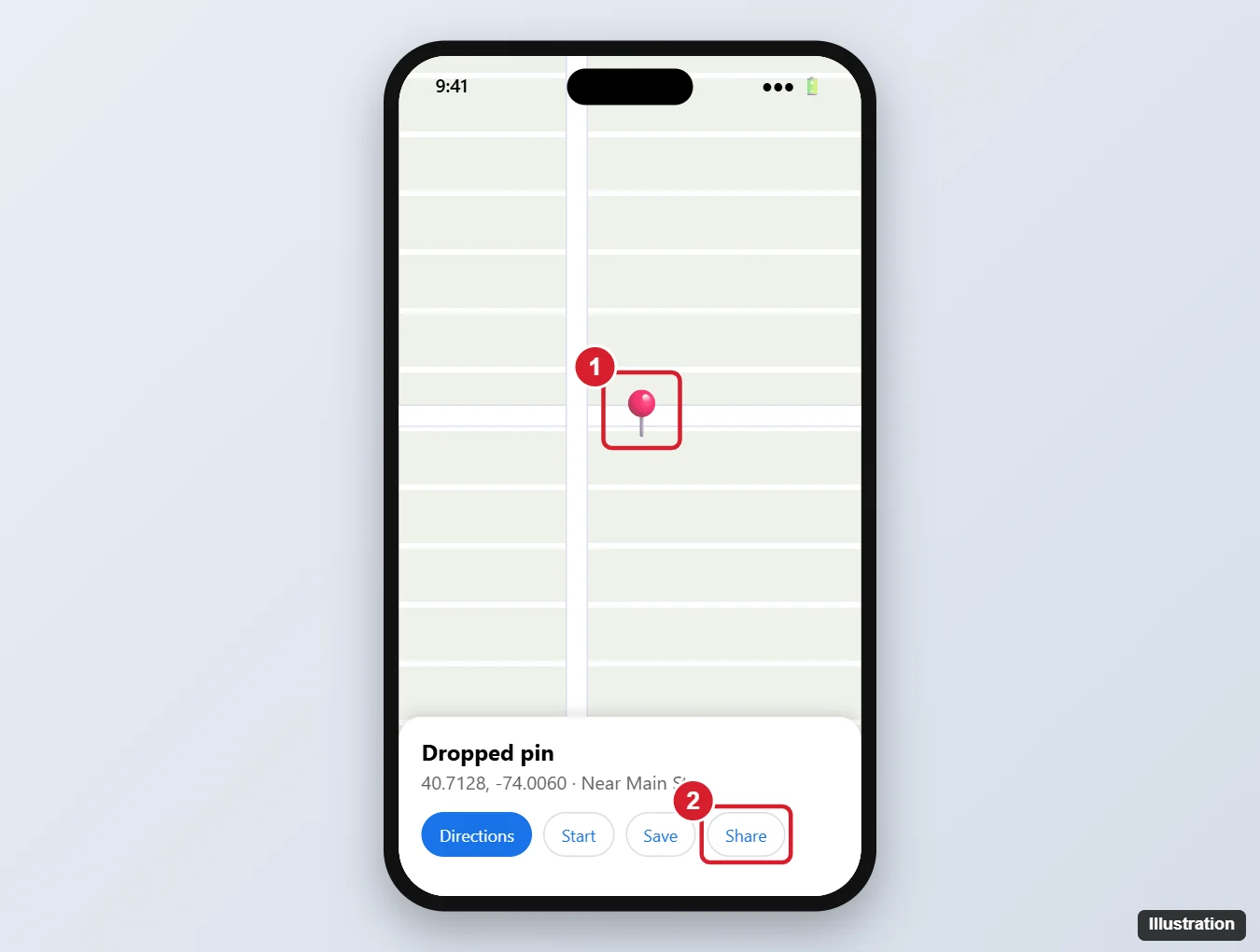
- Touch and hold a part of the map that isn’t labeled. A red pin drops on that spot and a panel appears at the bottom of the screen.
- At the bottom, tap the place’s name or address to open the full panel.
- Tap Share.
- Choose the app to send it with, such as a messaging or email app, then pick the contact and send.
The list of apps in step 5 is your phone’s own share sheet, so it varies from phone to phone; many share sheets also include a copy option if you’d rather paste the link somewhere yourself. The illustration below comes from an older version of the app, so the panel’s name in the caption and the position of its buttons may differ on your screen.
A pin on its own says nothing about which door to use. Add a short note to the message, such as “side entrance by the loading dock” or “second trailhead lot,” so the person arriving knows what the pin is pointing at.
The steps match Google Maps Help on sharing a location, which starts with “Search for a place or drop a pin on the map,” so the same Share button works for a searched address too.
Google’s help doesn’t document a Share button for a dropped pin on a computer. You can send a link to the map view, as below, or copy the spot’s exact coordinates, covered in the coordinates and Plus Code section further down.
Send a link to the map view
- Go to the part of the map you want to share and zoom so the spot sits in the middle.
- At the top left, click Menu.
- Click Share or embed map.
- Click Send a link > Copy link, then paste the link into an email or chat. To put the map on a web page instead, click Embed a map > Copy HTML.
This link opens the same area of the map, not a marked pin, so mention the landmark in your message. Google also notes that you can’t share a map with your saved locations, a map with distance measurements or an image of the map this way.
What the person you send it to gets
A shared pin is a link to one fixed spot. Opening it shows the location in Google Maps, where the other person can see the surroundings and get directions from wherever they are. Google doesn’t say what the recipient needs to open the link, but it’s an ordinary web link, so it typically opens in the Google Maps app if they have it and in a web browser otherwise.
Two things the link doesn’t do:
- It doesn’t update. If you move the pin later, send a new link.
- It doesn’t reveal where you are. Only the pinned spot is shared, not your own position.
If you’re choosing a meeting place in the first place, finding the halfway point on Google Maps can help you pick a spot that’s fair for both people before you pin it.
Send coordinates or a Plus Code instead of a link
A link isn’t always the best fit. A search-and-rescue form, a delivery note or a text to an older phone may work better with plain coordinates or a Plus Code, which is Google’s short code for a location that has no street address.
- Coordinates: Google Maps accepts decimal degrees such as 41.40338, 2.17403. Latitude comes first, and decimals use periods, not commas. On a computer, right-click the spot and click the latitude and longitude at the top of the pop-up to copy them; unlike a map-view link, they point to the exact spot. The full list of formats and how to enter them is in how to find coordinates on Google Maps.
- Plus Code on Android: touch and hold the spot to drop a pin, tap the panel at the bottom, then tap the Plus Code to copy it and paste it into your message.
- Plus Code on a computer: click the location, click the coordinates in the info box at the bottom, then click the Plus Code in the left panel to copy it.
A Plus Code looks like JJXX+HR8, Seattle. Google points out that codes are handy where there’s no street address and for telling apart different entrances to one building; the steps for each device are on its Plus Codes help page. The person you send it to can type the code or coordinates into the Google Maps search box to see the spot.
If the spot already has a name in Google Maps, sharing the place is clearer than sharing a pin. Search for the business or address, tap its name at the bottom of the screen, and tap Share. On a computer, search for it, then use Menu > Share or embed map while the place is on screen. The other person sees the place’s name and address instead of a bare pin.
Sending a route is a separate option. In the app, open directions and tap More > Share directions at the top right; on a computer, click Directions, choose a route and click Share. To send several places at once, such as every stop on a weekend trip, save them to a list and share that; pinning multiple locations on Google Maps explains lists and My Maps.
A pin is not Location sharing
A shared pin is a single, fixed spot. Location sharing sends your real-time location from your phone to people you choose for as long as you allow, and Google’s account help notes that it can include details such as your name, profile picture and battery status.
If that’s what you need, Google’s Location sharing steps for Google Maps are:
- Tap your profile picture or initial, then Location sharing > New share.
- Choose how long you want to share your location.
- Tap the person you want to share with, then tap Share.
To end it early, open Location sharing, tap the person and tap Stop.
When the pin lands in the wrong place
The pin snaps to a nearby business
Touching a labeled place opens that place instead of dropping a pin. Zoom in further and touch and hold a blank part of the map, as Google’s steps describe.
You don’t see Share
Tap the place’s name or address at the bottom to open the full panel first. If it still isn’t there, update the Google Maps app and try again.
You sent the wrong spot
Drop a new pin in the right place and send a fresh link with a quick “use this one instead.” To clear the old pin off your own map, see how to delete a dropped pin on Google Maps.
Can I label a dropped pin to share it again later?
On Android, Google documents a private Label: tap the place’s name at the bottom, then tap Label. To keep several spots, use the lists described in the multiple-locations guide linked above, and find them again with how to find saved places on Google Maps.
Can the person I send a pin to see where I am?
No. They see the spot you pinned. Only Location sharing shows them your position, and it has to be turned on separately.
Is a pin link more accurate than an address?
Usually, for places an address doesn’t describe well, such as a back entrance, a campsite or a spot in a large parking lot. For a shop or a house, the address or business listing is easier for the other person to read.
Clearing old locations is a separate task; if a former address keeps showing up in your own Maps, here’s how to delete an address from Google Maps.

Kermit Matthews runs Live2Tech from just outside Philadelphia. He is an IT specialist with over 20 years of experience, from a university help desk to small-business IT, IT management and his own consulting practice, and has written tech guides full time since 2020. Steps are checked against the current software on a real device or the maker’s official documentation. More about Kermit.