The easiest way to install GCC on Windows 10 is with MSYS2. Download and install MSYS2 from msys2.org, open the MSYS2 UCRT64 terminal, and run pacman -S mingw-w64-ucrt-x86_64-gcc. Then add C:\msys64\ucrt64\bin to your Windows Path so you can run gcc from Command Prompt or PowerShell. Check it with gcc –version.
Windows 10 reached end of support on October 14, 2025. Consumer Extended Security Updates (ESU) now run until October 12, 2027. These steps still work on Windows 10, but upgrading to Windows 11 is the long-term way to keep getting security fixes.
Below are the full steps, plus two alternatives: WSL for a Linux-style setup, and a standalone MinGW-w64 build if you don’t want a package manager.
Which option should you use?
| Option | Best for |
|---|---|
| MSYS2 (MinGW-w64) | Building native Windows programs. Easy updates with pacman. |
| WSL (Ubuntu) | Linux development, school courses, and tools that expect Linux |
| Standalone MinGW-w64 (such as WinLibs) | A portable compiler without installing a package manager |
Does this work on Windows 11?
Yes. The steps are the same.
Method 1: Install GCC with MSYS2
- Go to msys2.org, download the installer, and run it. Keep the default folder, C:\msys64.
- When it finishes, open MSYS2 UCRT64 from the Start menu.
- Update the package database: run pacman -Syu. If the window closes, reopen it and run pacman -Syu again.
- Install GCC: pacman -S mingw-w64-ucrt-x86_64-gcc, and type Y to confirm.
- Check it: gcc –version.
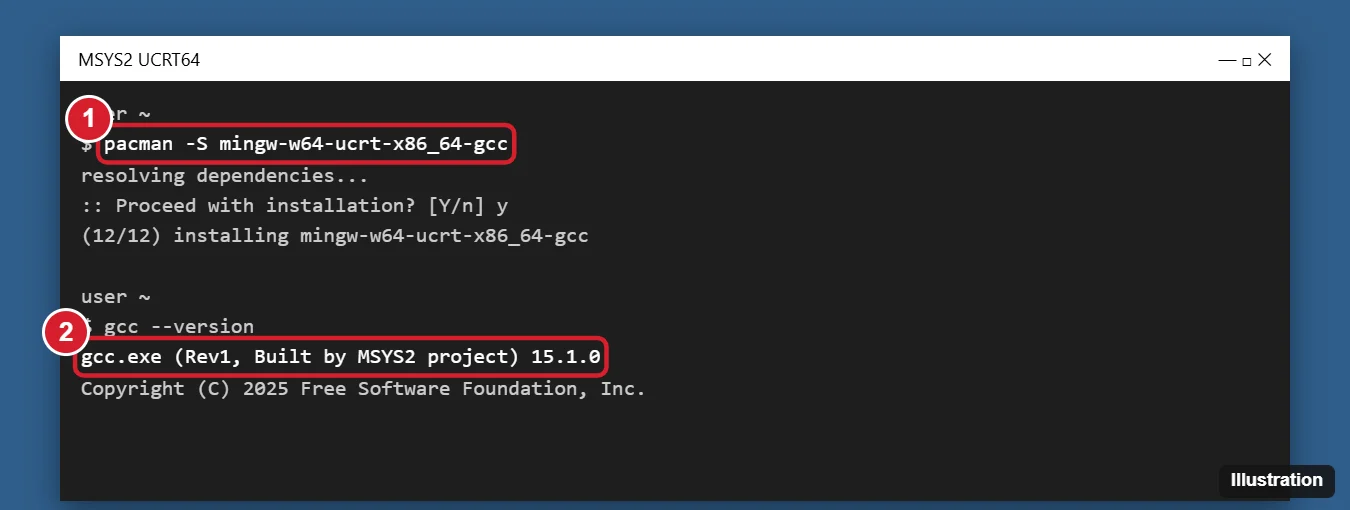
For a full toolchain including make and the debugger, install mingw-w64-ucrt-x86_64-toolchain instead.
Add GCC to your Windows Path
- Search the Start menu for Edit the system environment variables and open it.
- Click Environment Variables.
- Under User variables, select Path and click Edit > New.
- Type C:\msys64\ucrt64\bin, then click OK on each window.
- Open a new Command Prompt and run gcc –version.
Method 2: Install GCC in WSL
- Open PowerShell as administrator and run wsl –install. Restart when asked, and set up your Linux user name.
- In the Ubuntu terminal, run sudo apt update, then sudo apt install build-essential.
- Check it with gcc –version.
Programs compiled in WSL are Linux programs. Run them inside WSL, not directly in Windows.
Method 3: Standalone MinGW-w64
Download a prebuilt MinGW-w64 package (WinLibs is a popular source), extract it to a folder like C:\mingw64, and add its bin folder to your Path as shown above. Update it by downloading a newer package.
Test your compiler
- Create a file called hello.c with a simple program that prints “Hello, world!”
- In the file’s folder, run gcc hello.c -o hello.exe.
- Run hello.exe. You should see the message.
Install the full toolchain (g++, gdb, make)
The gcc package gives you the C compiler and g++ for C++. For a debugger and build tools as well, run this in the MSYS2 UCRT64 terminal instead:
pacman -S --needed base-devel mingw-w64-ucrt-x86_64-toolchain
Press Enter to accept all packages. This adds gdb for debugging and mingw32-make for building projects with makefiles.
Does this install G++ for C++ too?
Yes. The MSYS2 GCC package includes g++. In WSL, build-essential includes g++ as well.
Use GCC with Visual Studio Code
- Install Visual Studio Code and the C/C++ extension from Microsoft.
- Make sure
gcc --versionworks in a new Command Prompt, so VS Code can find the compiler. - Open a folder with a .c or .cpp file, then use Run > Run Without Debugging and choose the gcc or g++ build task.
Microsoft’s VS Code guide for MinGW-w64 walks through the configuration files in detail.
Deciding between a Windows build and a Linux build first? Installing GCC on Windows 11 or 10 with MSYS2 or WSL compares the two routes side by side.
Keep GCC up to date or remove it
- Update: Open the MSYS2 UCRT64 terminal and run
pacman -Syu. Run it again if the window closes to finish updating. - Uninstall: Remove MSYS2 from Settings > Apps, then delete C:\msys64 if it remains and remove C:\msys64\ucrt64\bin from your Path.
- WSL: Run
sudo apt update && sudo apt upgradeinside Ubuntu.
When gcc isn’t found or gets flagged
- “gcc is not recognized”: The bin folder isn’t on your Path, or you need to open a new terminal after changing it.
- Old MinGW conflicts: Remove older MinGW folders from your Path so the right gcc runs first. Run where gcc to see which one Windows finds.
- Antivirus flags compiled programs: This sometimes happens with new, unsigned executables. Add your project folder as an exclusion if you trust it.

Kermit Matthews runs Live2Tech from just outside Philadelphia. He is an IT specialist with over 20 years of experience, from a university help desk to small-business IT, IT management and his own consulting practice, and has written tech guides full time since 2020. Steps are checked against the current software on a real device or the maker’s official documentation. More about Kermit.