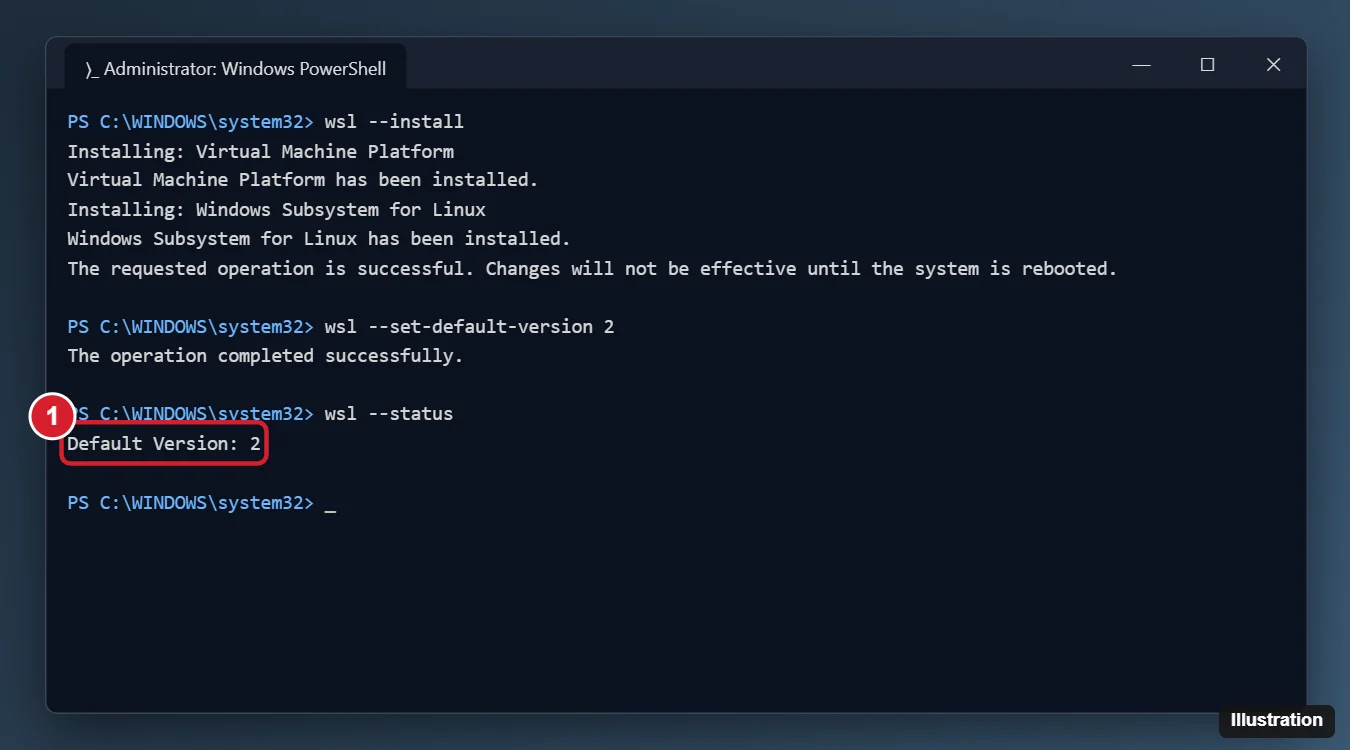
WSL 2 (Windows Subsystem for Linux 2) runs a real Linux kernel in a lightweight virtual machine, so you can use Linux command-line tools, package managers, and development environments directly on Windows 10. On current versions of Windows 10 it takes one command: right-click Start, choose Windows PowerShell (Admin), run wsl –install, and restart your PC. When it comes back, a Linux terminal opens and asks you to create a username and password. WSL 2 is the default version for new installs.
With WSL 2 working, a common next install is a local database or cache, and running Redis on Windows 10 through WSL or Docker shows the full setup and the PONG test.
Docker Engine inside WSL needs systemd turned on, and the docker.service not found fix shows the wsl.conf setting and the install steps.
Requirements
- Windows 10 version 2004 (build 19041) or later for the one-command install. Check with Windows + R, type winver, and press Enter.
- A 64-bit PC (x64 or ARM64).
- Hardware virtualization turned on in the BIOS/UEFI. Open Task Manager > Performance > CPU and look for Virtualization: Enabled.
- An administrator account.
Method 1: One-Command Install (Recommended)
- Right-click Start and choose Windows PowerShell (Admin) (or Terminal (Admin)). Click Yes.
- Run:
wsl --installThis enables the required Windows features, installs WSL, and installs the default Linux distribution (Ubuntu).
- Restart your PC when prompted.
- After restarting, the Linux terminal finishes setup. Enter a username and password for Linux (they don’t need to match your Windows account). The password won’t show as you type; that’s normal.
- Update the packages inside Linux:
sudo apt update && sudo apt upgrade
Pick a different distribution
See what’s available, then install by name:
wsl --list --online
wsl --install -d Debian
You can also install distributions from the Microsoft Store. Several distributions can be installed side by side.
Method 2: Manual Install (Older Windows 10 Builds)
Use this if wsl –install only shows help text, or you’re on build 18362/18363 (version 1903/1909). WSL 2 requires at least build 18362 on x64; updating Windows first is the simpler fix if you can.
- In an administrator PowerShell window, enable WSL:
dism.exe /online /enable-feature /featurename:Microsoft-Windows-Subsystem-Linux /all /norestart - Enable the Virtual Machine Platform feature:
dism.exe /online /enable-feature /featurename:VirtualMachinePlatform /all /norestart - Restart your PC.
- Install the latest WSL and Linux kernel:
wsl --updateIf that command isn’t recognized, download the WSL 2 Linux kernel update package for x64 from Microsoft’s WSL documentation and run it.
- Set WSL 2 as the default:
wsl --set-default-version 2 - Install a Linux distribution from the Microsoft Store and open it to create your user account.
Convert an Existing Distribution From WSL 1 to WSL 2
- List your distributions and their versions:
wsl -l -v - Convert one (replace the name with yours from the list):
wsl --set-version Ubuntu 2
Conversion can take several minutes for large distributions. Back up anything important first with wsl –export.
Useful WSL Commands
| Command | What it does |
|---|---|
| wsl | Opens your default distribution. |
| wsl -l -v | Lists installed distributions and their WSL version. |
| wsl –status | Shows the default distribution and version. |
| wsl –update | Updates WSL. |
| wsl –shutdown | Stops all running distributions and the WSL 2 VM. |
| wsl –unregister NAME | Deletes a distribution and all its files. |
Access Windows files from Linux under /mnt/c. Access Linux files from File Explorer by typing \\wsl$ in the address bar. For best performance, keep project files inside the Linux file system rather than under /mnt/c.
Fixing common WSL install errors
- Error 0x80370102 (“virtual machine could not be started”): enable virtualization (Intel VT-x or AMD-V/SVM) in the BIOS/UEFI, and confirm the Virtual Machine Platform feature is on.
- Error 0x800701bc: the WSL 2 kernel is missing. Run wsl –update.
- wsl –install only prints help: WSL is already partly installed. Run wsl –list –online and install a distribution with wsl –install -d NAME.
- No internet inside Linux: run wsl –shutdown and reopen, and check that a VPN or third-party firewall isn’t blocking the WSL network adapter.
Related: Restart WSL on Windows 11.
Related: How to install and run Ubuntu on Windows 10.
On a Windows 11 PC that reports error 0x80370102, enabling virtualization in Windows 11 shows how to check the firmware setting and reach UEFI without a startup key.
When Task Manager reports virtualization as Disabled, turn on hardware virtualization in the firmware before running the WSL install.
WSL 2 on Windows 10: other questions
Does WSL 2 work on Windows 10 Home?
Yes. WSL 2 uses the Virtual Machine Platform, which is available on Home as well as Pro.
Can I still use WSL on Windows 10 after support ended?
WSL continues to work, and it’s updated separately through wsl –update. Windows 10 reached end of support in October 2025, so future WSL releases may eventually require Windows 11.
Can I run Linux GUI apps?
Built-in GUI app support (WSLg) is officially available on Windows 11. On Windows 10, stick to command-line tools or use a third-party X server.

Kermit Matthews runs Live2Tech from just outside Philadelphia. He is an IT specialist with over 20 years of experience, from a university help desk to small-business IT, IT management and his own consulting practice, and has written tech guides full time since 2020. Steps are checked against the current software on a real device or the maker’s official documentation. More about Kermit.