Windows 11 installs most drivers automatically through Windows Update. To get extra or newer drivers, go to Settings > Windows Update > Advanced options > Optional updates, expand Driver updates, check the drivers you want, and click Download & install. For the latest graphics, audio, or printer drivers, download them from the device or PC maker’s website. You can also install a driver manually in Device Manager.
Below are all the ways to install drivers, when to use each one, and how to roll back a driver that causes problems.
Which method should you use?
| Method | Best for |
|---|---|
| Windows Update (automatic and optional) | Most devices. Safe, tested drivers. |
| Manufacturer’s website or app | Graphics cards, gaming gear, printers, and the newest versions |
| Device Manager | A specific device that isn’t working, or a driver file you already downloaded |
Method 1: Install drivers from Windows Update
- Press Windows + I and click Windows Update.
- Click Check for updates and install anything available.
- Click Advanced options > Optional updates.
- Expand Driver updates, check the drivers you want, and click Download & install.
- Restart if asked.
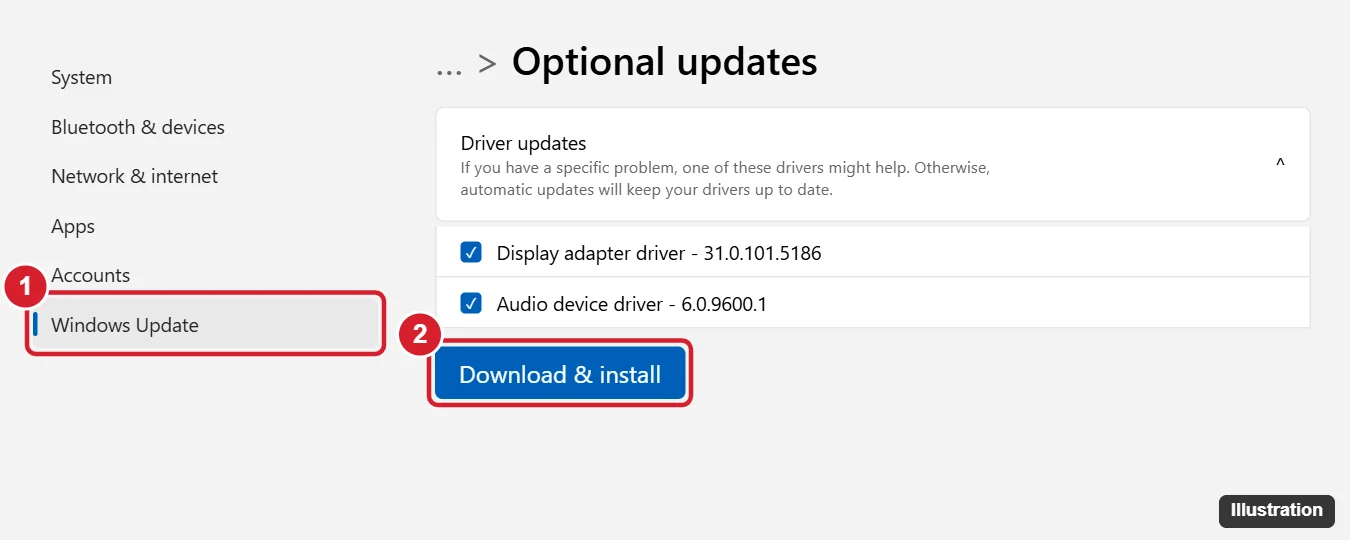
Only install optional drivers if you have a problem with a device. Otherwise, automatic updates keep your drivers current.
Method 2: Download from the manufacturer
- Find your PC or device model. For a laptop, look on the bottom label or in Settings > System > About.
- Go to the manufacturer’s official support website and search for your model.
- Download the Windows 11 driver and run the installer.
Graphics card makers and PC brands often offer their own update apps, which can check for new drivers automatically. Avoid third-party “driver updater” tools, which can install wrong drivers or bundle unwanted software.
Can I use Windows 10 drivers on Windows 11?
Often, yes, but use Windows 11 drivers when they’re available.
Method 3: Install a driver in Device Manager
- Right-click Start and choose Device Manager.
- Expand a category and right-click the device (devices with problems show a yellow warning icon).
- Choose Update driver.
- Click Search automatically for drivers, or Browse my computer for drivers if you downloaded a driver folder, then select that folder.
If the download is an .inf file, you can also right-click it and choose Install (on Windows 11, click Show more options first).
How do I check a driver’s version?
In Device Manager, right-click the device, choose Properties, and open the Driver tab.
How to roll back or remove a bad driver
- Roll back: In Device Manager, right-click the device, choose Properties > Driver tab > Roll Back Driver.
- Uninstall: Right-click the device, choose Uninstall device, check Attempt to remove the driver for this device if shown, and restart. Windows reinstalls a basic driver.
- Can’t boot? Start in Safe Mode from the recovery options and roll back from there.
Related: Fix the Driver Verifier DMA Violation error on Windows 11.
Related: Remove a printer from Windows 11.
After installing a USB-to-serial adapter driver, look up the adapter’s COM port number before opening your serial program.

Kermit Matthews runs Live2Tech from just outside Philadelphia. He is an IT specialist with over 20 years of experience, from a university help desk to small-business IT, IT management and his own consulting practice, and has written tech guides full time since 2020. Steps are checked against the current software on a real device or the maker’s official documentation. More about Kermit.