Do you like to keep a lot of folders open on your computer so that you can quickly navigate between the different files and directories that you have created?
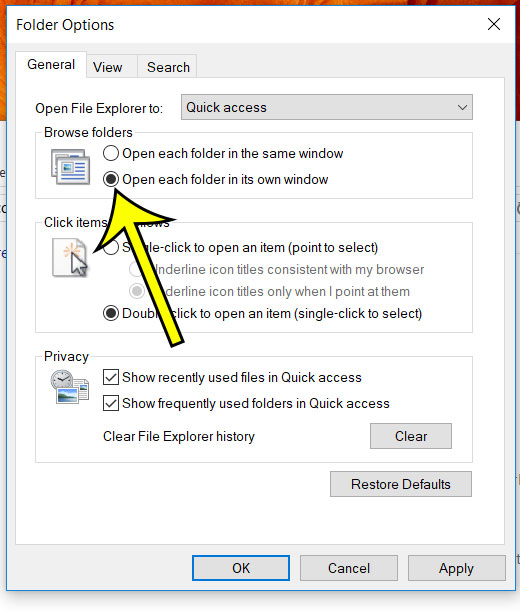
If so, then you may find it inconvenient that clicking on a folder in one window automatically directs you to that new folder and away from the current one. Fortunately there is a setting in Windows 10 that can help with this by automatically opening each folder in its own window when you click on it. The steps below show where to find the setting that controls this so you can adjust it.
How to Open New Windows for New Folders in Windows 10
These steps were performed in Windows 10. Note that by using this setting you can very easily end up with a lot of open File Explorer windows on your computer. So you will need to find a good way to manage that so that it isn’t so difficult to find what you need.
Step 1: Click the folder icon in the taskbar at the bottom of the screen.

Step 2: Click the File tab at the top-left of that window, then click the Change folder and search options button.

Step 3: Click the circle to the left of Open each folder in its own window, click Apply at the bottom of the window, then click the OK button.
Does it take a long time for your computer to start up, or do you feel like you always have to close a lot of programs after you restart you computer? Find out how to view and change the startup programs on your Windows 10 computer so that you can choose the apps that you actually want to start automatically.

Kermit Matthews runs Live2Tech from just outside Philadelphia. He is an IT specialist with over 20 years of experience, from a university help desk to small-business IT, IT management and his own consulting practice, and has written tech guides full time since 2020. Steps are checked against the current software on a real device or the maker’s official documentation. More about Kermit.