When the C drive runs low on space, Windows 10 slows down and updates can fail. Before resizing partitions, try the quick wins: turn on Storage Sense, delete temporary files, uninstall unused apps, and move large files elsewhere. Windows 10 reached end of support on October 14, 2025. Consumer Extended Security Updates (ESU) now run until October 12, 2027.
Quick Answer
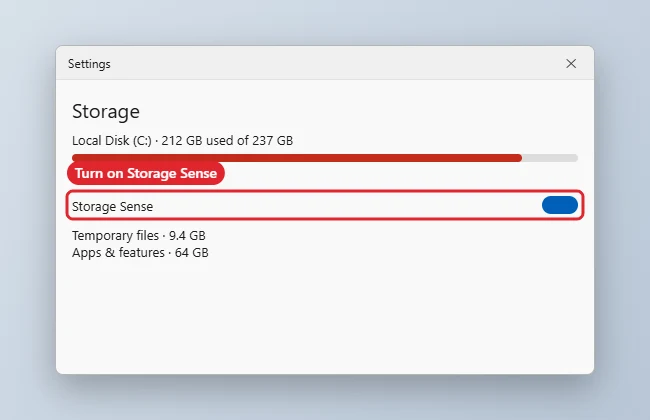
Go to Settings, then System, then Storage, switch on Storage Sense, click Temporary files to remove what you do not need, then uninstall large unused apps and move big files to another drive or cloud storage.
How to Increase C Drive Space in Windows 10
- Open Settings, System, Storage and check what is using space.
- Turn on Storage Sense and click Configure Storage Sense or run it now to clear temporary files and the Recycle Bin.
- Click Temporary files, tick the categories you do not need (check Downloads first), and click Remove files.
- Uninstall large apps and games you no longer use in Apps and features.
- Move photos, videos, and documents to another drive or cloud storage, and change new-content save locations under More storage settings.
Space Savers
| Action | Typical gain |
|---|---|
| Temporary files and Windows Update cleanup | Several GB after updates |
| Uninstall unused apps and games | Varies, often large |
| Move media to another drive | Large |
| Turn off hibernation (if unused) | Several GB |
| Extend the partition | Only with adjacent unallocated space |
Related: checking folder sizes in Windows 10.
Related: moving your Downloads folder.
Troubleshooting
- Space fills up again quickly: check Downloads and large app caches, and set Storage Sense to run weekly.
- You have unallocated space on the disk: see how to extend the C drive.
Frequently Asked Questions
Can I clear temporary files without risk?
Generally yes. The Temporary files page only offers items Windows considers safe to clear; just review Downloads before ticking it.
Should I compress the C drive?
Not usually; it can slow the PC. Clean up files first.
How much free space should I keep?
Aim for at least 10 to 15 percent free.
Summary
- Turn on Storage Sense.
- Remove temporary files.
- Uninstall unused apps.
- Move large files off C.

Kermit Matthews is a freelance writer based in Philadelphia, Pennsylvania with more than a decade of experience writing technology guides. He has a Bachelor’s and Master’s degree in Computer Science and has spent much of his professional career in IT management.
He specializes in writing content about iPhones, Android devices, Microsoft Office, and many other popular applications and devices.