Removing apps you no longer use frees up storage, declutters the Start menu, and can speed up your PC by stopping background processes. Windows 10 and Windows 11 give you several ways to uninstall apps, from a right-click in the Start menu to Settings, Control Panel, and the command line. This guide covers each method, how to remove built-in apps, and what to do when an app refuses to uninstall.
Quick Answer
Open Settings > Apps > Installed apps (Windows 11) or Settings > Apps > Apps & features (Windows 10). Find the app, click the three dots (or the app itself on Windows 10), choose Uninstall, and confirm. Or right-click the app in the Start menu and choose Uninstall.
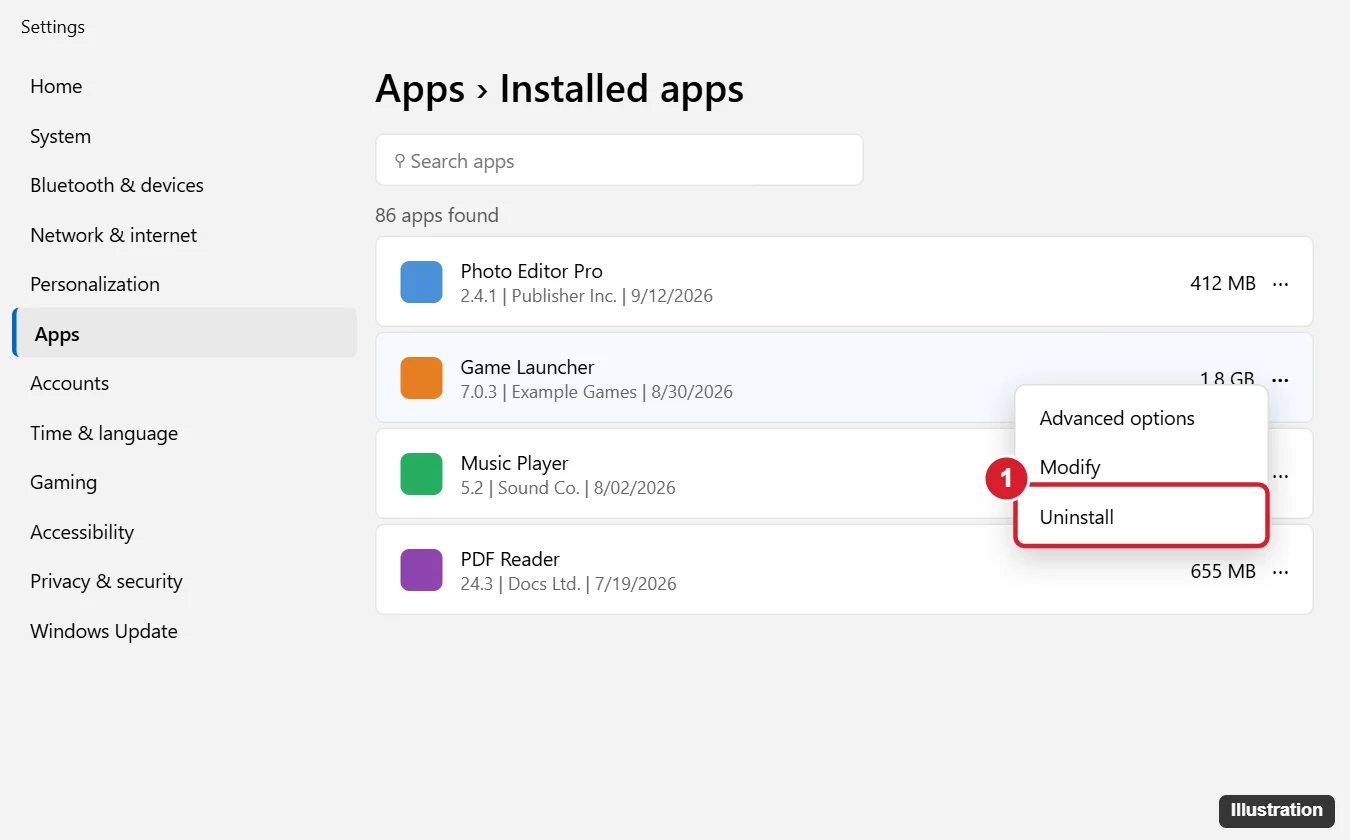
Method 1: Settings (Recommended)
Windows 11
- Press Windows + I and go to Apps > Installed apps.
- Search for the app or sort the list by Size to find large apps.
- Click the ⋯ next to the app and choose Uninstall.
- Click Uninstall again to confirm, and follow any uninstaller that opens.
Windows 10
- Go to Settings > Apps > Apps & features.
- Click the app, then Uninstall, and confirm.
Method 2: Start Menu
- Click Start and find the app (in All apps or by typing its name).
- Right-click it and choose Uninstall.
Store apps uninstall immediately after you confirm. Traditional desktop programs open Control Panel’s Programs and Features, where you finish the uninstall.
Method 3: Control Panel
- Press Windows + R, type appwiz.cpl, and press Enter.
- Select the program and click Uninstall (or Uninstall/Change).
Control Panel only lists traditional desktop programs, not Microsoft Store apps.
Method 4: Command Line (winget)
- Right-click Start and open Terminal (or Command Prompt).
- List installed apps:
winget list - Uninstall one by name or ID:
winget uninstall "App Name"
This is handy for removing several apps quickly.
Removing Built-In Windows Apps
- Many preinstalled apps (such as news, games, or trial apps) can be uninstalled in Settings the same way.
- Some core apps can’t be removed from Settings; their Uninstall option is grayed out. Advanced users can remove some with PowerShell (Get-AppxPackage *name* | Remove-AppxPackage), but removing system components can break features, so only do this if you know what the app does.
- Reinstall any built-in app from the Microsoft Store if you change your mind.
When an App Won’t Uninstall
- Close it first: end it in Task Manager (Ctrl + Shift + Esc), including background processes and tray icons.
- Restart the PC and try again.
- Use the app’s own uninstaller in its folder under C:\Program Files (often named uninstall.exe or unins000.exe).
- Run the Program Install and Uninstall troubleshooter from Microsoft’s support site, which fixes broken uninstall entries.
- Security software: antivirus programs often require their vendor’s removal tool.
- Uninstall in Safe Mode if something blocks it during normal startup.
Clean Up Leftovers (Optional)
- Check C:\Program Files, C:\Program Files (x86), and %AppData% for folders the app left behind, and delete them only if you’re sure they belong to the removed app.
- Run Settings > System > Storage > Cleanup recommendations (Windows 11) or Disk Cleanup to clear temporary files.
Not sure what is installed? See how to check installed apps.
Related: Uninstall a program on Windows 11.
Frequently Asked Questions
Does uninstalling an app delete my files?
Usually not. Documents you created stay where you saved them. Some apps offer to delete settings or saved data during uninstall.
What’s the difference between uninstalling and deleting the app’s folder?
Uninstalling removes the program properly, including registry entries and shortcuts. Deleting the folder leaves broken leftovers.
Can I uninstall apps without admin rights?
You can remove Store apps installed for your account. Most desktop programs require an administrator.
Summary
- Go to Settings > Apps > Installed apps (or Apps & features) and choose Uninstall.
- Or right-click the app in Start and choose Uninstall.
- Use Control Panel or winget uninstall as alternatives.
- Close stubborn apps, restart, or use the vendor’s removal tool if uninstalling fails.

Kermit Matthews is a freelance writer based in Philadelphia, Pennsylvania with more than a decade of experience writing technology guides. He has a Bachelor’s and Master’s degree in Computer Science and has spent much of his professional career in IT management.
He specializes in writing content about iPhones, Android devices, Microsoft Office, and many other popular applications and devices.