To disable the screensaver in Windows 10, open Settings > Personalization > Lock screen, click Screen saver settings, set Screen saver to (None), and click OK. If your screen still goes dark, that’s the display power setting, not the screensaver; change it in Settings > System > Power & sleep.
Windows 10 reached end of support on October 14, 2025. Consumer Extended Security Updates (ESU) now run until October 12, 2027.
Quick Answer
Settings > Personalization > Lock screen > Screen saver settings > (None) > OK.
Turn Off the Screensaver
- Right-click the desktop and choose Personalize.
- Click Lock screen, then Screen saver settings at the bottom.
- Choose (None) in the Screen saver list.
- Click OK.
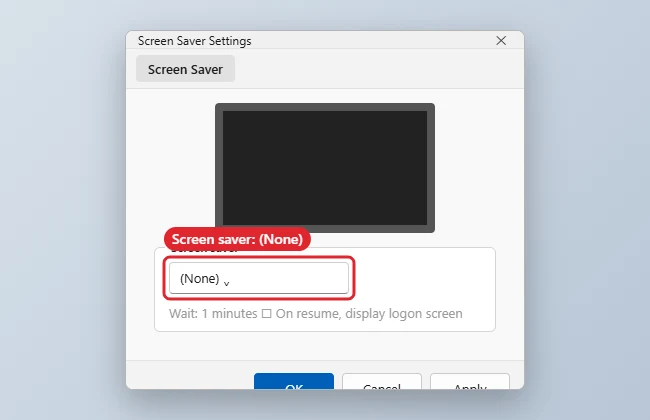
Quick shortcut: search Start for screen saver and choose Change screen saver.
Screensaver vs. Screen Timeout vs. Sleep
| Feature | What happens | Where |
|---|---|---|
| Screensaver | Shows an animation after idle time | Lock screen > Screen saver settings |
| Screen timeout | Turns the display off | System > Power & sleep > Screen |
| Sleep | Puts the PC into low-power sleep | System > Power & sleep > Sleep |
To secure your PC while away, see how to lock your keyboard and PC.
Other Ways to Open Screen Saver Settings
- Control Panel: Open Control Panel, choose Appearance and Personalization, then Change screen saver.
- Run box: Press Windows+R, type
control desk.cpl,,@screensaverand press Enter. - Start search: Type screen saver and choose Change screen saver.
All three open the same Screen Saver Settings dialog, so set the list to (None) and click OK as above.
If the Screensaver Keeps Coming Back
A few things can switch a screensaver back on. Applying a new theme from Personalization > Themes can bring its own screensaver with it, so check the setting again after changing themes. On work or school PCs, an administrator can enforce a screensaver through Group Policy (User Configuration > Administrative Templates > Control Panel > Personalization), and you will not be able to change it yourself. If the dialog is greyed out, ask your IT team rather than trying to work around it.
Troubleshooting
- Settings are grayed out: Your organization may enforce a screensaver through policy for security.
- Screen still turns off: Change the Screen timeout; see power and sleep settings.
- Want the PC to lock when you walk away? Turn on Dynamic Lock (Settings > Accounts > Sign-in options), which locks Windows when your paired phone goes out of range, or keep a screensaver with "On resume, display logon screen" ticked.
- On Windows 11? See turning off the screen saver in Windows 11.
Frequently Asked Questions
Do screensavers save energy?
No. Turning the screen off saves more power than a screensaver.
Can I turn it back on later?
Yes. Choose a screensaver and a wait time in the same dialog.
Summary
- Open Screen saver settings.
- Choose (None) and click OK.
- Change Screen timeout separately.
- Check for policy if options are grayed out.

Kermit Matthews runs Live2Tech from just outside Philadelphia. He started on a university help desk, spent years as the IT person for small businesses, and has been writing tech guides full time since 2020. Each guide is checked on a device he owns, and re-checked when a menu moves. More about Kermit.