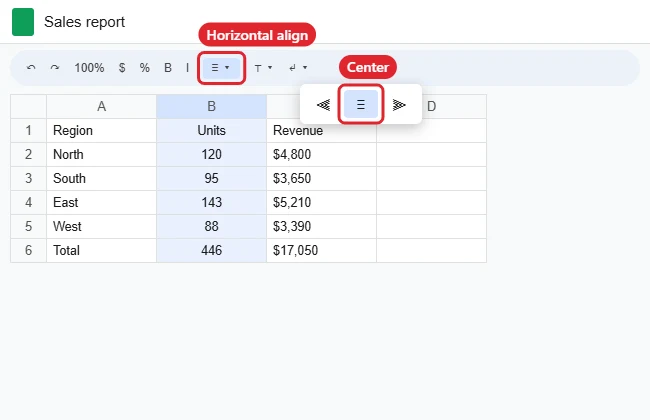
To center data horizontally in Google Sheets, select the cells, click the Horizontal align button in the toolbar, and choose Center. You can also use Format > Alignment > Center, or press Ctrl + Shift + E (Command + Shift + E on a Mac). The text moves to the middle of each cell from left to right.
By default, Sheets aligns text to the left and numbers to the right, so centering is useful for headers and short values that should line up neatly.
Center Data With the Toolbar
- Select the cells. Click a column letter to select a whole column, or the box above row 1 for the whole sheet.
- Click Horizontal align in the toolbar (the icon with stacked lines).
- Choose the Center icon.
Can I make centered alignment the default?
Not directly. Center the columns before you type, or copy the formatting with the Paint format tool.
Does centering change the data?
No. It only changes how values look, not the values themselves.
Alignment Shortcuts
| Alignment | Windows and ChromeOS | Mac |
|---|---|---|
| Left | Ctrl + Shift + L | Command + Shift + L |
| Center | Ctrl + Shift + E | Command + Shift + E |
| Right | Ctrl + Shift + R | Command + Shift + R |
Center Vertically Too
To put text in the middle of a tall cell, click Vertical align (next to Horizontal align) and choose Middle, or use Format > Alignment > Middle. Combine both for text that’s centered in every direction.
Center a Title Across Several Columns
To center one heading across columns A to E, select A1:E1 and use Format > Merge cells > Merge horizontally, then center it. Merged cells can make sorting and copying harder, so use them only for titles above your data.
Center Data in the Mobile App
- Tap the cells to select them.
- Tap the Format button (the A with lines).
- On the Text tab, tap the center alignment icon.
If Centering Looks Off
- Numbers still look off-center: Different number formats have different widths. Apply the same format to the column, or use a monospaced number format.
- The shortcut doesn’t work: A browser extension may be using it. Use the toolbar button instead.

Kermit Matthews runs Live2Tech from just outside Philadelphia. He is an IT specialist with over 20 years of experience, from a university help desk to small-business IT, IT management and his own consulting practice, and has written tech guides full time since 2020. Steps are checked against the current software on a real device or the maker’s official documentation. More about Kermit.