To add borders to cells in Google Sheets, select the cells, click the Borders icon in the toolbar (a square divided into four), and choose a border type, such as All borders or Outer borders. Use the pencil icon in the same menu to pick a Border color, and the lines icon to choose a Border style, like thick, dashed, or double. To remove borders, select the cells and choose Clear borders.
Below are step-by-step instructions for computers, phones, and tablets, plus tips for printing and fixing borders that won’t show.
How to add borders on a computer
- Select the cells you want to border.
- Click the Borders icon in the toolbar. If your window is narrow, click the three-dot More icon to find it.
- Optional: click Border color (pencil) and Border style (lines) first. These apply to borders you add next.
- Click a border type.
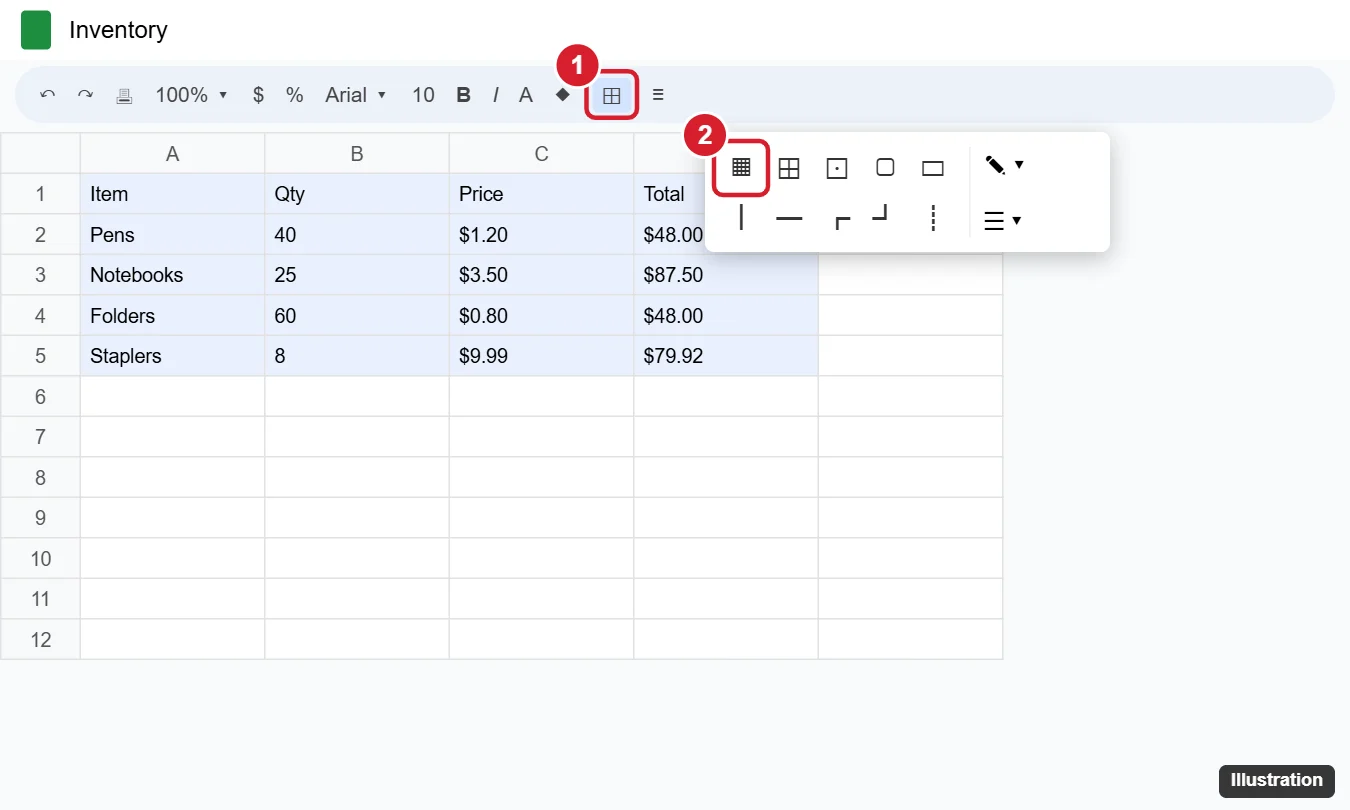
Border types explained
| Option | What it does |
|---|---|
| All borders | Lines around every cell in the selection |
| Inner borders | Lines between cells, but not around the outside |
| Horizontal / Vertical borders | Only inner horizontal or vertical lines |
| Outer borders | A box around the whole selection |
| Left / Top / Right / Bottom border | One edge of the selection |
| Clear borders | Removes all borders from the selection |
Border styles
The Border style menu offers thin, medium, and thick solid lines, plus dotted, dashed, and double lines. A common look for tables is a thin gray All borders with a thick Outer border and a Bottom border under the header row.
How to add borders on the Google Sheets app
- Open the spreadsheet and tap a cell, then drag the blue handles to select more.
- Tap the Format icon (the letter A with lines) at the top.
- Tap the Cell tab, then tap Borders.
- Choose a border type, color, and style.
Faster ways to format tables
- Convert to table: Select your data and choose Format > Convert to table for automatic styling, headers, and filters. See how to convert a range to a table in Google Sheets.
- Alternating colors: Choose Format > Alternating colors for banded rows, which can replace inner borders.
- Copy formatting: Use the Paint format roller to copy borders to other cells.
- Keyboard shortcuts (Windows / ChromeOS): Alt + Shift + 7 for outer border, Alt + Shift + 6 to clear borders. On a Mac, use Option + Shift instead of Alt + Shift. Press Ctrl + / to see all shortcuts.
Borders vs. gridlines
Gridlines are the faint lines that show on screen but don’t print by default. Borders show on screen and in print. To hide gridlines so only your borders show, click View > Show and uncheck Gridlines. When printing, you can also turn gridlines on or off under Formatting in the print settings.
Borders not showing?
- The border color is white or matches the fill. Change the Border color and reapply.
- Conditional formatting can’t add borders, but a fill color may hide a light border. Try a darker style.
- Merged cells may need the border applied to the whole merged range.
- You only have view access. Ask for edit access or make a copy.
Related: Split a cell diagonally in Google Sheets.
Frequently asked questions
How do I remove only one border?
There’s no single “remove one edge” option. Use Clear borders, then add back the edges you want, or apply a white border to that edge.
Can I change the default border color?
No, but once you pick a color, it stays selected while you work in that spreadsheet.
How do I add a border around the whole sheet?
Select your data range and choose Outer borders. Selecting the entire sheet adds borders to thousands of empty cells.

Kermit Matthews is a freelance writer based in Philadelphia, Pennsylvania with more than a decade of experience writing technology guides. He has a Bachelor’s and Master’s degree in Computer Science and has spent much of his professional career in IT management.
He specializes in writing content about iPhones, Android devices, Microsoft Office, and many other popular applications and devices.