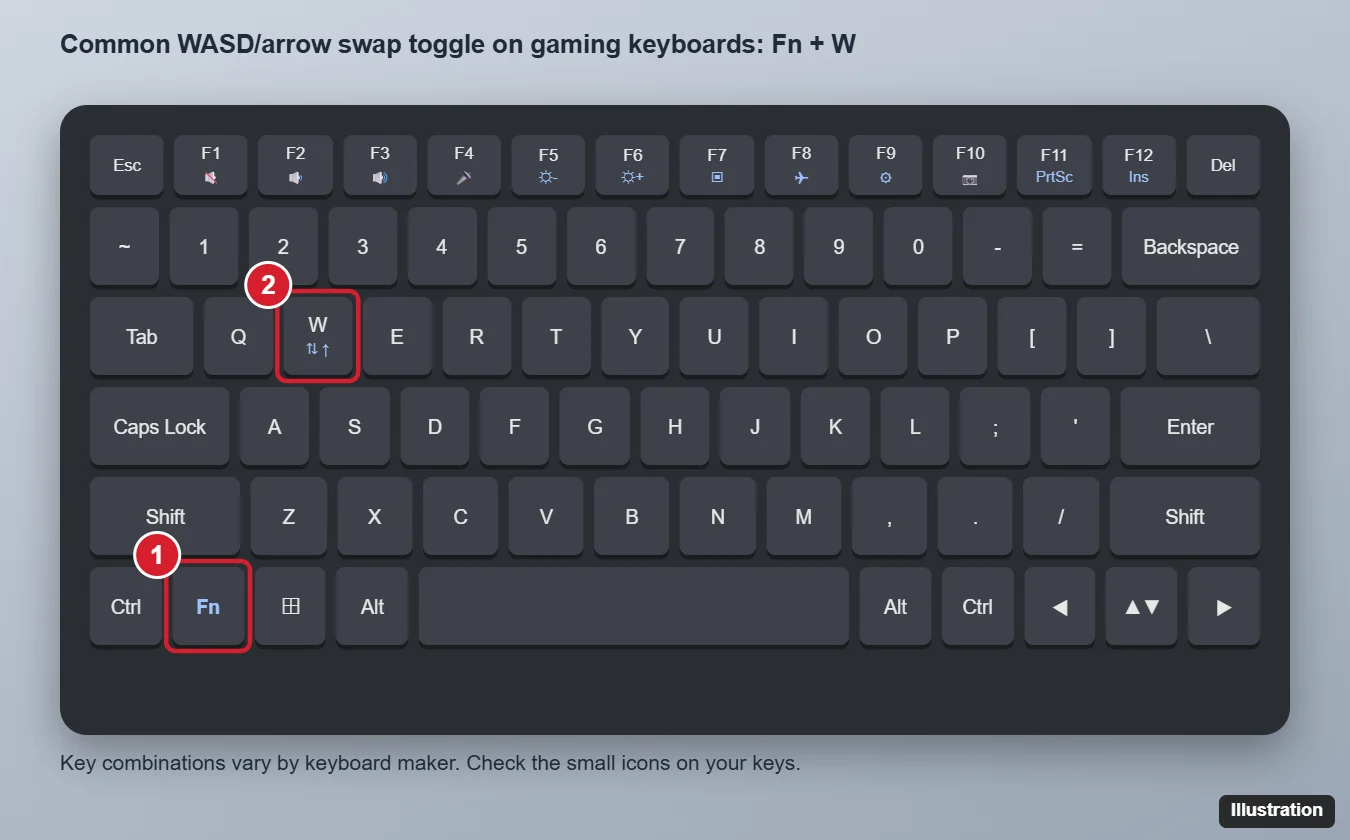
If pressing W, A, S, and D suddenly moves your cursor like arrow keys, or the arrow keys type letters instead, press Fn + W to toggle the swap back. This is almost never a Windows 10 setting. It is a feature built into many gaming keyboards so that games can use either key set. If Fn + W does nothing, try the other toggles below, check the keyboard software, or reset the keyboard.
Common Toggles to Try
Different brands use different combinations. Try these one at a time and test after each:
| Combination | Commonly found on |
|---|---|
| Fn + W | Many gaming and budget mechanical keyboards |
| Fn + A or Fn + S | Some compact keyboards |
| Fn + arrow key (Up or Left) | Some 60% and 65% keyboards |
| Fn + Windows key | Toggles gaming mode (Windows key lock), which can be linked to key swaps |
| Fn + Esc (held 3 to 5 seconds) | Resets many keyboards to factory defaults |
Look closely at your W key and arrow keys for tiny printed icons, such as arrows or a swap symbol. That icon usually tells you which key to press with Fn. Your keyboard's manual or support page will list the exact combination.
Why did my WASD and arrow keys swap?
You likely pressed the keyboard's swap shortcut (often Fn + W) by accident, or a game profile in the keyboard software changed the layout.
Step 1: Confirm It Is the Keyboard
- Open Notepad and press W, A, S, D, and the arrow keys to see exactly what happens.
- Press the keys on the On-Screen Keyboard (search for it in Start). If the on-screen keys work normally, the problem is in the physical keyboard, not Windows.
- If you have another keyboard, plug it in. If it works normally, your main keyboard is in swap mode.
Step 2: Use the Keyboard's Toggle
- Hold Fn and press W once.
- Test in Notepad.
- If nothing changes, try the other combinations in the table above.
Some keyboards show a light on a key or flash the backlight to confirm the mode changed.
Step 3: Check the Keyboard Software
If you use your keyboard maker's app (common with gaming keyboards from brands like Logitech, Razer, Corsair, SteelSeries, and others), open it and check:
- Active profile: a game profile may remap WASD to arrows. Switch to the default profile.
- Key assignments: reset W, A, S, D and the arrow keys to default.
- Game mode settings: turn off features that swap keys or disable the Windows key.
- Onboard memory: some keyboards store profiles on the device, so the swap persists even on other computers until you reset the onboard profile.
The swap happens only in one game
Check that game's control settings; the game itself may have remapped the keys.
Step 4: Reset the Keyboard
- Many keyboards reset with Fn + Esc held for several seconds. Others use a combination printed in the manual.
- Unplug the keyboard for 30 seconds and plug it back in. For wireless keyboards, turn them off and on and reconnect.
- Update the keyboard's firmware using the maker's software, if available.
Step 5: Rule Out Windows Settings and Remapping Tools
- Remapping software: tools like Microsoft PowerToys (Keyboard Manager) or AutoHotkey scripts can remap keys. Open them and remove any WASD or arrow remaps, or close them to test.
- Keyboard layout: go to Settings > Time & Language > Language and remove any unfamiliar keyboard layouts.
- Accessibility: turn off Mouse Keys in Settings > Ease of Access > Mouse. Mouse Keys uses the number pad, not WASD, but it can cause similar confusion.
- Driver: in Device Manager > Keyboards, right-click your keyboard, choose Uninstall device, and restart to reinstall it.
Laptop Keyboards
Some gaming laptops include the same swap feature. Check the laptop's control center app (for example, a performance or gaming hub) for a key swap or "WASD mode" setting, and look for an arrow icon printed on the W key.

Kermit Matthews runs Live2Tech from just outside Philadelphia. He is an IT specialist with over 20 years of experience, from a university help desk to small-business IT, IT management and his own consulting practice, and has written tech guides full time since 2020. Steps are checked against the current software on a real device or the maker’s official documentation. More about Kermit.