Say a client’s name has to be right in every place it appears in a 40-page Google Doc before you send it. Use the find shortcut, Ctrl + F on Windows or ChromeOS or ⌘ + F on a Mac, type the name, and Google Docs highlights the matches. Then press Ctrl + G (⌘ + G) to jump to each one in turn. On a phone, the Docs app has the same search under More > Find and replace.
What each search route finds
Google Docs gives you four places to search, and they answer different questions. Pick the row that matches the job:
| Route | Open it with | Searches | Use it when |
|---|---|---|---|
| Find bar | Ctrl + F (⌘ + F) | The open document | You want to see every place a word appears and step through them |
| Find and replace box | Ctrl + H (⌘ + Shift + H) or Edit > Find and replace | The open document, with Match case and regular expressions | Capitals matter, or you need a pattern such as any five-digit number |
| Docs app search | More > Find and replace | The document open on your phone or tablet | You are away from a computer |
| Drive search bar | drive.google.com | Text inside your files, plus file names | You don’t know which document holds the word |
Every shortcut in the table comes from Google’s Docs keyboard shortcuts list, which has the Windows, ChromeOS and Mac versions side by side.
Step through every match with the find bar
Google’s Docs search help confirms the shortcut: you can search within a file using Ctrl + F (⌘ + F on a Mac). From there:
- Open the document in Google Docs in your browser.
- Press Ctrl + F (Windows or ChromeOS) or ⌘ + F (Mac). The find bar opens inside Docs.
- Type the word or phrase. The matches are highlighted in the document.
- Press Ctrl + G (⌘ + G) to go to the next match.
- Press Ctrl + Shift + G (⌘ + Shift + G) to go back to the previous one.
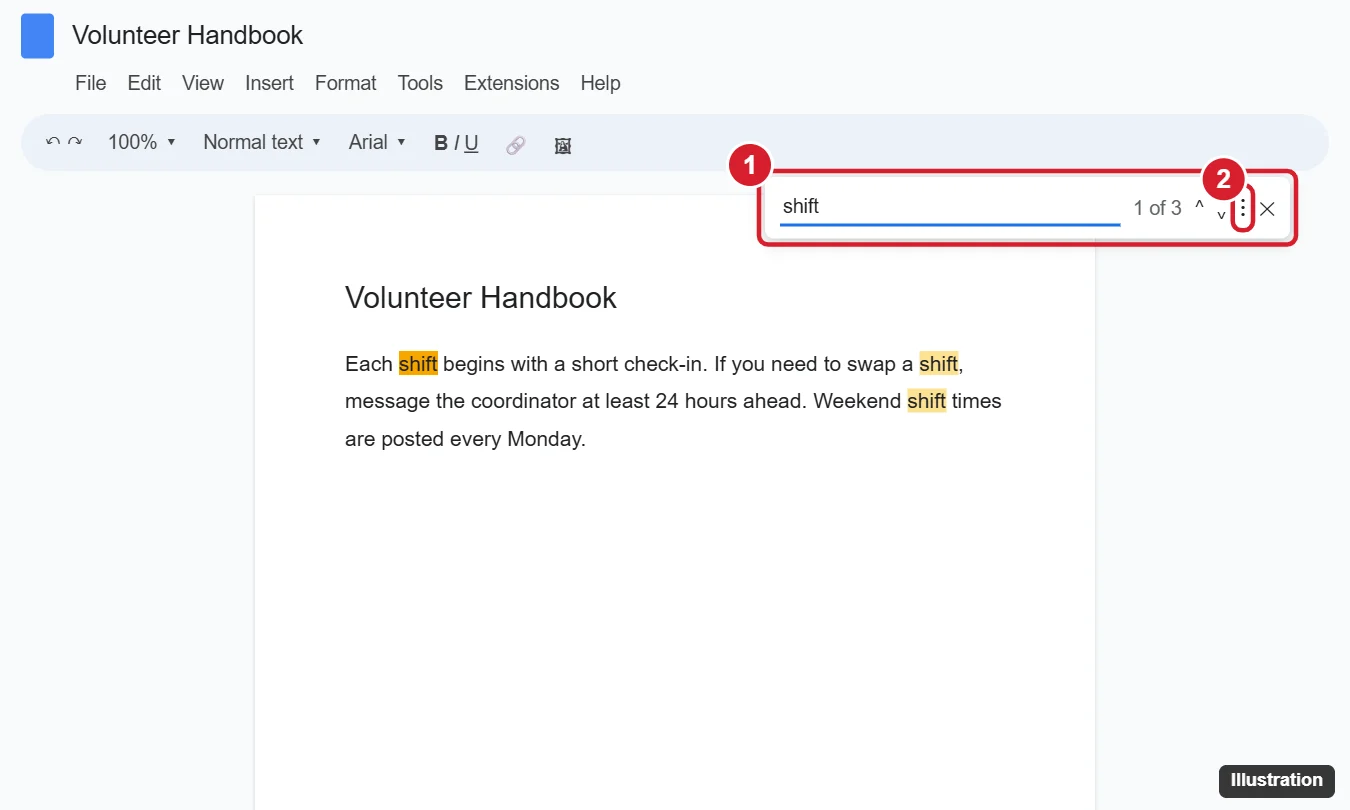
The illustration above is from an older version of the editor. Google’s current help pages don’t describe the find box layout, so the box on your screen may look different.
On a long document, fix each match as you land on it, then press Ctrl + G again, so you see every mention in context (a heading, a table cell, a caption).
Narrow the results in the Find and replace box
When the find bar turns up too much, open Edit > Find and replace (or press Ctrl + H, ⌘ + Shift + H on a Mac). Type the word next to Find, then use Next and Prev to move between matches. You don’t have to type anything in the replace field; the box works fine as a search tool on its own.
Google lists two options in this box for Docs:
- Match case: matches only words with the same capitalization. A search for Lee with Match case on skips “lee” and “LEE,” which helps when a surname is also an ordinary word.
- Match using regular expressions: matches text based on a pattern rather than exact letters. Google’s page uses a ZIP code pattern,
[0-9]{5}(-[0-9]{4})?, which finds five-digit codes with or without the four-digit extension.
Some details on regular expressions from Google’s page are worth knowing before you try one:
- Google products use RE2 for regular expressions.
- To search for a character that has a special meaning in a pattern, such as $, put a backslash in front of it.
- Google says the start and end anchors ^ and $ only work in Google Sheets, so they won’t help in a Doc.
A plain search also finds your word inside longer words, so “port” turns up in “report” and “transport.” If you only want the word on its own, try searching with a space before and after it. That simple trick misses a word followed by a comma or a period, so check those spots with a second search.
Once you have found what you are looking for, changing it is a separate job with its own risks, such as Replace all hitting partial matches. That is covered in how to replace words in Google Docs.
Search from the Docs app on Android, iPhone or iPad
The phone and tablet apps have no find bar shortcut, but the same search sits in the menu. Google’s steps for the Android Docs app:
- Open the document in the Google Docs app.
- Tap More > Find and replace.
- Type the word you want to find and tap Search.
- To see every time the word is used, tap the arrows in the top right.
- Tap Done to return to the document.
On iPhone and iPad the route is the same, More > Find and replace, then Search, with the arrows at the top of the screen. The one difference Google lists is the exit button: tap Close to go back to the document.
Search for a word across all your files in Drive
If you remember a phrase but not which document it was in, search from Google Drive instead of opening files one by one. Google’s Drive search help describes it:
- Go to drive.google.com.
- Type the word or phrase in the search bar at the top. Drive searches text within files as well as file names.
- Use the filter chips under the search bar, Type, People and Modified, to narrow the list, for example to documents only or to files changed last month.
- Open the most likely result, then use Ctrl + F inside it to land on the exact spot.
Put a phrase in quotation marks to match it exactly, and add a minus sign before a word to leave out files that contain it. If what you are hunting for is a PDF on the web rather than a file in your Drive, that is a different search; see how to search for PDFs on Google.
When a word you can see won’t turn up
- Match case is on: if you used the Find and replace box earlier, a capital letter in your search may be filtering out the match. Turn Match case off and search again.
- Regular expressions are on: with that option ticked, characters such as a period or a dollar sign act as pattern symbols. Turn it off for a plain-text search, or put a backslash before the symbol.
- Spelling or spacing differs: a double space, a hyphen or a typo in the document stops an exact match. Search for a shorter piece of the word, such as the first five letters.
- You are searching the wrong file: copies with similar names are common. Check the file name at the top, or use Drive search to find every file that contains the word.
Docs word search questions
Can I count how many times a word appears?
Google’s help pages don’t describe a match counter, so the dependable way is to step through with Ctrl + G and keep a tally. Word count (Ctrl + Shift + C) counts every word in the document rather than one word’s appearances; see how to check word count in Google Docs for what it does measure.
Can I search just one section of a long document?
The find tools search the open document rather than one section. To focus on one part, jump to its heading first with the document outline in Google Docs, then use Ctrl + G and stop when the matches leave that section.
Do the Mac shortcuts differ from Windows?
Mostly they swap Ctrl for ⌘, but Find and replace is the exception: Ctrl + H on Windows and ChromeOS, ⌘ + Shift + H on a Mac. If you’re searching a Microsoft Word file instead, Word has its own keys; see find and replace in Word on a Mac.
Once every mention reads the way it should, a final spelling and grammar pass is the natural next step; adding Grammarly to Google Docs covers one way to set that up.

Kermit Matthews runs Live2Tech from just outside Philadelphia. He is an IT specialist with over 20 years of experience, from a university help desk to small-business IT, IT management and his own consulting practice, and has written tech guides full time since 2020. Steps are checked against the current software on a real device or the maker’s official documentation. More about Kermit.