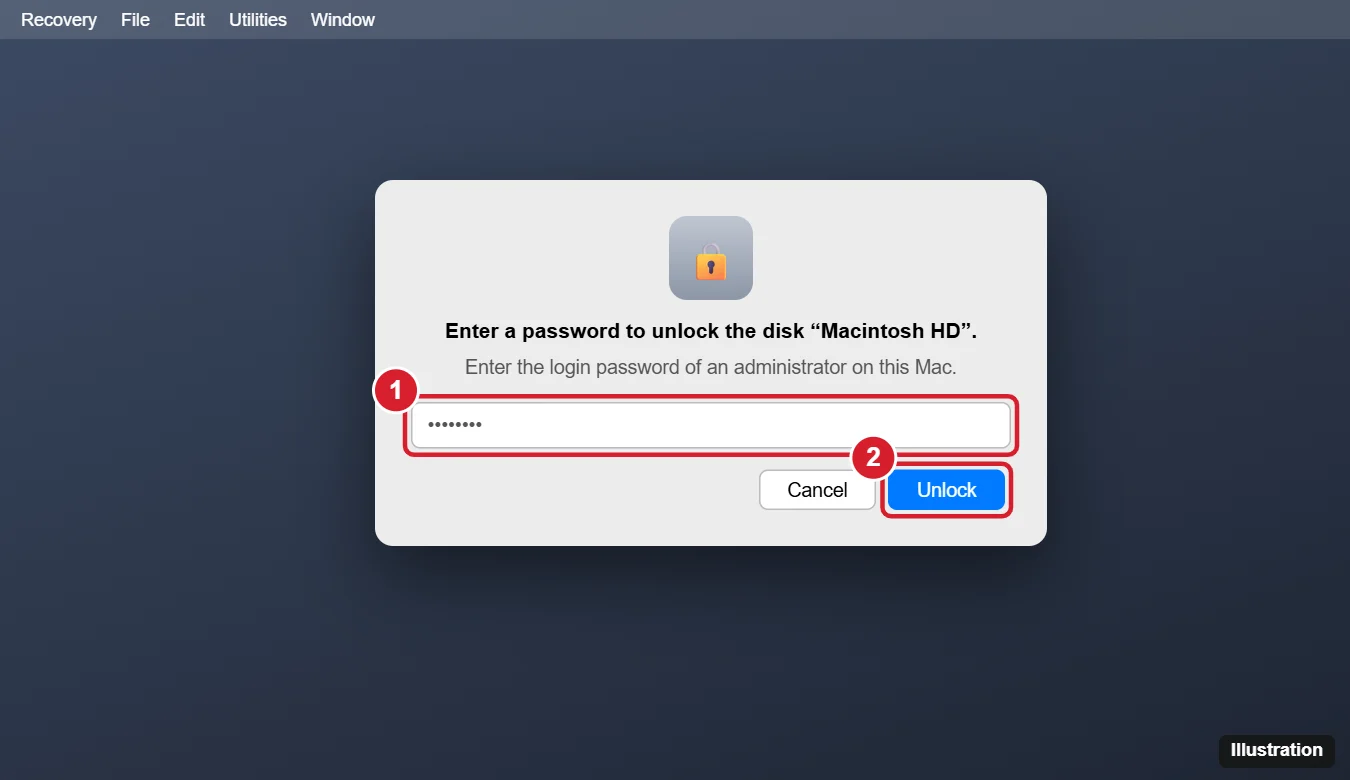
If your Mac shows "Enter a password to unlock the disk Macintosh HD", enter the login password of an administrator account on that Mac (the password you use to sign in), then click Unlock. If you do not know it, use Forgot all passwords? or the reset options to recover access with your Apple Account or your FileVault recovery key. The prompt usually appears in macOS Recovery and means FileVault (disk encryption) is turned on.
Why You See This Message
- FileVault is on: the startup disk is encrypted, so Recovery needs a password to read it.
- You started in macOS Recovery: for example, to reinstall macOS, erase the Mac, or use Disk Utility.
- A macOS update or repair needs access to the disk.
The prompt protects your data: without the password, no one can read the disk, even with physical access to the Mac.
Which Password to Enter
| Option | When to use it |
|---|---|
| Administrator login password | You know the password for an admin account on this Mac (most common) |
| FileVault recovery key | You saved the long code shown when FileVault was turned on |
| Apple Account | You chose to allow your Apple Account to unlock the disk |
It is not your Wi-Fi password or a firmware password. If you have several users, any administrator's password works.
Unlock the Disk
- Click the password field under the prompt.
- Type the login password for an administrator account on this Mac. Check that Caps Lock is off and that the keyboard layout is correct (in Recovery, you can change the input source from the menu bar).
- Click Unlock (or press Return).
- Continue with what you were doing, such as Reinstall macOS or Disk Utility.
If You Forgot the Password
- Forgot all passwords? Some macOS versions show this option on the unlock or login screen. It lets you reset the password with your Apple Account.
- Use your FileVault recovery key: if you saved it when turning on FileVault, choose the option to reset using the recovery key and enter it.
- Reset Password assistant: in macOS Recovery, choose Utilities > Terminal, type
resetpassword, and press Return to open the assistant, then follow the prompts to verify with your Apple Account or recovery key. - Erase the Mac: if you cannot recover access and do not need the data, you can erase the disk from Recovery and reinstall macOS. This permanently deletes everything on the disk. Activation Lock may still require the Apple Account that set up the Mac.
If you still cannot get in, contact Apple Support with proof of purchase. Apple cannot bypass FileVault encryption, which is why the recovery key matters.
Avoid This Problem in the Future
- Store your FileVault recovery key somewhere safe, or allow your Apple Account to unlock the disk (System Settings > Privacy & Security > FileVault).
- Keep at least one administrator account with a password you remember.
- Back up regularly with Time Machine.
Other Questions About the Unlock Prompt
Is this message a virus or scam?
No. It is a normal macOS security prompt when FileVault is on.
What if the Unlock button does nothing?
The password may be wrong. Try another administrator's password or the recovery key.
Can I turn off FileVault?
Yes, in System Settings > Privacy & Security > FileVault, but keeping it on protects your data if the Mac is lost or stolen.
When an installer is the problem rather than the disk, see what to do when the Monterey installer is damaged.

Kermit Matthews runs Live2Tech from just outside Philadelphia. He is an IT specialist with over 20 years of experience, from a university help desk to small-business IT, IT management and his own consulting practice, and has written tech guides full time since 2020. Steps are checked against the current software on a real device or the maker’s official documentation. More about Kermit.