To enter the BIOS on a Lenovo laptop running Windows 10, restart it and repeatedly press F2 (or Fn + F2) as soon as the Lenovo logo appears. On ThinkPad models, press F1 instead, or press Enter at startup and then F1. If the keys don’t work, shut the laptop down and press the small Novo button (a tiny button or pinhole with a curved arrow icon) to open the Novo Button Menu, then choose BIOS Setup. You can also get there from Windows with Settings > Update & Security > Recovery > Advanced startup.
Which key does your Lenovo use?
| Lenovo series | BIOS key | Boot menu key |
|---|---|---|
| IdeaPad, Yoga, Legion, Lenovo (consumer) | F2 or Fn + F2 | F12 or Fn + F12 |
| ThinkPad | F1 (or Enter, then F1) | F12 (or Enter, then F12) |
| ThinkBook | F2 or Fn + F2 | F12 or Fn + F12 |
| IdeaCentre and ThinkCentre desktops | F1 or F2 | F12 |
Method 1: Press F2 (or F1) at startup
- Save your work and restart the laptop, or shut it down and turn it back on.
- As soon as the screen lights up, tap F2 repeatedly, about twice per second. On ThinkPads, tap F1.
- If nothing happens, try again holding Fn while you tap the key.
- The BIOS Setup Utility opens.
If Windows starts instead, turn off Fast Startup or use Method 2 or 3. Fast Startup can skip the moment when the key works.
- Shut down the laptop completely.
- Find the Novo button. It’s a small button or pinhole with a curved arrow icon, usually on the left or right side, or next to the power button. Some models don’t have one.
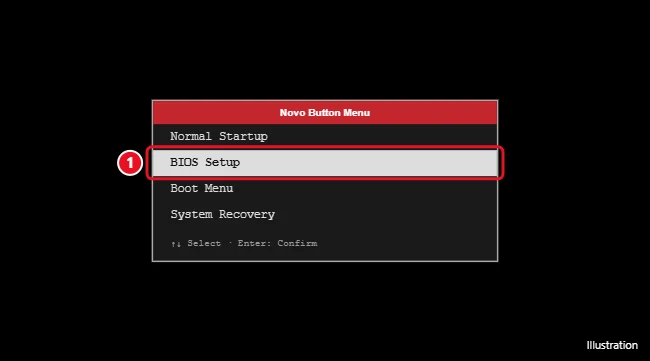
- Press it (use an unfolded paper clip for a pinhole). The laptop turns on and shows the Novo Button Menu.
- Use the arrow keys to select BIOS Setup and press Enter.
Method 3: From Windows 10 Settings
- Go to Settings > Update & Security > Recovery.
- Under Advanced startup, click Restart now.
- Choose Troubleshoot > Advanced options > UEFI Firmware Settings > Restart.
For more methods that work on any brand, see how to enter the BIOS on Windows 10.
Common things to change in a Lenovo BIOS
- Boot order: On the Boot tab, move USB to the top to boot from a USB drive.
- Virtualization: Turn on Intel Virtual Technology or AMD SVM under Configuration for virtual machines and Android emulators.
- Function keys: Change Hotkey Mode (or Fn and Ctrl key swap on ThinkPads) to control whether F1–F12 work without holding Fn.
- Secure Boot: Under Security.
Press F10 to save and exit, or F9 to load defaults if something goes wrong.
Can’t get into the BIOS?
- Use the Novo button method, which works even if the keyboard shortcut doesn’t.
- Connect the laptop to power. Some models won’t show the menu on a very low battery.
- If the BIOS asks for a supervisor password you don’t know, contact Lenovo support with proof of ownership.
Frequently asked questions
Where is the Novo button on my Lenovo?
Check the sides of the laptop near the power port or headphone jack, or next to the power button. Search for your model on Lenovo’s support site if you can’t find it.
What’s the Lenovo boot menu key?
Usually F12 or Fn + F12. The Novo Button Menu also has a Boot Menu option.
Does this work on Windows 11?
Yes. The keys and Novo button work the same. In Windows 11, Advanced startup is in Settings > System > Recovery.

Kermit Matthews runs Live2Tech from just outside Philadelphia. He is an IT specialist with over 20 years of experience, from a university help desk to small-business IT, IT management and his own consulting practice, and has written tech guides full time since 2020. Steps are checked against the current software on a real device or the maker’s official documentation. More about Kermit.