Many things in Word that look like plain text are actually fields: page numbers, dates, tables of contents, cross-references, mail merge placeholders, and more. Showing the underlying field codes lets you see and edit how they work, which is essential for troubleshooting a table of contents, fixing date formats, or building templates. This guide shows how to display field codes, toggle them back, and edit or update them safely.
For a practical field to try this on, see how to insert a self-updating date in Word and change its format in the code.
Quick Answer
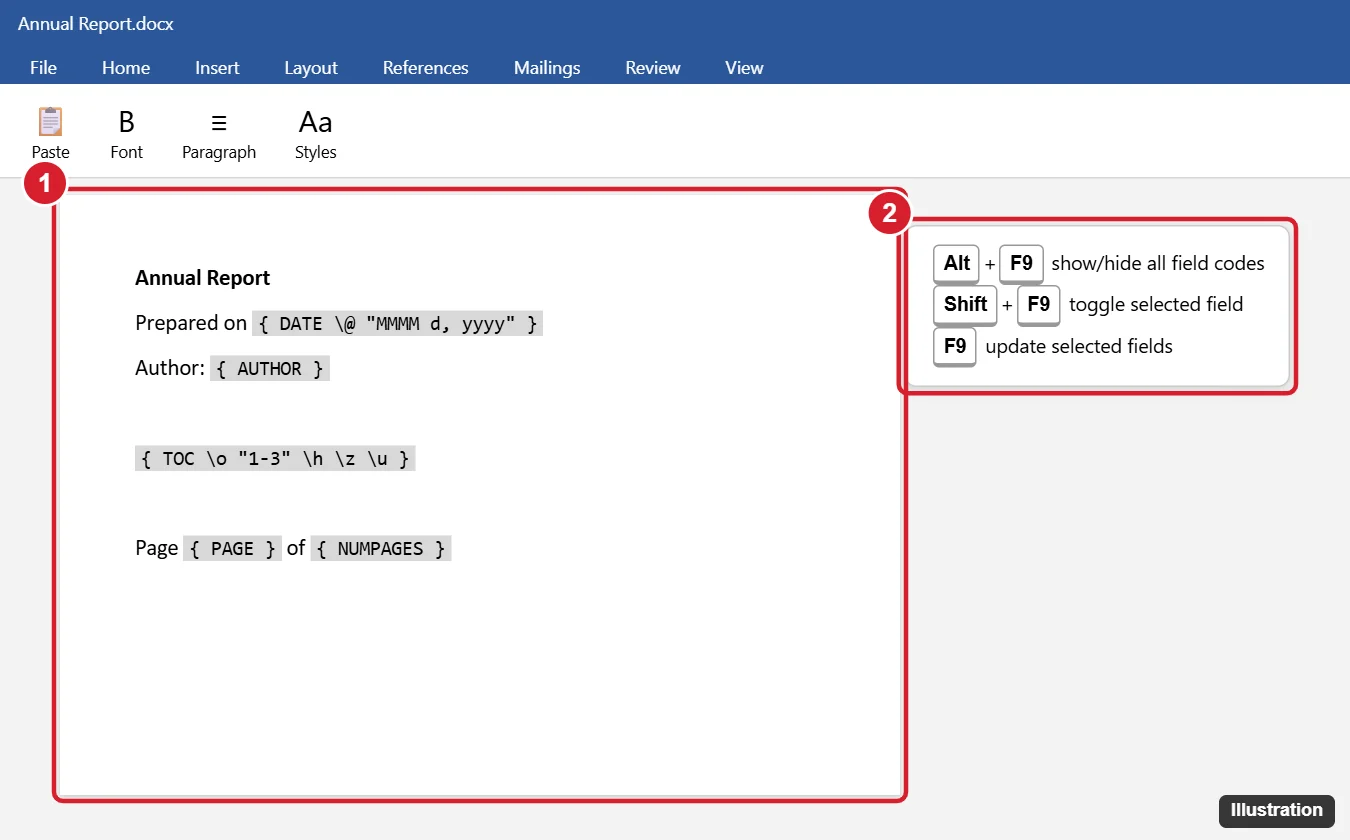
Press Alt + F9 to show all field codes in the document (press it again to hide them). To toggle just one field, click it and press Shift + F9, or right-click it and choose Toggle Field Codes. On a Mac, use Option + F9 (you may need to hold Fn).
Method 1: Keyboard Shortcuts
- Alt + F9: show or hide field codes for the whole document.
- Shift + F9: show or hide codes for the selected field(s).
- F9: update the selected fields (select all with Ctrl + A first to update everything).
- Ctrl + F9: insert empty field braces to type your own field code.
On laptops, you may need to hold Fn for F-keys.
Method 2: Right-Click Menu
- Right-click a field, such as a page number, date, or table of contents.
- Choose Toggle Field Codes.
Method 3: Word Options (Always Show)
- Click File > Options > Advanced.
- Under Show document content, check Show field codes instead of their values.
- Set Field shading to Always to highlight fields in gray so they’re easy to spot (shading doesn’t print).
- Click OK.
Reading Common Field Codes
| Field code | What it does |
|---|---|
{ PAGE } |
Current page number |
{ NUMPAGES } |
Total pages |
{ DATE \@ "MMMM d, yyyy" } |
Today’s date in a chosen format (updates each time) |
{ CREATEDATE } |
Date the document was created (doesn’t change) |
{ TOC \o "1-3" \h \z \u } |
Table of contents for heading levels 1 to 3 |
{ REF bookmark } |
Cross-reference to a bookmark |
{ MERGEFIELD FirstName } |
Mail merge placeholder |
Edit a Field Code
- Show the field code with Shift + F9.
- Edit the text between the braces (for example, change a date format to
\@ "dd/MM/yyyy"). - Press F9 to update and show the result.
Don’t type the braces with your keyboard; field braces must be inserted with Ctrl + F9. You can also right-click and choose Edit Field for a guided dialog.
Troubleshooting
- Document shows codes instead of values: press Alt + F9, or uncheck Show field codes instead of their values in Options.
- “Error! Reference source not found”: the bookmark or heading was deleted. Update the cross-reference or remove it.
- Fields print as codes: go to File > Options > Advanced > Print and uncheck Print field codes instead of their values.
- Want to freeze a field: select it and press Ctrl + Shift + F9 to convert it to plain text.
Summary
- Press Alt + F9 to show or hide all field codes.
- Use Shift + F9 or right-click > Toggle Field Codes for one field.
- Turn on field shading in Word Options to spot fields.
- Edit codes carefully and press F9 to update.

Kermit Matthews runs Live2Tech from just outside Philadelphia. He is an IT specialist with over 20 years of experience, from a university help desk to small-business IT, IT management and his own consulting practice, and has written tech guides full time since 2020. Steps are checked against the current software on a real device or the maker’s official documentation. More about Kermit.