Hardware virtualization (Intel VT-x or AMD-V) lets your PC run virtual machines, WSL 2, Windows Sandbox, and some Windows security features. You might want to turn it off to troubleshoot compatibility problems with certain games, anti-cheat software, or older emulators, or as part of a security requirement. It’s controlled in your PC’s BIOS/UEFI, and Windows 10 has its own virtualization features you may also need to switch off. This guide covers both.
Quick Answer
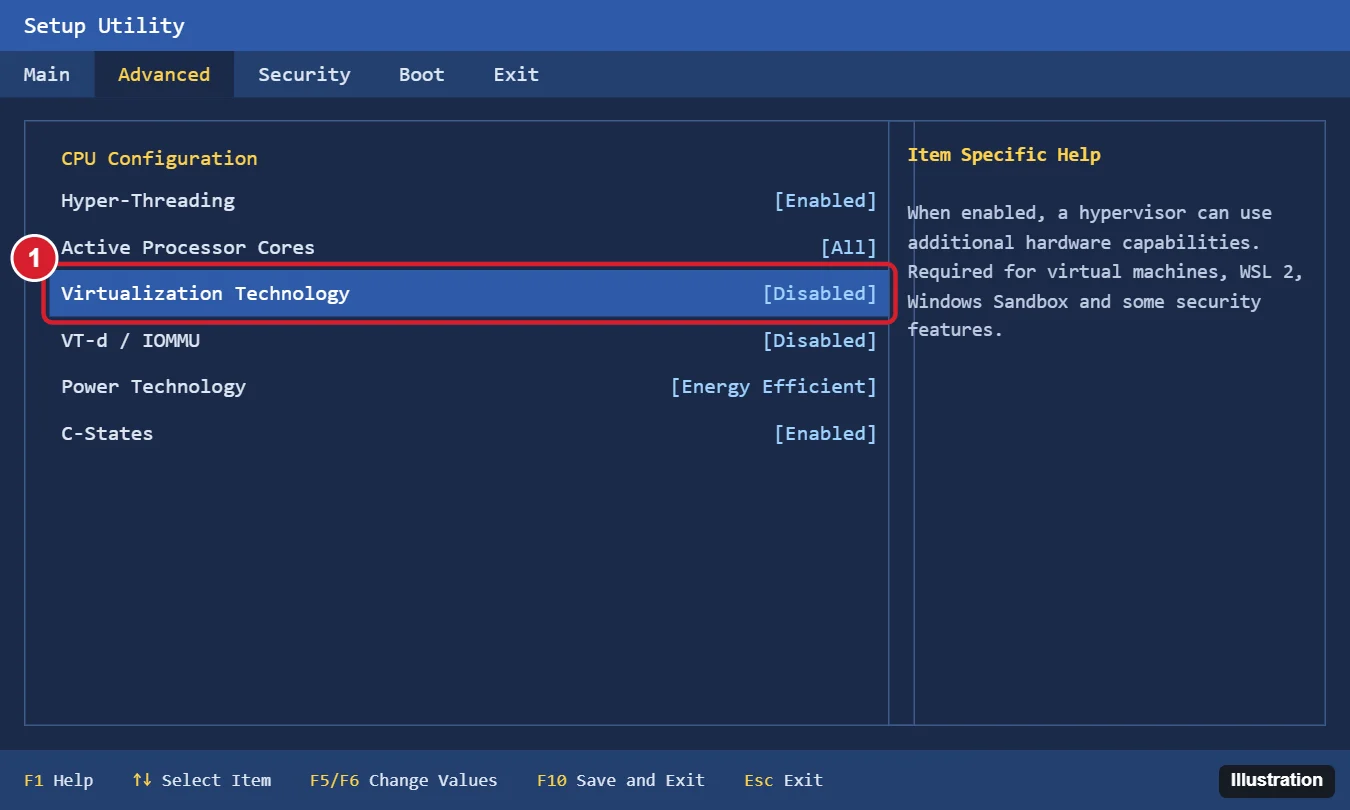
Restart into the BIOS/UEFI (Settings > Update & Security > Recovery > Advanced startup > Restart now > Troubleshoot > Advanced options > UEFI Firmware Settings), find Intel Virtualization Technology (VT-x) or SVM Mode (AMD), set it to Disabled, and press F10 to save. If you only need Windows to stop using its hypervisor, turn off Hyper-V and related features instead.
Check Whether Virtualization Is On
- Press Ctrl + Shift + Esc to open Task Manager.
- Go to Performance > CPU.
- Look at Virtualization: Enabled or Disabled.
If it says a hypervisor has been detected, Windows is already using virtualization through Hyper-V or related features.
Option 1: Turn Off Virtualization in the BIOS/UEFI
- Save your work and open Settings > Update & Security > Recovery.
- Under Advanced startup, click Restart now.
- Choose Troubleshoot > Advanced options > UEFI Firmware Settings > Restart. (Or press your PC’s firmware key during startup, often F2, Del, F10, or F1.)
- Look under Advanced, CPU Configuration, Security, or Virtualization for:
- Intel Virtualization Technology, VT-x, or Vanderpool (Intel)
- SVM Mode, AMD-V, or Secure Virtual Machine (AMD)
- Set it to Disabled.
- Press F10 (or Save & Exit) and confirm.
You may also see VT-d or IOMMU; these are separate features for device passthrough and can usually be left as they are.
Option 2: Stop Windows From Using Virtualization
Often the real goal is to stop Windows’ own hypervisor, which conflicts with some apps. You can do that without touching the BIOS.
Turn off Windows features
- Press Windows + R, type optionalfeatures, and press Enter.
- Uncheck Hyper-V, Virtual Machine Platform, Windows Hypervisor Platform, and Windows Sandbox (whichever are present).
- Click OK and restart.
Turn off Memory integrity
Open Windows Security > Device security > Core isolation details and turn off Memory integrity, then restart. This lowers protection against some attacks.
Disable the hypervisor at boot (advanced)
In an administrator Command Prompt, run bcdedit /set hypervisorlaunchtype off and restart. To undo, run bcdedit /set hypervisorlaunchtype auto.
What Stops Working
- Virtual machine apps (Hyper-V, and most modern versions of other VM software).
- WSL 2 and Android app subsystems.
- Windows Sandbox.
- Memory integrity and other virtualization-based security features.
- Some emulators and development tools that rely on hardware acceleration.
Related: Turn on hardware virtualization in Windows 10.
Frequently Asked Questions
Does disabling virtualization improve gaming performance?
Rarely by itself. Turning off Windows’ virtualization-based security can give a small boost on some systems, but many games run the same. Some newer anti-cheat systems require virtualization features to be on.
Is it safe to disable?
Yes. It doesn’t harm hardware; it only disables features that rely on it. You can turn it back on the same way.
I can’t find the setting in my BIOS.
Some laptops hide it or name it differently. Check your PC’s manual, or update the BIOS from the manufacturer’s site.
Summary
- Check the status in Task Manager > Performance > CPU.
- Disable VT-x or SVM Mode in the BIOS/UEFI and press F10.
- Or turn off Hyper-V, related Windows features, and Memory integrity.
- Re-enable later if you need VMs, WSL 2, or Sandbox.

Kermit Matthews runs Live2Tech from just outside Philadelphia. He is an IT specialist with over 20 years of experience, from a university help desk to small-business IT, IT management and his own consulting practice, and has written tech guides full time since 2020. Steps are checked against the current software on a real device or the maker’s official documentation. More about Kermit.