Several Google Drive files can go to the Trash in one move once they are selected together, and Google keeps them there for 30 days before deleting them forever. On a phone, the Drive app’s documented route is one file at a time (More > Remove), so a big clean-up is faster at drive.google.com on a computer. Start by deciding which files belong in the batch, because the right selection method depends on where they live.
Which files can you select together?
| Your situation | How to gather them | Watch for |
|---|---|---|
| All in one folder | Ctrl-click (Command-click on a Mac) or Ctrl + A in that folder | Ctrl + A takes every item showing, folders included |
| Spread across folders but similar (old PDFs, videos) | Search or filter, then select from the results | Results can include files other people shared with you |
| Largest files, wherever they are | The Storage list, sorted by size | Check each one before it goes |
| Mixed: some yours, some shared with you | Filter to files you own first | Shared files can only be removed from your Drive, not deleted |
| In a shared drive | Select inside the shared drive | You need at least Content manager access to delete |
| On your phone | One file at a time in the Drive app | Use a computer for anything more than a handful |
Deleting a whole document on its own is simpler; deleting a single document in Google Drive covers that case.
Select a batch of files on drive.google.com
Google’s help page on selecting several files and using the toolbar describes the mouse method, and its Drive keyboard shortcuts list covers the keyboard.
- Go to drive.google.com and open the folder (or run the search) that holds the files.
- Click the first file once to select it. Do not double-click, which opens it.
- Hold Ctrl on Windows or ChromeOS (Command on a Mac) and click each other file you want. Ctrl-click a selected file again to drop it from the batch.
- To take everything listed, press Ctrl + A (Command + A on a Mac). Google calls this “select all visible items,” so in a very long folder, scroll to the end first and check the count in the toolbar.
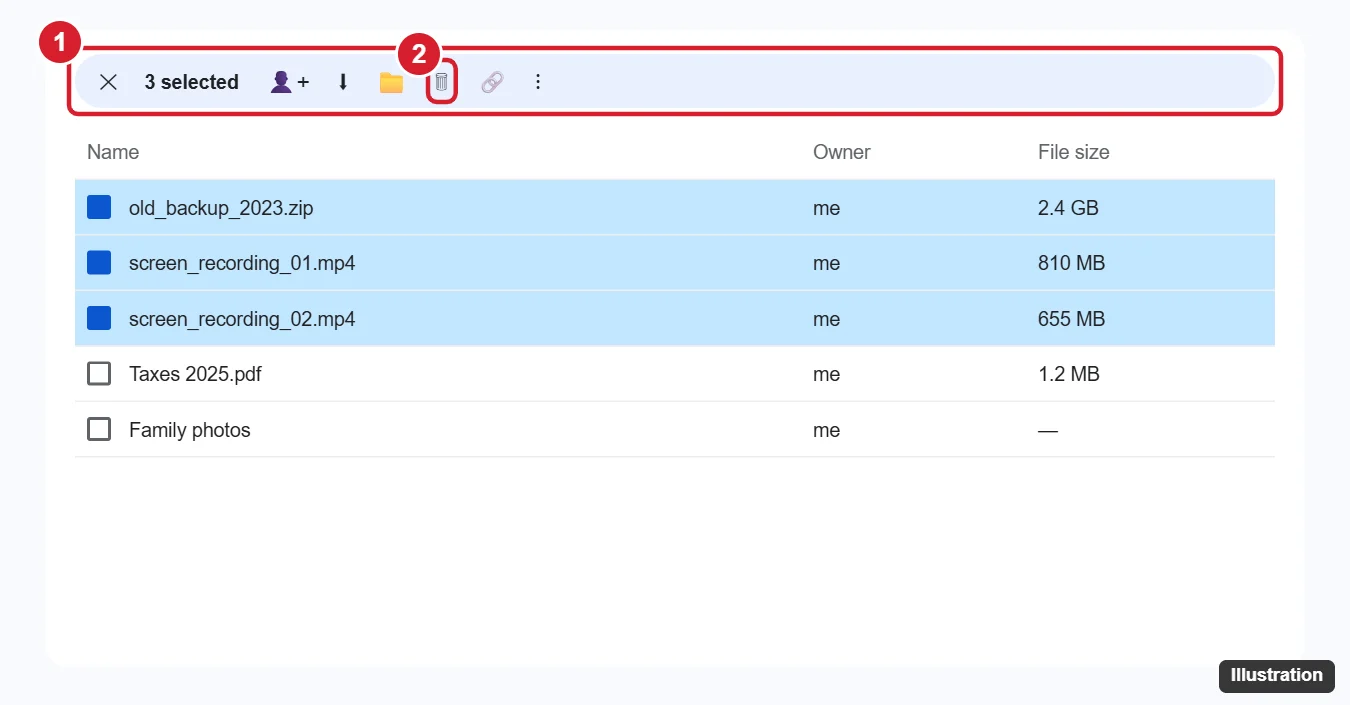
- Look at the toolbar across the top. It shows how many items are selected and the actions you can take on all of them.
To take a run of neighboring files, the keyboard is the documented route: select the first file, then hold Shift and press the Down arrow (Google also lists Up, Left and Right) to extend the selection. Shift + Space selects or deselects the file you are on, and Esc clears the whole selection if you want to start over. Many people also click the first file and Shift-click the last; Google’s pages do not describe that click, so check the toolbar count before you continue.
Gather scattered files with search and filters
When the files you want to clear are spread across folders, let search collect them. Google’s find files in Google Drive page lists the filters and search terms below.
- Filter chips: under the search box, use Type (for example, videos or PDFs), People and Modified. Clear filters resets them.
- Only your files: type
owner:mein the search box so files other people shared with you stay out of the batch. - Older files: type
before:followed by a date written as YYYY-MM-DD to show items modified before that day.after:works the other way. - By name:
title:followed by a word finds files whose names contain it, handy for a series such as “Draft” or “Scan”. - Biggest files: click Storage on the left, then click Storage used on the right to sort by size.
Search terms combine. A student clearing last year’s coursework could search owner:me before: with the first day of the new term, add the PDF type filter, and get one list of old handouts to select in a single pass. Select from the results with the same clicks and keys as in a folder.
Send the selection to Trash
With the batch selected, use any one of these. Google’s delete and restore files page lists the right-click route.
- Click the remove button (the trash can) in the selection toolbar.
- Right-click any selected file and click Move to Trash.
- Press Delete (or #), which Google’s shortcut list names “Remove selected items.”
The files leave the list and go to Trash. Anyone you shared them with can still open them until they are deleted forever, so this is the moment to change your mind cheaply.
Two points before you trash a folder. Check what is inside first, because a folder often holds files that other people rely on. And if you kept duplicate copies in several folders only to reach one file from more than one place, a shortcut in Google Drive does that job without a second copy.
Clearing many files on a phone or tablet
Google documents deleting files in the Drive app one at a time:
- Open the Google Drive app. On Android, tap Files at the bottom right.
- Next to the file, tap More (three dots).
- Tap Remove (at the bottom on iPhone and iPad).
Google’s help pages do not describe selecting several files at once in the app, so a press-and-hold may or may not offer it on your device. For more than a handful of files, open drive.google.com on a computer. The iPhone side is covered in more detail in deleting Google Drive files on iPhone.
A batch that mixes your files with ones shared with you behaves differently for each kind.
- Files someone else owns: Google says you cannot delete them. You can only remove them from your Drive (the menu says Remove), and other people keep their access.
- Files you own and shared: moving them to Trash does not cut people off right away. They keep access until the file is deleted forever.
- Shared drives: Contributors, Commenters and Viewers cannot delete files, according to Google’s shared drive help page. You need at least Content manager access.
- Drive for desktop: if you mirror or stream Drive files on your computer, Google says anything you put in the Trash is put in the Trash everywhere.
Check the Trash, then free the space
Files in Trash still count toward your storage until they are deleted forever, and Google deletes them automatically after 30 days. To get the space back sooner:
- Click Trash on the left.
- Scan the list. Anything that should not be there can still come back: right-click it and click Restore, as Google’s recover deleted files page describes.
- At the top right, click Empty trash, then Delete forever. To clear only part of the Trash, select those files first and use Delete forever on them. The phone and Gmail versions are in emptying the trash in Google Drive, Gmail and Photos.
After that, the files are gone for you and everyone you shared them with. For a bigger clean-out, see how to empty Google Drive and free up space.
Bulk Drive deletion questions
Can I select files from different folders in one go?
The dependable way is to let search or the filter chips bring the files into one results list, then select them there, instead of collecting them folder by folder.
Why does Drive say Remove instead of Move to Trash?
Remove is the wording Google uses for files you do not own (and in the phone app). For someone else’s file, it takes the file out of your Drive without deleting it for anyone else.
I selected one file too many. Do I have to start again?
No. Ctrl-click (Command-click) that file to deselect it, or press Shift + Space while it is highlighted. Esc clears everything if the selection has gone wrong.
Can I stop files from landing in Drive in the first place?
If a large upload is still running, you can stop it instead of deleting the files afterward; see how to cancel a Google Drive upload.
For a first run, try a small batch of five or six files, confirm they show up in Trash, then repeat with the larger selection.

Kermit Matthews runs Live2Tech from just outside Philadelphia. He is an IT specialist with over 20 years of experience, from a university help desk to small-business IT, IT management and his own consulting practice, and has written tech guides full time since 2020. Steps are checked against the current software on a real device or the maker’s official documentation. More about Kermit.