Deleted files in the Google Drive app for iPhone go to the trash first and disappear for good only after the trash period or when you empty it. To remove one file, open the Drive app, tap More (the three dots) next to the file, and tap Remove at the bottom of the menu.
A slip of the thumb is usually fixable, but removing a file does not free storage straight away. The same steps apply on an iPad.
What do you want to happen to the file?
| Goal | What to tap in the Drive app | What happens |
|---|---|---|
| Get it out of your file list but keep a way back | More > Remove | The file moves to Trash and is deleted forever after 30 days |
| Bring back a file you removed | Menu > Trash, then Restore on the file | The file returns to Drive |
| Get rid of one file for good now | Menu > Trash, then Delete forever on the file | The file is permanently deleted |
| Clear everything in Trash | Menu > Trash, then More > Empty trash at the top right | All files in Trash are permanently deleted |
| Delete a file someone else owns | Not possible from your account | Only the owner can remove it |
Everything in this table comes from Google’s Delete files in Google Drive help page for iPhone and iPad, which is the place to check if the app changes.
Send one file to Trash from the iPhone app
You need to be the file’s owner for this to work; the next sections cover files you do not own.
- Open the Google Drive app. If you use more than one Google account, check that the right one is selected, since each account has its own Drive and its own Trash.
- Find the file. Search at the top of the app helps when the file is buried in a folder.
- Next to the file, tap More.
- At the bottom of the menu, tap Remove. The file disappears from the list and moves to Trash.
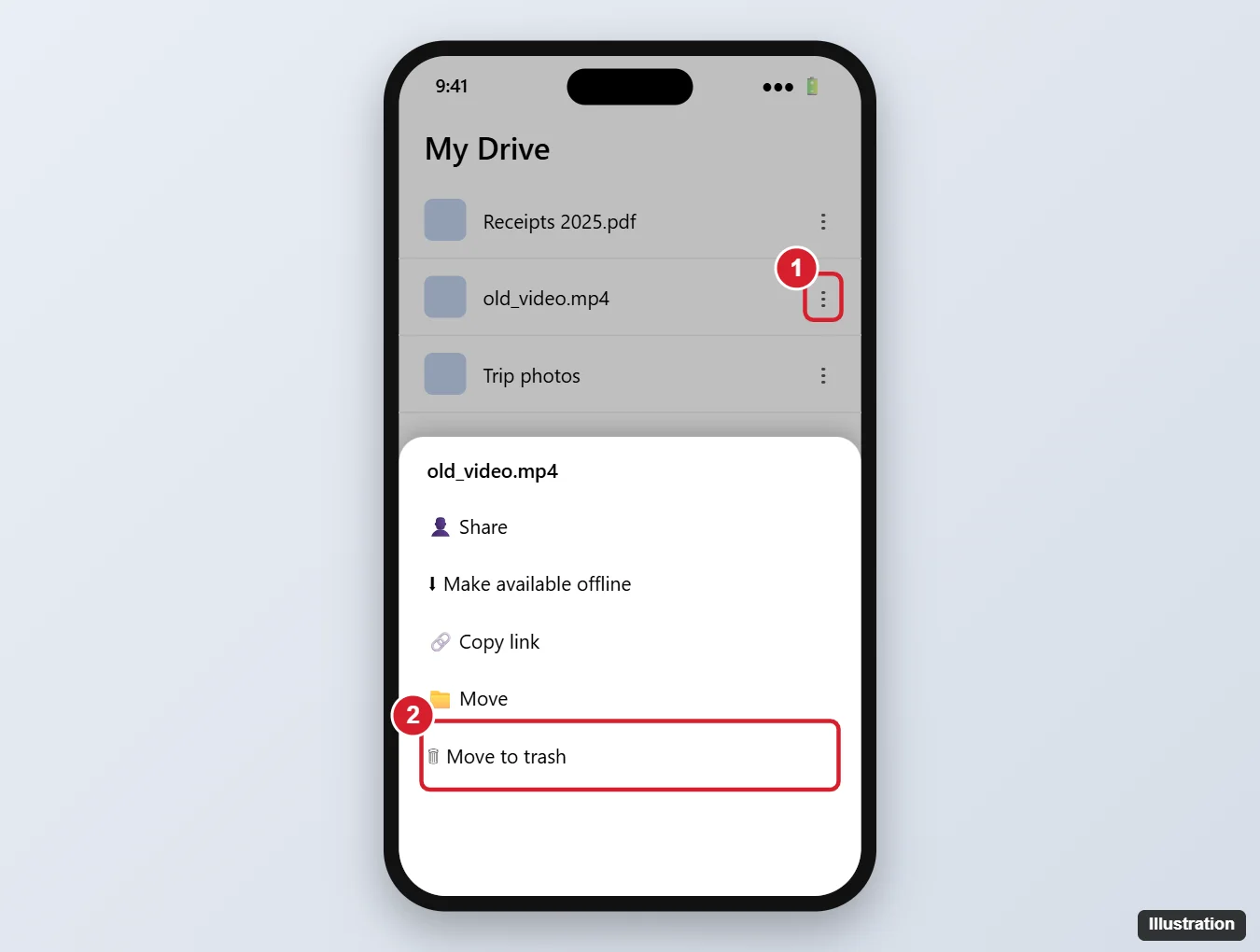
The illustration shows an older menu label. Google’s current iPhone steps call the option Remove, so look for that word at the bottom of the menu.
Removing a file does not cut anyone off yet. Google says people you shared the file with can keep opening it until it is permanently deleted, which gives you time to change your mind.
| Stage | Your view | What people you shared with see |
|---|---|---|
| After Remove (file in your Trash) | Gone from your file list, still in Trash | They can keep accessing the file |
| After Delete forever, Empty trash, or the 30 days | Gone completely | They lose access |
If someone else still needs the file, Google suggests making someone else the owner before you permanently delete it, so it stays in their Drive.
Several files at once, or a lot of them
Google’s iPhone help describes removing files one at a time from the More menu. To clear many files at once, a computer is easier. A web browser shows more files on screen and lets you select a whole batch; deleting multiple files in Google Drive walks through that, including how to find large files first. For a single document on a computer, see deleting a document in Google Drive. Files removed on a computer land in the same Drive Trash you see in the app when you are signed in to the same account.
When the app gives you no Remove option
The most common reason is ownership. Google’s help is direct about it: if you’re not the owner of a file, you don’t have the option to remove it, and others still have access to it. This often happens with files a teacher, coworker or family member shared with you, which show up in your Drive but still belong to them.
What you can do instead:
- Ask the owner to delete it, or to take it out of sharing with you.
- Check the account. If the file is yours but sits in another Google account, switch to that account in the app and remove it there.
- Shared drives: Google’s shared drives help says Managers and, by default, Content managers can delete files in a shared drive, while Contributors can’t move or delete files.
- Work or school accounts: files in an organization’s Drive may follow rules set by your administrator, so ask them if a file you think is yours will not go.
Undo it or make it final in Trash
Restore a file
If you removed the wrong file, it stays in Trash for 30 days. Google’s recover a deleted file page for iPhone covers the restore:
- In the Drive app, tap Menu at the upper left.
- Tap Trash.
- Next to the file you want back, open its menu.
- Tap Restore. The file goes back into Drive.
After a file is deleted forever, either by you or by the 30-day rule, this no longer works from the app. Google’s recovery page says that for work or school accounts you need to contact your administrator about permanently deleted files.
Delete one file forever
Files in Trash still count toward your Google storage until they are permanently deleted. If you are short on space, or you want a file gone now rather than in 30 days, delete it yourself.
- Tap Menu at the upper left, then Trash.
- Next to the file, tap More.
- Tap Delete forever.
Empty Trash
- Tap Menu at the upper left, then Trash.
- Scroll through the list and make sure there is nothing you will want later. Google gives this warning for a reason: there is no undo.
- At the top right, tap More.
- Tap Empty trash.
Google’s storage help says your account storage is shared across Gmail, Google Drive and Google Photos, so emptying Drive’s Trash is only part of the picture. Emptying the trash in Drive, Gmail and Photos covers all three, and emptying Google Drive to free up space helps when you need a bigger clear-out.
Drive on iPhone deletion questions
Why does the iPhone app say Remove instead of Delete?
Remove is the label Google uses in the iPhone and iPad app for moving a file to Trash. It is the first stage of deleting, not a separate feature, and the file can still be restored from Trash.
Can I delete files in Drive while offline?
Google’s iPhone help does not describe deleting while offline. To be sure the change reaches your account, remove files while the iPhone is connected, then check Trash.

Kermit Matthews runs Live2Tech from just outside Philadelphia. He is an IT specialist with over 20 years of experience, from a university help desk to small-business IT, IT management and his own consulting practice, and has written tech guides full time since 2020. Steps are checked against the current software on a real device or the maker’s official documentation. More about Kermit.