A paragraph copied from an email or a web page lands in your report with a different font, odd colors and extra spacing, while everything around it looks fine. To fix just that part, select the text and choose Home > Clear All Formatting in the Font group, or press Ctrl+Spacebar and then Ctrl+Q. The text takes on its paragraph style’s look again; a highlight may stay behind, and you’ll see below how to deal with it.
Clear formatting from selected text in Word for Windows
These steps are for Word for Microsoft 365 on Windows. Word 2016, 2019, 2021 and 2024 put the button in the same place, and so did Word 2013, which the screenshots below come from.
- Open the document and select only the text that looks wrong: drag across a few words, double-click a word, or triple-click inside a paragraph to select all of it.
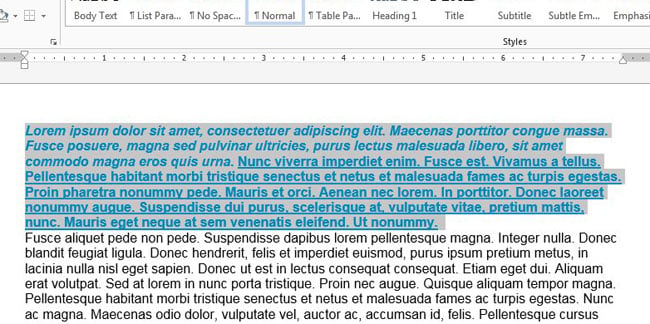
- Click the Home tab on the ribbon.

- In the Font group, click Clear All Formatting. The icon is a capital A with a small eraser.
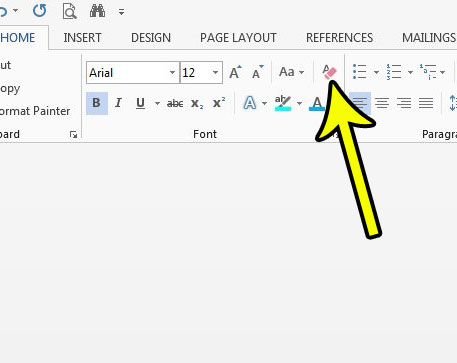
The location is confirmed on Microsoft’s clear all text formatting page, which also notes that the action applies only to formatting that you added or modified. If the result isn’t what you wanted, press Ctrl+Z to undo it right away.
Character formatting vs. paragraph formatting
Word keeps two kinds of formatting, and knowing which one is causing the mess lets you clear only that part:
- Character formatting belongs to the letters themselves: font, size, color, bold, italic, underline.
- Paragraph formatting belongs to the whole paragraph: alignment, indents, line spacing, spacing before and after.
Word for Windows has a separate keyboard shortcut for each, listed on Microsoft’s Word keyboard shortcuts page:
| Shortcut | What Microsoft says it does | Good for |
|---|---|---|
| Ctrl+Spacebar | Remove manual character formatting | A pasted sentence in the wrong font or color, with spacing that already matches |
| Ctrl+Q | Remove paragraph formatting | A paragraph that is centered, indented or double-spaced when its neighbors aren’t |
| Ctrl+Shift+N | Apply the Normal style | Text that picked up the wrong style altogether, such as a heading style on body text |
Here is a typical case. A student pastes a quotation into an essay. The words come in blue and in a different font, but the paragraph spacing is fine. Selecting the quotation and pressing Ctrl+Spacebar returns the letters to the essay’s font and color and leaves the spacing alone. If the quotation was also indented oddly, Ctrl+Q fixes that next. Clear All Formatting would do both in one click.
What Clear All Formatting leaves behind
Clearing formatting doesn’t strip everything, which surprises people the first time:
- Styles. The text is returned to how its style defines it. In practice, the paragraph usually goes back to the Normal style, so a heading can lose its heading look. To keep a heading and only remove manual font changes, use Ctrl+Spacebar instead of the button.
- Highlighting. Microsoft’s pages don’t say whether Clear All Formatting removes a highlighter color. If a highlight is still there afterward, select the text, click the arrow next to Text Highlight Color on the Home tab, and choose No Color, as described in Microsoft’s apply or remove highlighting instructions. More options are in this walkthrough on highlighting text in Word and removing highlights.
- Shading. Paragraph shading is a separate setting; if a gray or colored background remains, see how to remove paragraph shading in Word.
- The text itself. The words stay exactly as they are. Clearing formatting only changes how they look.
Word for Mac and Word for the web
On these versions, Microsoft calls the button Clear Formatting rather than Clear All Formatting.
- Select the text.
- On the Home tab, click Clear Formatting, which sits beside the font settings.
- If you don’t see it, the window may be too narrow for the full ribbon: Microsoft says you might need to select More (…) to find it.
The Windows shortcuts in the table above aren’t listed for Word for the web, so use the button there. On a Mac, the Clear Formatting button on the Home tab is the dependable route.
When clearing doesn’t work
- Nothing changes: make sure the text is actually selected first. With only a blinking cursor, Word may apply the change to the word or paragraph the cursor is in rather than the text you meant, so select the exact text first.
- The button is grayed out: the document may be read-only, opened in Protected View, or restricted against formatting changes. Click Enable Editing if a yellow bar appears, or ask the document’s owner to lift the restriction.
- The text looks wrong again after clearing: the paragraph style itself may be set with that font or spacing. Apply a different style from the Styles gallery, or press Ctrl+Shift+N for Normal.
Clearing formatting: what readers ask
How do I clear formatting from the whole document instead?
Select everything and use the same button, but headers, footers and text boxes need separate attention. That wider job is covered in how to remove all formatting in Word.
Can I stop pasted text from bringing its formatting in the first place?
Yes. Ctrl+Shift+V pastes text only in Word for Windows, according to Microsoft’s shortcut list, and you can make plain pasting the default. See how to always paste without formatting in Word.
What if I want the pasted text to match a different part of the document, not the default look?
Clearing gets you back to the style’s defaults. To copy the look of a specific paragraph instead, use Format Painter to copy formatting in Word.
On a related cleanup task for reports and essays, you might also want to remove the page number from the first page of the document. For now, select that stubborn paragraph, clear it, and check that it matches the text around it.

Kermit Matthews runs Live2Tech from just outside Philadelphia. He is an IT specialist with over 20 years of experience, from a university help desk to small-business IT, IT management and his own consulting practice, and has written tech guides full time since 2020. Steps are checked against the current software on a real device or the maker’s official documentation. More about Kermit.