Photoshop names its version in the About Photoshop window, which sits under Help on Windows and under the Photoshop menu on a Mac. If Photoshop isn’t open, or won’t open, the Creative Cloud desktop app shows the installed version when you hover over the app, so you can check before a plug-in install or a support chat without starting Photoshop at all.
Where to look for your Photoshop version
| Your situation | Where the version is |
|---|---|
| Photoshop is open on Windows | Help > About Photoshop |
| Photoshop is open on a Mac | Photoshop > About Photoshop |
| Photoshop is closed or won’t start | Creative Cloud desktop app: hover over Photoshop in your apps |
| A support agent wants full details | Help > System Info (the first line is the version) |
| You need the Camera Raw version | Help > About Plug-In > Camera Raw (Windows), or Photoshop > About Plug-In > Camera Raw (Mac) |
Check inside Photoshop
- Open Photoshop.
- On Windows, choose Help > About Photoshop. On a Mac, choose Photoshop > About Photoshop from the menu bar.
- Read the version number in the window that opens, then close it.
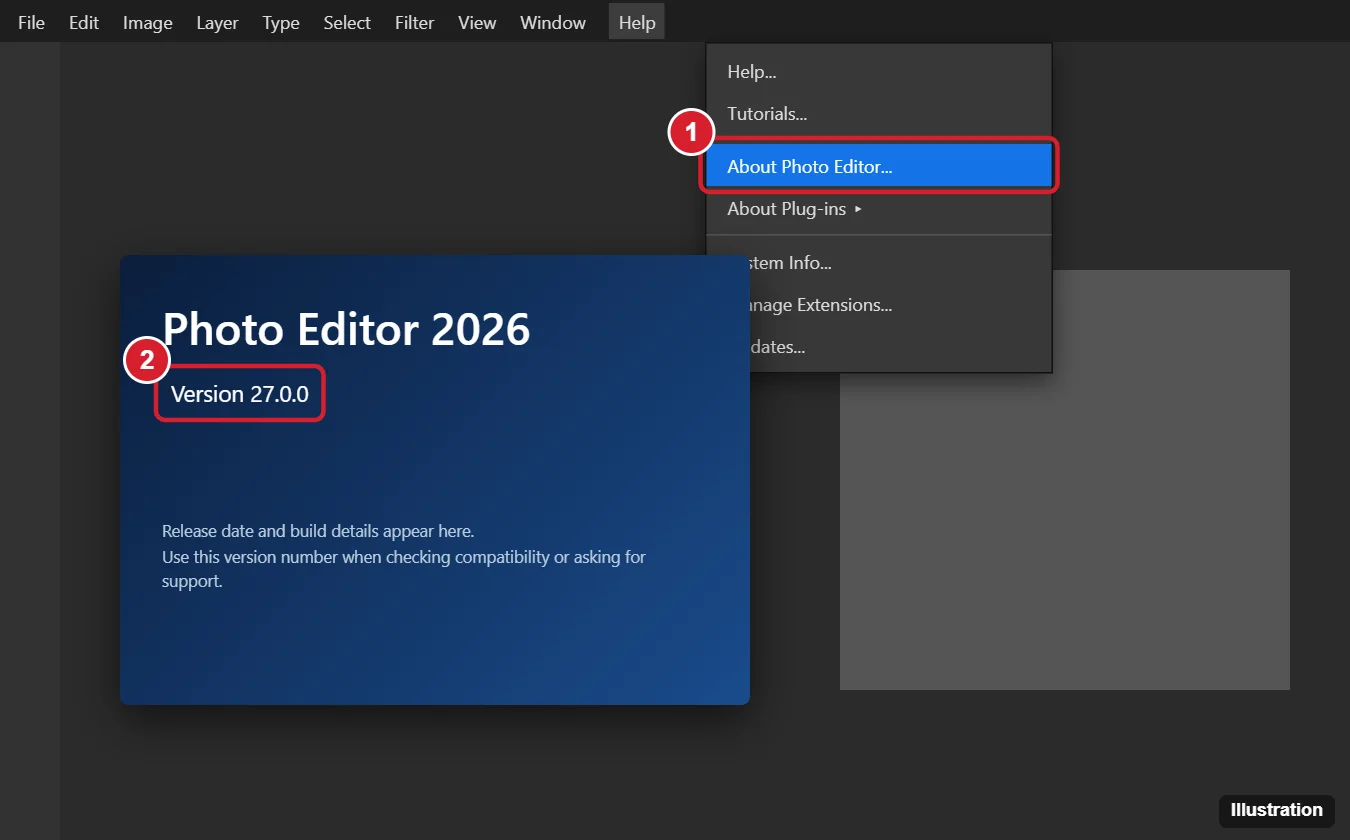
Write down the whole number, not just the first part. The first number is the major release, and the numbers after the dot mark the smaller updates Adobe ships during the year; a plug-in maker or support agent may ask for both.
Check from the Creative Cloud app
This route helps when Photoshop crashes on launch, or when you want to compare several Adobe apps at once.
- Open the Creative Cloud desktop app.
- Go to the list of your installed apps.
- Hover the mouse pointer over Photoshop. Adobe says the app’s current version appears when you do.
The Creative Cloud desktop app has a version of its own, separate from Photoshop’s. If support asks for “the Creative Cloud version,” confirm which one they mean.
What the version number tells you
Adobe names its yearly releases and numbers them separately. Its Photoshop release notes tie the names to the numbers:
- Photoshop 2025 is version 26.x.
- Photoshop 2026 is version 27.x, starting with 27.0 in October 2025 and running through monthly updates.
- Version 28.0 arrived in November 2026. The release notes list it by number, without a year name, so go by the number when you compare.
The release notes don’t give a full table of older names and numbers, so it is safer to quote the number from your About window than a year name you saw elsewhere.
Is your version still supported?
Adobe’s supported versions page splits releases into three groups, and the major number from your About window tells you which group you’re in:
| Version | Technical support | Security fixes | Bug fixes |
|---|---|---|---|
| Current version (28.x) | Yes | Yes | Yes |
| Prior version (27.x) | Yes | Yes | No |
| Older versions | No | No | No |
So a computer showing 27.x is still covered for support and security fixes, but bug fixes now go into 28.x. Anything older, including Creative Suite releases such as CS6, is outside that support.
Read more detail with System Info
When the version alone isn’t enough, choose Help > System Info. Adobe describes the first line of the report as the installed Photoshop version and whether it runs as 32-bit or 64-bit, followed by your operating system and hardware details. Select Copy in the dialog to paste the report into a support request. The full walk-through, including what each part of the report means, is in how to check your system info in Photoshop. If the question is about your graphics card, you can also see which graphics processor Photoshop is using.
Update Photoshop
From inside Photoshop, choose Help > Updates. Adobe says this checks for available updates through the Creative Cloud desktop app. To do it from the app instead, follow Adobe’s check for app updates steps:
- Open the Creative Cloud desktop app.
- In the Apps tab on the left sidebar, select Manage updates.
- Select Check for updates.
- In the Updates window, select Update next to Photoshop.
If you have turned on auto-updates, Adobe says your apps update automatically. Before a major update (for example from 27.x to 28.x), check that your plug-ins support the new release: by default, Photoshop removes the old version when you update to a major release. Afterward, open About Photoshop again to confirm the new number.
Photoshop version answers
Is “version history” the same as the app version?
No. Adobe’s version history pages for Photoshop on the web and on mobile are about earlier saved versions of a cloud document, which you can view and restore. They don’t tell you which version of the app you are running.
Why does a tutorial look different from my Photoshop?
The tutorial was probably written for an older or newer release. Compare the version it names with the number in your About window. Some basics change very little between releases; for example, checking whether an image is RGB or CMYK works much the same in older and current versions.
I don’t have Photoshop yet. Where should I get it?
Only from Adobe. The legal ways to get Photoshop free cover Adobe’s trial and other options, without any risky downloads.
Can I still use an old version like CS6?
It may still open on some computers, but it falls under Adobe’s “older versions” group, which gets no technical support, security fixes or bug fixes.

Kermit Matthews runs Live2Tech from just outside Philadelphia. He is an IT specialist with over 20 years of experience, from a university help desk to small-business IT, IT management and his own consulting practice, and has written tech guides full time since 2020. Steps are checked against the current software on a real device or the maker’s official documentation. More about Kermit.