To save power, Windows can switch off USB ports and devices it thinks aren’t being used. That’s good for laptop battery life, but it can cause USB mice to lag, external drives to disconnect, webcams and audio interfaces to drop out, or devices to stop working after sleep. Windows 10 and Windows 11 have two main settings that control this: USB selective suspend in Power Options and per-device power management in Device Manager. This guide shows how to change both, and when you should.
Quick Answer
Open Control Panel > Power Options > Change plan settings > Change advanced power settings, expand USB settings > USB selective suspend setting, and set it to Disabled. Then, in Device Manager, open each USB Root Hub‘s properties and uncheck Allow the computer to turn off this device to save power on the Power Management tab.
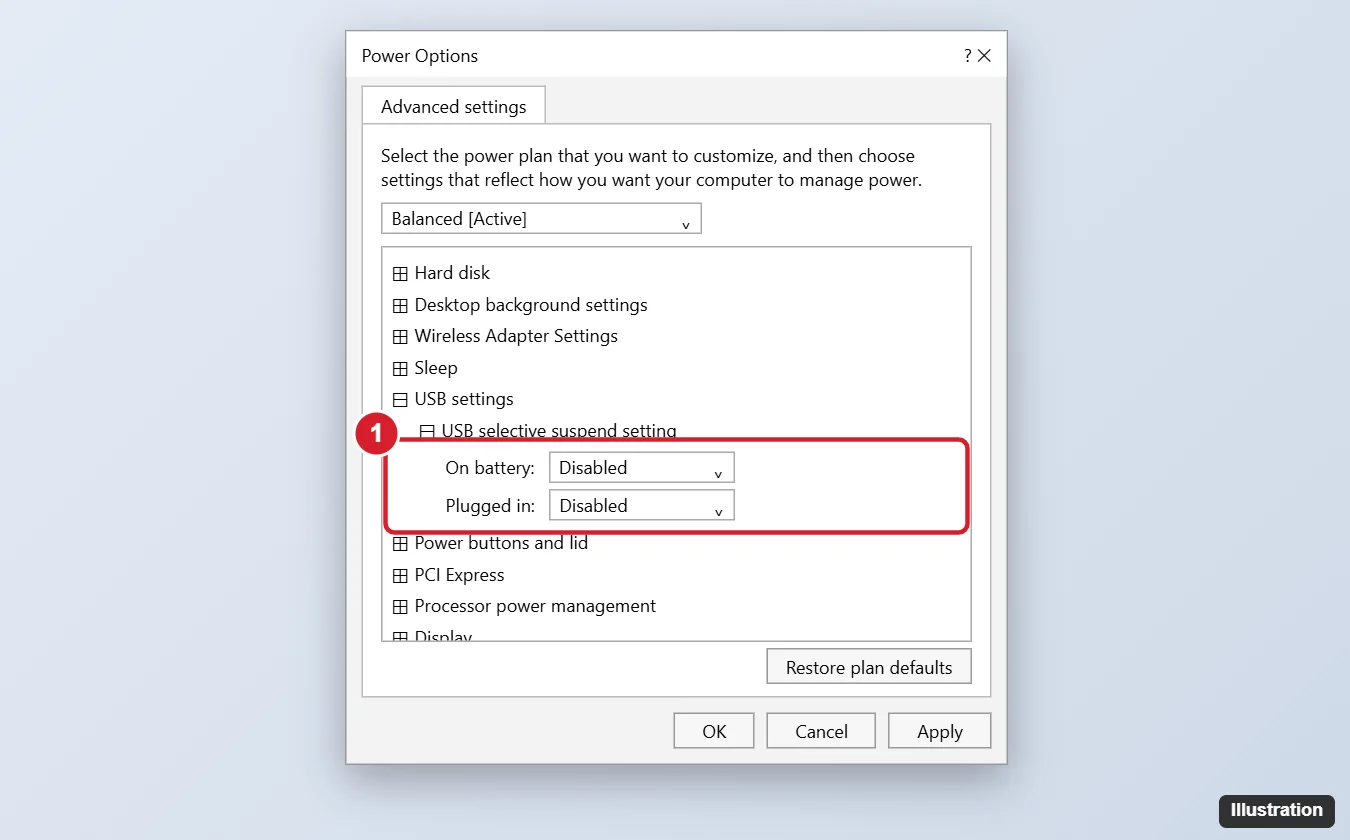
Disable USB Selective Suspend
- Press Windows key + R, type powercfg.cpl, and press Enter to open Power Options.
- Next to your active plan, click Change plan settings.
- Click Change advanced power settings.
- Expand USB settings, then USB selective suspend setting.
- Set On battery and Plugged in to Disabled (on a desktop there’s only one setting).
- Click Apply and OK.
If USB settings is missing, your power plan or PC maker may have hidden it. You can show it by running this command in an administrator Command Prompt, then reopening the dialog:powercfg -attributes 2a737441-1930-4402-8d77-b2bebba308a3 48e6b7a6-50f5-4782-a5d4-53bb8f07e226 -ATTRIB_HIDE
Stop Windows Turning Off a Specific USB Device
- Right-click Start and choose Device Manager.
- Expand Universal Serial Bus controllers.
- Double-click USB Root Hub (or USB Root Hub (USB 3.0), Generic USB Hub).
- Open the Power Management tab and uncheck Allow the computer to turn off this device to save power.
- Click OK, and repeat for each hub.
You can do the same for a specific device, such as a mouse under Mice and other pointing devices or a network adapter, if it has a Power Management tab. On that tab you can also check or uncheck Allow this device to wake the computer.
Windows 11 USB Settings
Windows 11 uses the same Power Options and Device Manager steps. It also has Settings > Bluetooth & devices > USB, with options such as USB notifications (warnings about connection problems) and USB battery saver on some laptops, which stops USB charging when the screen is off. On newer PCs using Modern Standby, the Power Options advanced settings may show fewer choices.
When Should You Disable USB Power Saving?
- A USB mouse, keyboard or game controller lags or stops responding briefly.
- External hard drives disconnect during long transfers or backups.
- USB audio interfaces, webcams or microphones drop out.
- USB devices don’t work after the PC wakes from sleep.
On a laptop running on battery, disabling these settings uses slightly more power, so turn them back on if you don’t notice a difference.
Other Fixes for USB Problems
- Plug devices directly into the PC instead of an unpowered hub.
- Update chipset and USB drivers from your PC or motherboard maker.
- Try a different port, especially a rear port on desktops.
- See how to reset USB ports on Windows 10.
Frequently Asked Questions
Is it safe to disable USB selective suspend?
Yes. It only affects power saving; devices work the same, and battery life may drop slightly.
Does this stop USB ports from charging my phone when the PC is off?
No. Charging while off or asleep is controlled by BIOS/UEFI settings (often called USB charging or Always On USB).
Do I need to restart?
Usually not, but restarting ensures every device picks up the new settings.
Summary
- Open Power Options > Change advanced power settings.
- Set USB selective suspend to Disabled.
- In Device Manager, uncheck power saving on USB Root Hubs.
- Restart if devices still disconnect.

Kermit Matthews runs Live2Tech from just outside Philadelphia. He is an IT specialist with over 20 years of experience, from a university help desk to small-business IT, IT management and his own consulting practice, and has written tech guides full time since 2020. Steps are checked against the current software on a real device or the maker’s official documentation. More about Kermit.