The easiest way to back up files on Windows 10 is File History. Plug in an external drive, go to Settings > Update & Security > Backup, click Add a drive, and pick your drive. Windows then copies your Desktop, Documents, Pictures, and other user folders to it every hour and keeps older versions. For an offsite copy, back up to the cloud with OneDrive or the Windows Backup app too.
A good backup plan follows the 3-2-1 rule: three copies of your data, on two different types of storage, with one kept offsite. Below are the main backup options in Windows 10, step by step, and how to restore your files.
Windows 10 backup options compared
| Option | What it backs up | Where | Best for |
|---|---|---|---|
| File History | Your personal folders, with older versions | External drive or network folder | Everyday automatic backups |
| OneDrive / Windows Backup | Desktop, Documents, Pictures, plus settings and app lists | Microsoft cloud | Offsite copy, moving to a new PC |
| Backup and Restore (Windows 7) | A full system image, or chosen folders | External drive | Restoring the whole PC after a drive failure |
| Copy files manually | Whatever you drag over | USB drive or external drive | A quick one-time backup |
Method 1: Back up with File History
- Connect an external hard drive or large USB drive. It should have more free space than the files you want to back up.
- Open Settings > Update & Security > Backup.
- Under Back up using File History, click Add a drive and choose your drive.
- The Automatically back up my files switch turns on. Windows starts backing up.
- Click More options to change how often it backs up, how long to keep copies, and which folders to include. Click Back up now to run a backup right away.
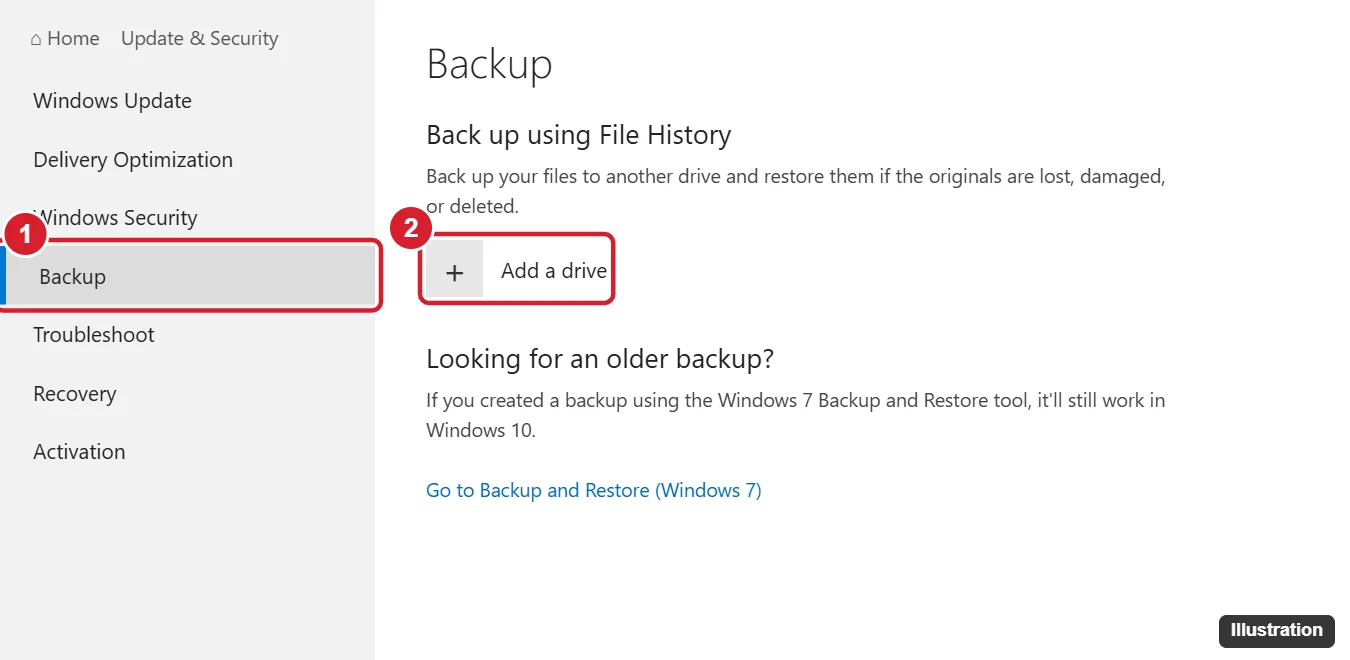
File History only backs up while the drive is connected. Plug it in regularly, or use a network drive that’s always available. To add another folder, click More options > Add a folder under Back up these folders.
Method 2: Back up to OneDrive or Windows Backup
- Click Start, type Windows Backup, and open the app. (If you don’t have it, install the latest Windows updates.)
- Sign in with your Microsoft account if asked.
- Choose what to back up: Folders (Desktop, Documents, Pictures, and more), Apps, Settings, and Credentials.
- Click Back up.
Folders are backed up to OneDrive, which includes 5 GB of free storage. You’ll need a Microsoft 365 or OneDrive plan for more. You can also turn on folder backup from the OneDrive icon in the taskbar: click it, then the gear icon > Settings > Sync and back up > Manage back up.
Cloud sync isn’t a complete backup on its own. If you delete a file on your PC, it’s also deleted from OneDrive, though you can usually get it back from the OneDrive recycle bin for a limited time.
Method 3: Create a system image
A system image copies everything on your drive, including Windows, apps, and settings. It’s useful if your drive fails and you want to restore the whole PC.
- Open Control Panel and click Backup and Restore (Windows 7). Don’t worry about the name. It works in Windows 10.
- Click Create a system image on the left.
- Choose your external drive and click Next, then Start backup.
- When asked, create a system repair disc or USB recovery drive so you can boot the PC if Windows won’t start.
Microsoft no longer develops this tool, so it’s best as an extra layer alongside File History or a cloud backup. Many external drives come with their own backup software, which also works.
Method 4: Copy files manually
- Plug in a USB or external drive.
- Open File Explorer and select the folders you want, like Documents and Pictures.
- Press Ctrl + C, open the drive, and press Ctrl + V.
This works for a one-time backup, but it won’t update automatically.
How to restore files
- From File History: Type Restore your files with File History in the Start menu. Browse to the file, use the arrows to pick a date, and click the green Restore button. You can also right-click a file in File Explorer and choose Restore previous versions.
- From OneDrive: Sign in to OneDrive on the PC or at onedrive.com. Your backed-up folders appear automatically.
- From a system image: Boot from your recovery drive, choose Troubleshoot > Advanced options > System Image Recovery. This replaces everything on the drive.
Tips for reliable backups
- Check your backup every few months by restoring a test file.
- Keep one copy away from your PC, such as in the cloud or at another location, in case of theft, fire, or ransomware.
- Disconnect your backup drive when it’s not in use to help protect it from ransomware.
- Windows 10 support ended on October 14, 2025, and consumer Extended Security Updates run until October 12, 2027. Back up everything before you upgrade to Windows 11 or move to a new PC.
Frequently asked questions
How much space do I need for a backup?
At least as much as the files you’re backing up. For File History, a drive two to three times that size leaves room for older versions.
Does File History back up programs?
No. It only backs up files in your user folders. Use a system image to back up programs and Windows itself.
Can I back up to a network drive?
Yes. In File History, click More options > See advanced settings > Select drive > Add network location.

Kermit Matthews runs Live2Tech from just outside Philadelphia. He is an IT specialist with over 20 years of experience, from a university help desk to small-business IT, IT management and his own consulting practice, and has written tech guides full time since 2020. Steps are checked against the current software on a real device or the maker’s official documentation. More about Kermit.