You slide an old music CD into the drive and the wrong player pops up, or nothing happens at all. The quickest fix is usually in the classic Control Panel: open AutoPlay (under Hardware and Sound) and pick an action from the drop-down next to Audio CD. Settings in Windows 11 (Bluetooth & devices > AutoPlay) and Windows 10 turn AutoPlay on or off, but Microsoft only documents defaults there for removable drives and memory cards, not CDs.
Where the audio CD setting lives
AutoPlay is the Windows feature that reacts when you connect media, such as a disc, USB flash drive or memory card. It can run an action you chose earlier, ask you what to do, or do nothing. Two different screens control it, and they don’t do the same job.
| Screen | How to get there | What it controls |
|---|---|---|
| Settings (Windows 11) | Start > Settings > Bluetooth & devices > AutoPlay | Turning AutoPlay on or off, plus defaults for removable drives and memory cards |
| Settings (Windows 10) | Start > Settings > Devices > AutoPlay (labels may differ slightly) | The same on/off switch and a short list of defaults |
| Control Panel (Windows 11 and 10) | Control Panel > Hardware and Sound > AutoPlay | A longer per-media list that normally includes Audio CD and other disc types |
So if you only want AutoPlay switched on, Settings is enough. If you want a specific action for music CDs, plan on using Control Panel. Microsoft’s current support pages don’t describe that Control Panel page, so the labels below may look a little different on your PC.
Choose the audio CD action in Control Panel
These steps work the same way in Windows 11 and Windows 10. The pictures come from Windows 7, which used the same AutoPlay page with an older look.
- Select Start (or the search box on the taskbar), type Control Panel, and open it from the results. If it doesn’t show up, there are several other ways to open Control Panel, such as typing control in the Run box (Windows key + R). You can also type AutoPlay in the Start search box; if the result opens the Settings page instead, use the Control Panel route for the Audio CD row.

Windows 7 Start menu shown; current versions of Windows look different. 
Older version shown: in Windows 11 and 10 you search for Control Panel instead. - In the default Category view, select Hardware and Sound. If you prefer the flat list, open the View by menu at the top right and pick Small icons or Large icons.

The View by menu in Windows 7; current Control Panel is similar but not identical. - Select AutoPlay.

Older version shown; current screens look different. - Near the top, make sure the box for using AutoPlay for all media and devices is checked, if your page shows one.
- Find the Audio CD row in the media list and open its drop-down. Pick the action you want (the next section explains each one).
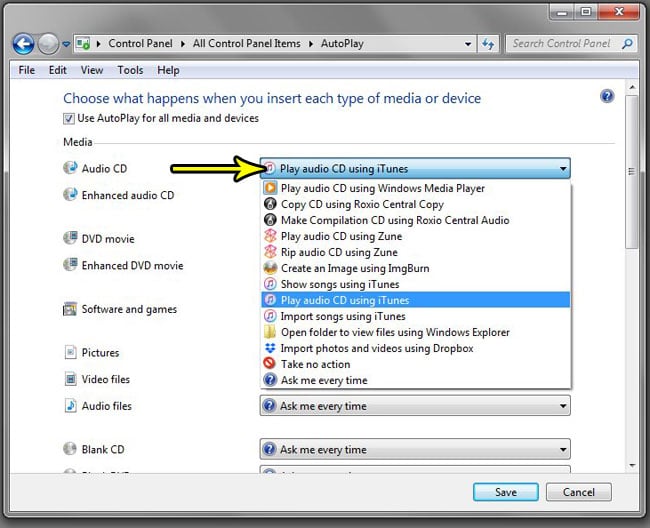
Audio CD drop-down in Windows 7; the list of players on your PC depends on what’s installed. - If you also play enhanced CDs (music discs that carry extra files such as videos), set the row below it, often labeled Enhanced audio CD, to match.
- Select Save at the bottom of the window.
- Eject the disc and insert it again. The new action should run. If Windows still asks, it may be showing a notification; select it and choose the same action there.
What each drop-down choice does
The exact entries come from the apps on your PC, so your list may be longer or shorter. These are the common types:
| Choice | What happens when a music CD goes in | Good for |
|---|---|---|
| Play audio CD (with a named player) | That app opens and starts playing | Listening right away with one favorite player |
| Rip music from CD (if a ripping app offers it) | The app opens ready to copy tracks to your PC | Working through a stack of discs to digitize |
| Open folder to view files | File Explorer shows the disc’s tracks | Checking what’s on a disc before doing anything |
| Take no action | Nothing opens | Shared or kiosk-style PCs, or if pop-ups annoy you |
| Ask me every time | Windows shows a prompt so you choose per disc | Households where people want different things |
Which player appears depends on what’s installed. Microsoft says Windows Media Player Legacy is an optional feature in Windows 10 and 11, and it recommends the newer Media Player app for modern video features. On Windows 11 you can add the Legacy player from Start > Settings > System > Optional features: select View features, search for Windows Media Player Legacy, and add it. On Windows 10 the route is Start > Settings > Apps > Apps & features > Manage optional features > Add a feature. After installing a player, return to the AutoPlay page to see whether it now appears for Audio CD.
Turn AutoPlay on in Settings
If a CD does nothing at all, AutoPlay itself may be off. Settings is the quickest place to check.
Windows 11
- Select Start > Settings > Bluetooth & devices > AutoPlay.
- Make sure the AutoPlay switch at the top is turned On.
- Under the defaults section you’ll find choices for removable drives and memory cards. For CDs, go back to the Control Panel steps above.
Microsoft gives this path on its page about installing programs from a CD or DVD.
Windows 10
- Select Start > Settings > Devices, then look for AutoPlay in the left pane.
- Turn on the switch for using AutoPlay for all media and devices.
- Use Control Panel for the Audio CD row, as above.
When nothing happens or the wrong app opens
- Nothing at all. Check the AutoPlay switch in Settings first, then confirm Audio CD isn’t set to Take no action. Microsoft’s developer documentation notes that AutoPlay does nothing when someone earlier chose Take no action and told Windows to always do that.
- A player was already open. If a media app is running when you insert the disc, that app may grab the CD itself, so the AutoPlay choice seems to be ignored. Close it and try again.
- The CD plays but there’s no sound. That’s an audio problem, not AutoPlay. Try resetting the audio drivers in Windows 11.
- A different app opens your music files later. That’s controlled by file associations, not AutoPlay; see how to set default apps in Windows 11.
Undo a choice or start over
To go back to being asked, open the AutoPlay page in Control Panel again and set Audio CD to Ask me every time, then select Save. The page has usually included a button at the bottom for resetting all defaults; it clears the choices for every media type, not only CDs, so use it only if you want a clean slate. You can confirm the result by reinserting a disc.
AutoPlay and audio CD questions
Is AutoPlay the same as AutoRun?
No. AutoRun lets a disc launch a program stored on it, while AutoPlay lets you choose what happens. Microsoft calls AutoRun on removable media an easy way to spread viruses, which is why prompting or a known action is the safer setup for drives you don’t recognize.
My PC has no disc drive. Can I still use this?
Yes, with an external USB CD or DVD drive. Once Windows recognizes the drive, the AutoPlay settings above should apply to discs you insert in it.
Does this setting change what happens with DVDs?
No. The Audio CD choice applies to music CDs; DVDs are listed separately on the AutoPlay page. Microsoft notes that Windows Media Player Legacy doesn’t include DVD playback, so a separate app is needed; see how to play a DVD on Windows 10.
What about Windows 7?
Windows 7 used the same Control Panel AutoPlay page (Start > Control Panel > AutoPlay), which is what the pictures above show. Windows 7 no longer gets security updates, so the steps here focus on Windows 11 and 10.
Next steps after setting AutoPlay
If your goal is a digital copy of a CD collection, set Audio CD to Ask me every time or to your ripping app, then follow how to rip a CD on Windows 11 or rip a CD on Windows 10. Once the tracks are on your PC, it can also help to show file extensions in Windows 11 so you can tell MP3, WMA and WAV files apart.

Kermit Matthews runs Live2Tech from just outside Philadelphia. He is an IT specialist with over 20 years of experience, from a university help desk to small-business IT, IT management and his own consulting practice, and has written tech guides full time since 2020. Steps are checked against the current software on a real device or the maker’s official documentation. More about Kermit.