The quickest way to turn on airplane mode in Windows 11 is to press Windows key + A to open Quick Settings and select the Airplane mode tile. You can also go to Settings > Network & internet > Airplane mode and turn the toggle on; Windows 10 has the same Settings page plus a taskbar shortcut. Airplane mode turns off wireless connections, but you can switch Wi-Fi or Bluetooth back on while it stays on.
Turn on airplane mode in Windows 11
Windows 11 gives you two routes. Quick Settings is faster for everyday use; the Settings app is the dependable fallback when the tile is missing.
From Quick Settings
- Open Quick Settings. Press Windows key + A, or select the Network, Sound or Battery icons on the right side of the taskbar (they open as one panel).
- Select the Airplane mode tile. Wi-Fi, Bluetooth and any other wireless connections switch off.
- Select the tile again when you want to turn airplane mode off.
On a touchscreen PC, Microsoft also lists swiping from the bottom of the Quick Settings area as a way to open the panel.
From the Settings app
- Select Start, then Settings.
- Select Network & internet.
- Select Airplane mode.
- Turn the toggle On. To turn airplane mode off later, come back here and turn it Off.
The Settings page is also the most reliable way to check the current state. If you’re not sure whether airplane mode is on, this toggle tells you plainly.
If the Airplane mode tile isn’t in Quick Settings
Microsoft notes that you can customize Quick Settings by moving and arranging its elements, so the tile may have been moved or removed on your PC. The Settings route above works whatever the panel shows, so use it whenever the tile isn’t where you expect.
What airplane mode turns off
Microsoft describes airplane mode as a quick way to turn off all wireless communications on your PC. The examples it gives are:
- Wi-Fi, so you drop off any wireless network and lose internet over Wi-Fi.
- Cellular, on PCs that have a SIM or eSIM for mobile data.
- Bluetooth, so wireless headphones, mice, keyboards and speakers disconnect.
- Near Field Communication (NFC), on PCs that have it.
Everything stored on the PC keeps working. You can still open files, write documents, watch downloaded videos and use apps that don’t need the internet. What stops is anything that relies on a wireless link, such as cloud syncing, web pages and Bluetooth audio.
Microsoft’s description covers wireless connections only. It says nothing about a wired network cable, so if you need to be fully offline on a PC plugged into Ethernet, unplug the cable as well rather than counting on airplane mode.
Turn Wi-Fi or Bluetooth back on while airplane mode stays on
A common situation: you’re on a flight that offers onboard Wi-Fi, or you want to keep Bluetooth headphones connected while everything else stays off. Airplane mode doesn’t lock the individual switches, so you can turn one back on.
- Wi-Fi: open Quick Settings and select the Wi-Fi tile, or go to Settings > Network & internet > Wi-Fi and turn it on. Then pick a network as usual.
- Bluetooth: open Quick Settings and select the Bluetooth tile, or go to Settings > Bluetooth & devices and turn Bluetooth on.
Windows remembers this choice. Microsoft explains that airplane mode keeps the settings you used last time: if Wi-Fi or Bluetooth was on the last time you were in airplane mode, Windows turns it on again the next time. To go back to having everything off, turn Wi-Fi and Bluetooth off while you’re still in airplane mode. For more on the Bluetooth side, see how to turn on Bluetooth in Windows 11 and 10.
Turn on airplane mode in Windows 10
Microsoft ended support for Windows 10 on October 14, 2025, and no longer provides technical assistance, feature updates or security updates for it. Airplane mode still works the same way on a Windows 10 PC, and the steps are close to Windows 11.
From the taskbar
- Select the Network icon at the right end of the taskbar.
- Select Airplane mode in the panel that opens. Select it again to turn it off.
From search or Settings
- Type airplane mode into the search box at the bottom-left of the screen.
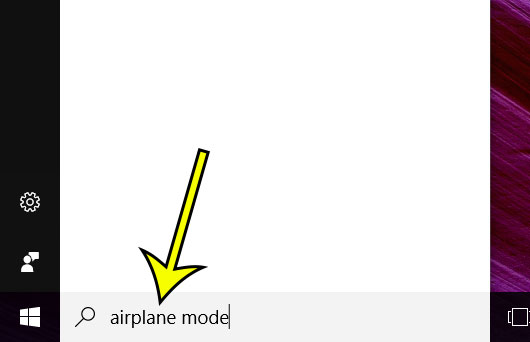
Older Windows 10 screen shown; Windows 11 looks different.
- Choose Airplane mode from the search results. This opens the same page you would reach through Settings > Network & Internet > Airplane mode.
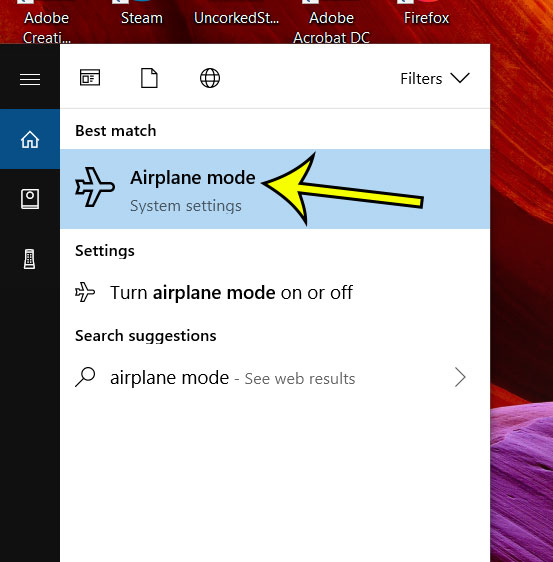
Older Windows 10 screen shown; Windows 11 looks different.
- Turn the switch under Airplane mode on.

Older Windows 10 screen shown; Windows 11 looks different.
Use the airplane key or wireless switch on a laptop
Many laptops have a key that toggles airplane mode or wireless, usually marked with a plane or a radio-wave icon. On some models you press it on its own; on others you hold the Fn key while pressing it. A few older laptops use a small physical slider on the side or front for Wi-Fi instead.
These keys and switches differ by manufacturer and model, so check your laptop’s manual or the maker’s support site for the exact key. Two things to know:
- If you press the key and nothing changes, use the Quick Settings tile or the Settings page instead; they don’t depend on the keyboard.
- A physical wireless switch in the off position can make Wi-Fi look broken even when airplane mode is off. Microsoft’s Wi-Fi troubleshooting steps include checking that switch.
Airplane mode stuck, greyed out or Wi-Fi still missing
Work through these in order, starting with the quickest.
- Check the Settings toggle. Go to Settings > Network & internet > Airplane mode and make sure the toggle shows the state you expect. Microsoft’s own Wi-Fi troubleshooting lists this check near the start.
- Check the laptop’s switch or key. A hardware switch or Fn-key combination can keep wireless off underneath what Windows shows.
- Restart the PC. Save your work, then select Start > Power > Restart. Microsoft’s Wi-Fi troubleshooting includes a restart too.
- Turn Wi-Fi on separately. With airplane mode off, go to Settings > Network & internet > Wi-Fi and make sure Wi-Fi itself is on.
- Look at the adapter and driver. If Wi-Fi is still missing, the wireless adapter may be disabled or its driver may need attention. The guide to turn on wireless capability in Windows 10 covers the adapter, driver, WLAN service and network reset steps, and you can also enable the Wi-Fi adapter from Network Connections or Device Manager.
Once wireless is back, here is how to connect Windows 11 to Wi-Fi if the PC doesn’t rejoin your network automatically.
Airplane mode questions
Do I have to use airplane mode on a flight?
Follow the instructions the crew gives you. Airplane mode is the simple way to switch off every radio at once, and you can then turn Wi-Fi back on if the crew says onboard Wi-Fi is allowed.
Is airplane mode useful when I’m not flying?
Yes. It is a fast way to go offline on purpose, for example to pause online notifications and cloud syncing during a presentation, or to take a laptop off every wireless network for a while without changing individual settings.
Why did Wi-Fi come on by itself when I turned on airplane mode?
Because Windows remembered your last choice. If you turned Wi-Fi or Bluetooth back on during an earlier airplane mode session, Windows restores that the next time. Turn the one you don’t want off while airplane mode is on, and it stays off from then on.
How is this different on an iPhone?
The idea is the same but the controls are not. See how to turn airplane mode on or off on iPhone, and how to tell if your iPhone is in airplane mode.
Setting up a Windows 10 PC for someone else to use offline? Here is how to create a new user on Windows 10. For Microsoft’s own description of airplane mode and the other network switches, see its page on essential network settings and tasks in Windows.

Kermit Matthews runs Live2Tech from just outside Philadelphia. He is an IT specialist with over 20 years of experience, from a university help desk to small-business IT, IT management and his own consulting practice, and has written tech guides full time since 2020. Steps are checked against the current software on a real device or the maker’s official documentation. More about Kermit.