"Virtual RAM" in Windows is the paging file (pagefile.sys): drive space Windows uses as extra memory when your physical RAM fills up. To increase it, press Windows key + R, type sysdm.cpl, and go to Advanced > Performance Settings > Advanced > Virtual memory > Change. Uncheck Automatically manage paging file size, choose Custom size for your drive, enter sizes in MB, click Set, then OK, and restart. The steps are the same in Windows 11.
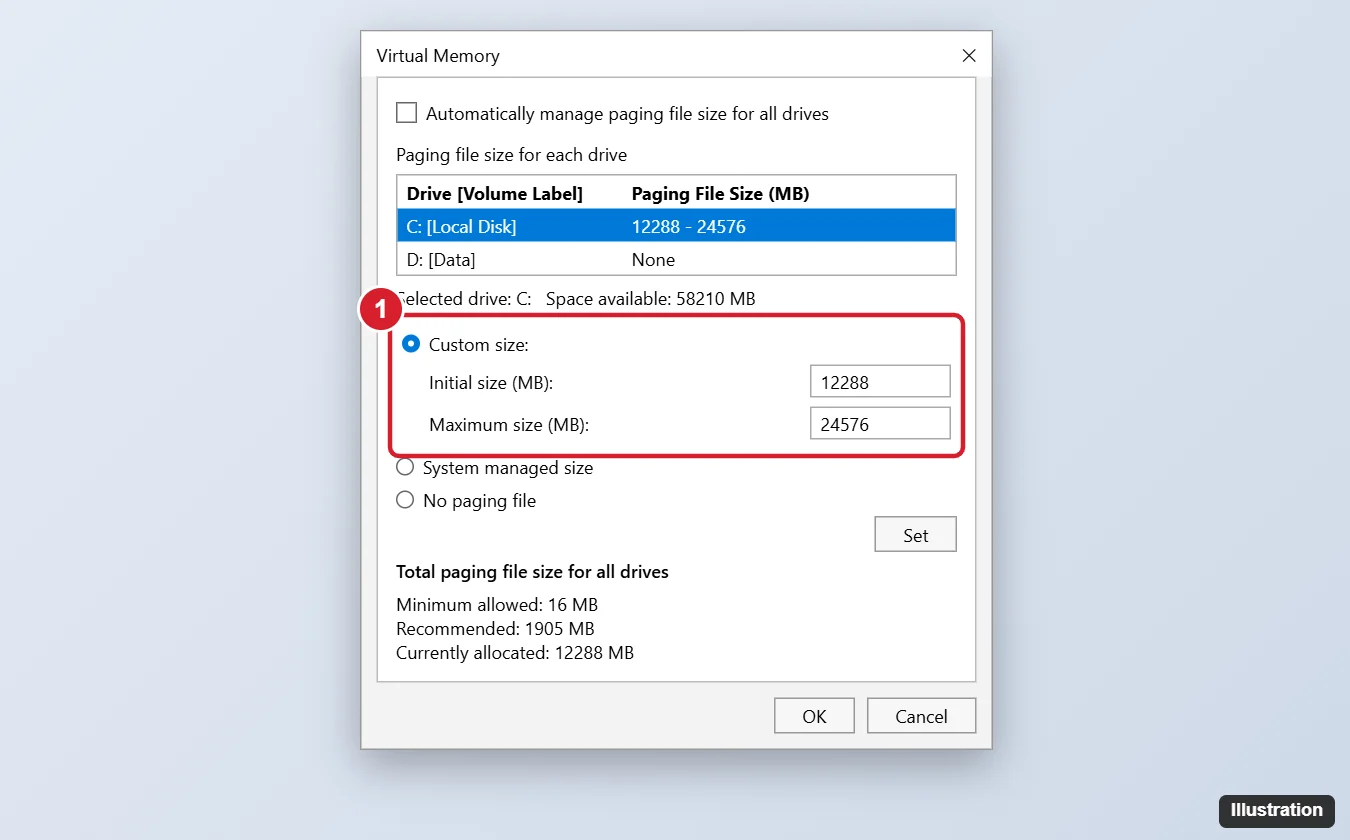
How to Increase Virtual Memory in Windows 10
- Press Windows key + R, type sysdm.cpl, and press Enter. (Or search Start for Adjust the appearance and performance of Windows.)
- Open the Advanced tab and click Settings under Performance.
- In Performance Options, open the Advanced tab and click Change under Virtual memory.
- Uncheck Automatically manage paging file size for all drives.
- Select the drive (usually C:, or a faster SSD if you have more than one).
- Choose Custom size and enter the Initial size and Maximum size in MB.
- Click Set, then OK in each window.
- Restart your PC when prompted.
Do I have to restart?
Yes, for size decreases and most changes. Increases may apply immediately, but restarting is recommended.
Where is the paging file stored?
It’s a hidden system file named pagefile.sys at the root of the drive (for example C:\pagefile.sys). Don’t delete it manually.
What Size Should You Use?
A common rule of thumb is an initial size of about 1.5 times your RAM and a maximum of about 3 times your RAM. For example, with 8 GB (8,192 MB) of RAM:
- Initial size: 12,288 MB
- Maximum size: 24,576 MB
Check your RAM in Settings > System > About (Installed RAM). Make sure the drive has enough free space for the maximum size. On PCs with 16 GB or more, the default System managed size is usually fine unless a specific app recommends more.
Getting the most from the paging file
- Use an SSD: a paging file on an SSD is much faster than on a hard drive.
- Don’t disable the paging file, even with lots of RAM. Some apps and crash dumps need it.
- Go back to automatic by checking Automatically manage paging file size for all drives if you have problems.
Virtual Memory vs. Real RAM
Virtual memory prevents out-of-memory crashes, but your drive is far slower than RAM, so heavy paging makes the PC feel sluggish. If you often run out of memory, the best fixes are:
- Close unused apps and browser tabs, and remove startup programs in Task Manager > Startup.
- Check memory use in Task Manager > Performance > Memory.
- Add physical RAM if your PC supports it; see how to get more memory on Windows 10.

Kermit Matthews runs Live2Tech from just outside Philadelphia. He is an IT specialist with over 20 years of experience, from a university help desk to small-business IT, IT management and his own consulting practice, and has written tech guides full time since 2020. Steps are checked against the current software on a real device or the maker’s official documentation. More about Kermit.