To add a Korean keyboard in Windows 10, go to Settings > Time & Language > Language > Add a language, choose Korean, and click Install. In Windows 11, go to Settings > Time & language > Language & region > Add a language. Switch keyboards with Windows key + Space, and toggle between Hangul (한글) and English letters with the Right Alt key. The Microsoft Korean IME is free and works with your normal keyboard, even without Korean letters printed on the keys.
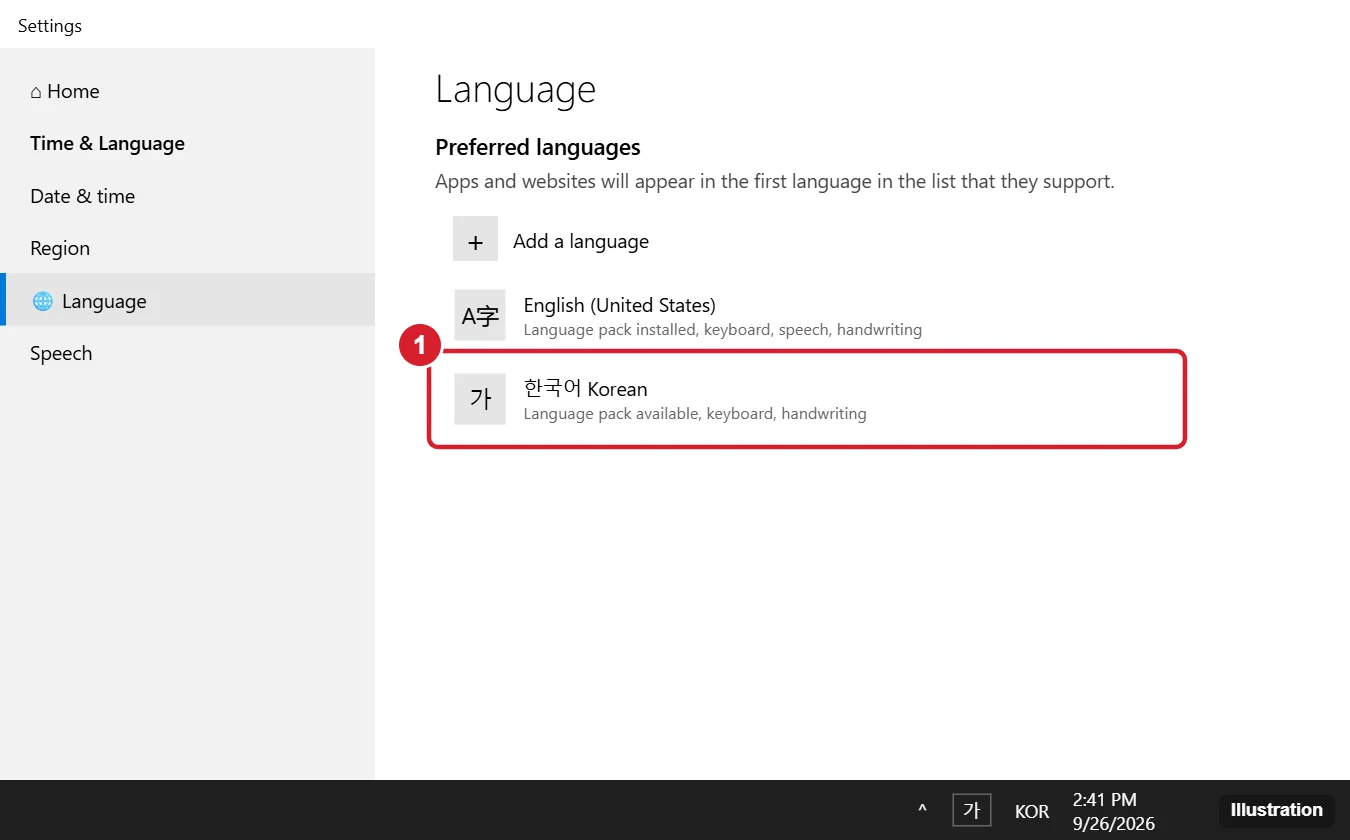
Add the Korean Keyboard in Windows 10
- Press Windows key + I to open Settings.
- Click Time & Language, then Language.
- Under Preferred languages, click Add a language.
- Type Korean, select 한국어 Korean, and click Next.
- Uncheck Install language pack and set as my Windows display language unless you want Windows menus in Korean. Keep the keyboard option. Speech and handwriting are optional.
- Click Install.
Add the Korean Keyboard in Windows 11
- Open Settings > Time & language > Language & region.
- Next to Preferred languages, click Add a language.
- Search for Korean, select it, and click Next.
- Uncheck Set as my Windows display language if you want to keep your current language, then click Install.
How to Type in Korean
- Press Windows key + Space (or click the language code, such as ENG, in the taskbar) and choose Korean – Microsoft IME. The taskbar shows 한 or A.
- If you see A, the keyboard is in English mode. Press the Right Alt key (the 한/영 key on Korean keyboards) to switch to Hangul. The indicator changes to 가.
- Type using the standard Dubeolsik (2-set) layout. For example, typing dkssudgktpdy gives 안녕하세요 (hello); syllables combine automatically as you type.
Can’t remember the layout? Open the On-Screen Keyboard (press Windows key + Ctrl + O) while Korean is active to see the Hangul letters on each key, or buy Korean keyboard stickers.
Moving between Korean and your usual layout is quicker once you know each way to switch keyboard languages on Windows 10.
Type Hanja (Chinese Characters)
Type a Korean word, then press the Right Ctrl key (or the Hanja key on Korean keyboards). A list of matching Hanja appears; pick one with the number keys or arrows and press Enter.
Change Korean Keyboard Settings
Go to your language list, click Korean > Options, then Microsoft IME > Options (in Windows 11, click the three dots next to Korean > Language options > Microsoft IME > Keyboard options). You can:
- Choose Keyboard layout: 2 Beolsik (default), 3 Beolsik Final, 3 Beolsik 390 or 3 Beolsik No-Shift.
- Change the Hangul/English toggle key, for example to Shift + Space.
- Turn on or off typing a complete syllable at a time, and auto-correct options.
How do I remove the Korean keyboard?
Go to your language list, select Korean, and click Remove (or the three dots > Remove in Windows 11).
On Windows 11, the rest of the keyboard can be put back too by following these keyboard reset steps for Windows 11.
When Korean Typing Doesn’t Work
- Still typing English letters: the IME is in English (A) mode. Press Right Alt, or click A in the taskbar to switch to 가.
- Right Alt doesn’t switch: some laptop keyboards send AltGr or have no Right Alt. Change the toggle key to Shift + Space in IME options, or click the A/가 indicator.
- Korean isn’t in the switcher: check that the Korean keyboard was installed under Korean > Options > Keyboards. Restart the PC after installation.
- Games or some apps ignore the IME: run them in windowed mode, or check for “Use previous version of Microsoft IME” in IME options (Windows 10 2004 and later), which can fix compatibility.

Kermit Matthews runs Live2Tech from just outside Philadelphia. He is an IT specialist with over 20 years of experience, from a university help desk to small-business IT, IT management and his own consulting practice, and has written tech guides full time since 2020. Steps are checked against the current software on a real device or the maker’s official documentation. More about Kermit.