Bulleted lists make Google Docs easier to scan. You can start one from the toolbar, the Format menu, a keyboard shortcut, or just by typing an asterisk and a space. You can also change the bullet style and create nested levels.
Quick Answer
Click the bulleted list button on the toolbar, press Ctrl, Shift and 8 (Command, Shift and 8 on a Mac), or type an asterisk and a space at the start of a line.
How to Add Bullet Points in Google Docs
- Place the cursor where the list should start, or select existing lines.
- Click the Bulleted list button on the toolbar, or go to Format, Bullets and numbering, Bulleted list.
- Or press Ctrl, Shift and 8 (Command, Shift and 8 on a Mac).
- Type each item and press Enter for the next bullet.
- Press Tab to indent a sub-bullet and Shift and Tab to move back out.
- Press Enter twice to end the list.
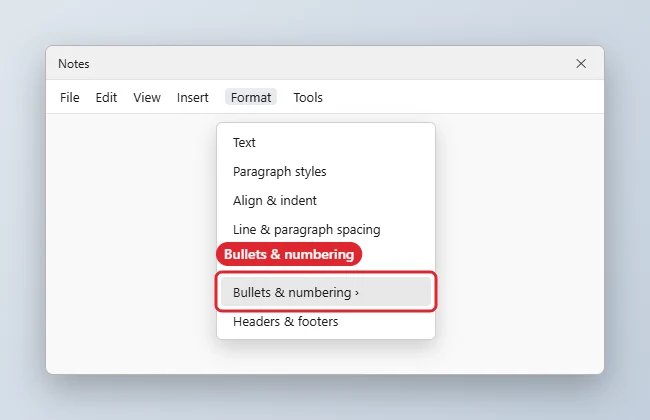
List Options
| Option | How |
|---|---|
| Bulleted list | Toolbar button or Ctrl + Shift + 8 |
| Numbered list | Ctrl + Shift + 7 |
| Checklist | Ctrl + Shift + 9 |
| Change bullet style | Right-click a bullet, More bullets |
| Nested level | Tab and Shift + Tab |
To indent a list on a phone or tablet, see how to indent on Google Docs mobile.
Troubleshooting
- Bullets will not start from an asterisk: turn on Tools, Preferences, Automatically detect lists.
- Bullet the wrong color or size: select only the bullet by clicking it, then change the font or color.
- Uneven indents: see how to indent in Google Docs.
- Working with long documents? Read how to use tabs in Google Docs.
Related: Make a hanging indent in Google Docs on iPad.
The opposite problem, bullets that appear when you only wanted a dash, is covered in stopping automatic lists in Google Docs.
Frequently Asked Questions
Can I use custom symbols as bullets?
Yes. Right-click a bullet, choose More bullets and pick any symbol.
How do I restart numbering?
Right-click a number and choose Restart numbering.
Does the mobile app support bullets?
Yes. Tap the formatting button and choose the list icon.
Can I copy list formatting?
Yes, with the Paint format tool.
Summary
- Place the cursor.
- Click Bulleted list or press Ctrl + Shift + 8.
- Press Enter for each item.
- Tab to nest.
- Enter twice to finish.

Kermit Matthews runs Live2Tech from just outside Philadelphia. He is an IT specialist with over 20 years of experience, from a university help desk to small-business IT, IT management and his own consulting practice, and has written tech guides full time since 2020. Steps are checked against the current software on a real device or the maker’s official documentation. More about Kermit.