To format bullet points in Word, select the list and use the Bullets button on the Home tab: click the arrow next to it to pick a different bullet from the Bullet Library, or choose Define New Bullet to use any symbol, picture, color, or size. Right-click the list and choose Adjust List Indents to change how far the bullets and text are indented, press Tab or Shift + Tab to change a bullet’s level, and use Line and Paragraph Spacing to add space between items.
This guide covers every bullet formatting option in Word for Microsoft 365, Word 2024, 2021, 2019, and 2016 on Windows, with notes for Mac and Word for the web: symbols and pictures, color and size, indents and alignment, spacing, multilevel lists, and fixing bullets that won’t behave.
Add bullets
- Select the lines you want to turn into a list, or click where you want the list to start.
- On the Home tab, click Bullets in the Paragraph group.
- Press Enter to add a new bullet, and press Enter twice to end the list.
Shortcut: type an asterisk (*) and a space at the start of a line, and Word turns it into a bullet automatically. Ctrl + Shift + L applies the List Bullet style.
Change the bullet symbol
- Select the list.
- Click the arrow next to Bullets and pick a symbol from the Bullet Library.
- For more choices, click Define New Bullet > Symbol, choose a font such as Wingdings or Segoe UI Symbol, select a character, and click OK.
- To use an image, click Picture in the Define New Bullet dialog and insert a small image.
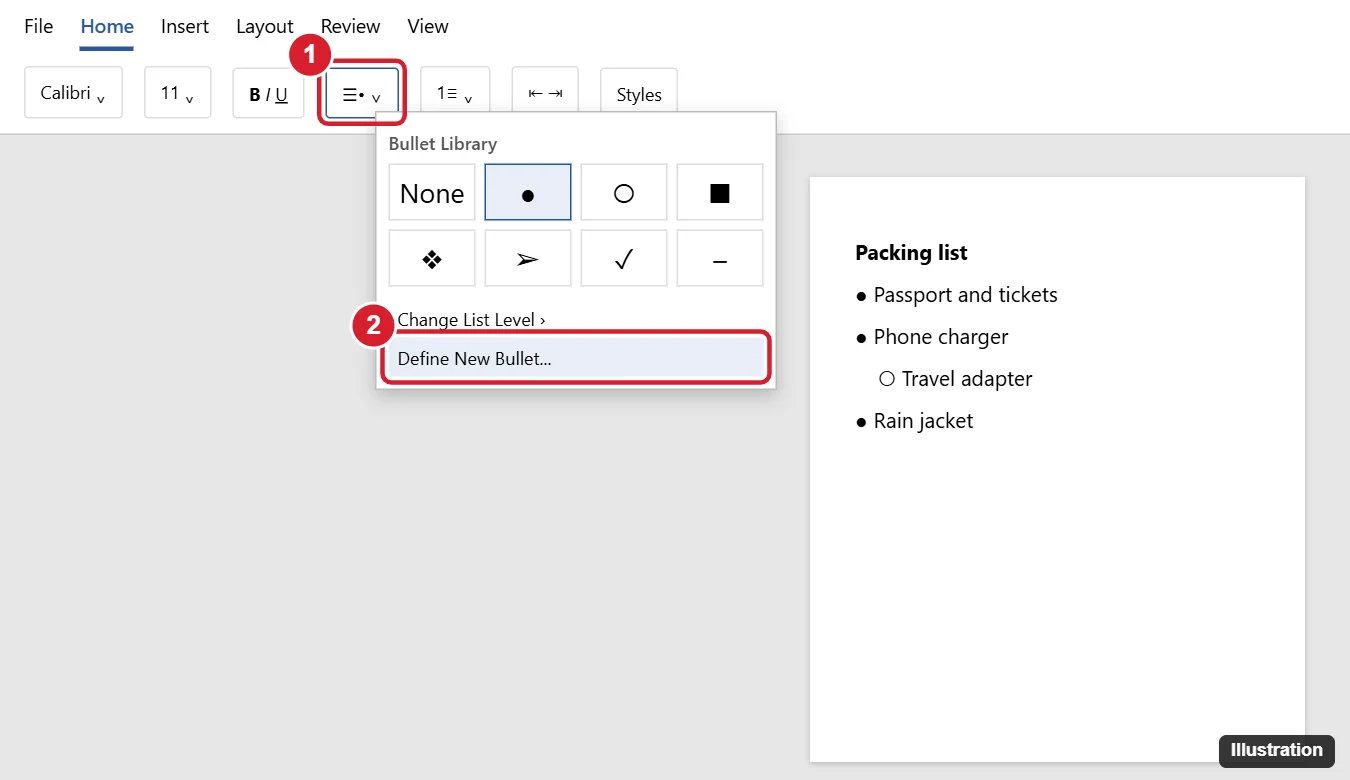
Change bullet color and size
- Select the list, click the Bullets arrow, and choose Define New Bullet.
- Click Font.
- Choose a Font color and Size (and bold, if you like), then click OK twice.
This changes only the bullets, not the text. To change both, format the text normally with the list selected.
Change indents and alignment
- Right-click a bullet and choose Adjust List Indents.
- Set Bullet position (how far the bullet is from the margin) and Text indent (where the text starts).
- Under Follow number with, choose Tab character, Space, or Nothing. With Tab, you can set a tab stop position.
- Click OK.
You can also drag the indent markers on the ruler (View > Ruler) with the list selected. The top triangle moves the bullet, and the bottom triangle moves the text.
Change spacing between bullets
- Select the list.
- On the Home tab, click Line and Paragraph Spacing, then Line Spacing Options.
- Set Before and After spacing (for example, 6 pt after), and adjust Line spacing.
- If items look squashed, uncheck Don’t add space between paragraphs of the same style.
Create multilevel bullets
- Press Tab at the start of a bullet to move it down a level, and Shift + Tab to move it up.
- Or click the Bullets arrow > Change List Level and pick a level.
- To set a different symbol for each level, click the Multilevel List button > Define New Multilevel List, click each level, and choose a bullet style.
Save a bullet style for reuse
Bullets you define appear in the Bullet Library in that document. To reuse formatting everywhere, modify the List Bullet style (right-click it in the Styles pane > Modify > Format > Numbering) and choose New documents based on this template.
Fix bullet problems
- Bullets don’t match – select the whole list and apply the bullet again.
- Bullet is a different size or color from the text – click the bullet itself (it highlights all bullets at that level) and format it.
- Word adds bullets automatically when you don’t want them – go to File > Options > Proofing > AutoCorrect Options > AutoFormat As You Type and uncheck Automatic bulleted lists.
- Big gap after the bullet – in Adjust List Indents, change Follow number with to Space, or reduce the tab stop.
- Bullets show as boxes or odd symbols – the bullet font isn’t installed; choose a bullet from a standard font.
Word for Mac and Word for the web
- Mac – the same Bullets menu and Define New Bullet dialog are on the Home tab. Indents are under Format > Bullets and Numbering or by right-clicking the list.
- Web – you can apply bullets from the library, change levels, and adjust indents, but custom picture bullets are limited.
For spacing, see how to adjust list indents in Word.
For numbered lists, read how to continue numbering in Word.
Related: Insert bullet points in Word.
Related: Show the Navigation Pane in Word.
Related: Remove bullet points in Word.
Related: Change bullet size in Word.
Related: How to move a bullet point back in Word.
Frequently asked questions
How do I change the bullets in only one part of a list?
Select just those items and choose a different bullet. Word treats them as the same list but uses the new symbol for the selected items.
How do I remove bullets but keep the text?
Select the list and click Bullets again to turn them off.
Can I use emoji as bullets?
Yes. In Define New Bullet > Symbol, choose the Segoe UI Emoji font and pick a character.

Kermit Matthews is a freelance writer based in Philadelphia, Pennsylvania with more than a decade of experience writing technology guides. He has a Bachelor’s and Master’s degree in Computer Science and has spent much of his professional career in IT management.
He specializes in writing content about iPhones, Android devices, Microsoft Office, and many other popular applications and devices.