The iPhone 15's main microphones are on the bottom edge, in the grilles on either side of the USB-C port. There is also a microphone near the rear cameras (next to the flash) and one at the top front, near the earpiece speaker. Knowing where they are helps when callers say you sound muffled, when a video has poor audio, or when Siri cannot hear you. The openings are small holes or grilles that are easy to cover with a finger, a case, or a screen protector.
Apple does not publish exact microphone diagrams for every model, and positions differ slightly between the iPhone 15, 15 Plus, 15 Pro, and 15 Pro Max. The locations below reflect Apple's general layout for these models.
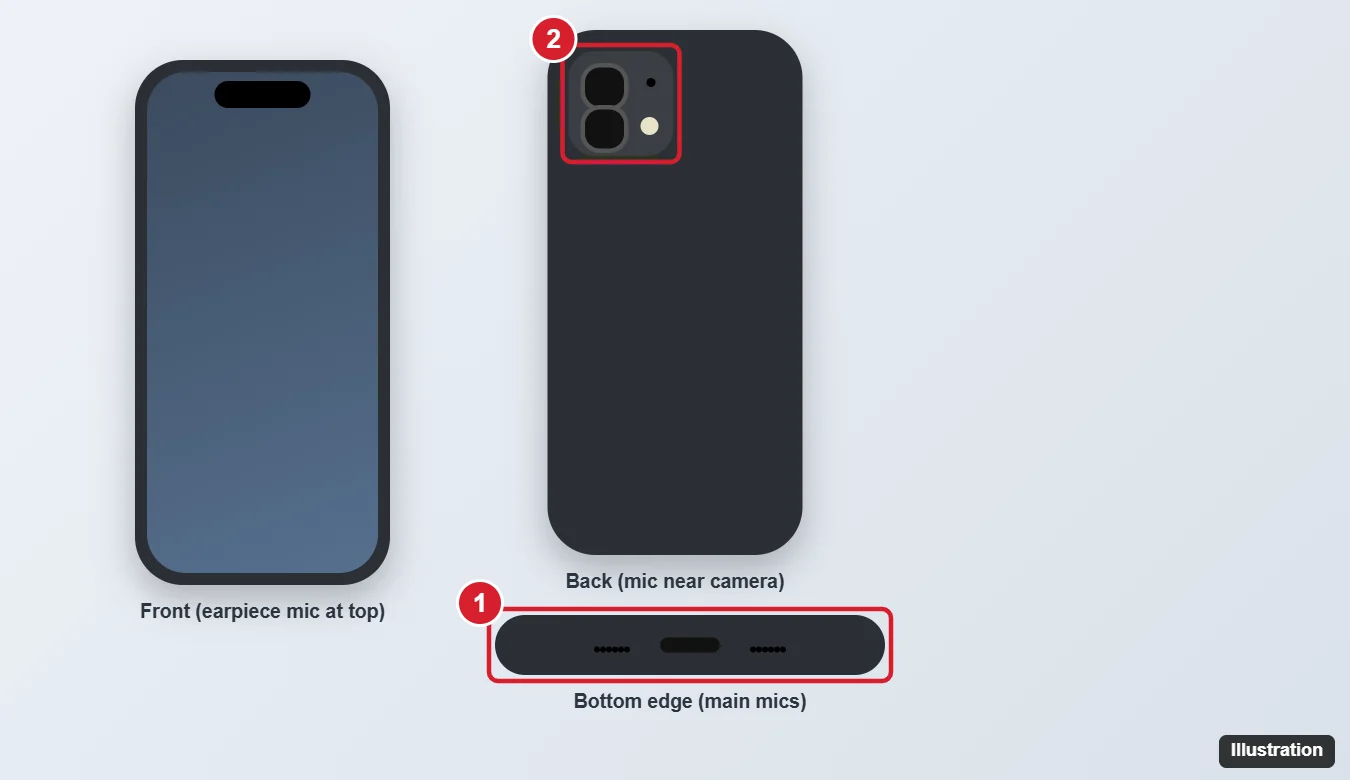
Microphone Locations and What They Do
| Location | Main use |
|---|---|
| Bottom edge, beside the USB-C port | Phone calls, voice memos, Siri, and voice messages |
| Back, near the cameras and flash | Video recording with the rear camera, noise reduction |
| Top front, near the earpiece | FaceTime and selfie videos, speakerphone, noise cancellation |
The iPhone uses these microphones together for features like noise reduction on calls and stereo audio in videos.
Why do people say I sound quiet only on speakerphone?
Speakerphone relies more on the top and rear microphones. Check that your case or hand is not covering them.
How to Test Each Microphone
- Bottom microphone: open Voice Memos, record a short clip while speaking normally, and play it back.
- Rear microphone: open Camera, record a video with the back camera, and play it back.
- Front microphone: record a video with the front camera, then play it back.
If one recording sounds muffled or silent while the others sound fine, that specific microphone is blocked or has a problem.
Improve Microphone Sound
Remove anything blocking the microphones
Take off your case and screen protector and test again. Some cases do not have openings that line up with the microphones.
Clean the microphone openings gently
- Power off the iPhone.
- Use a soft, dry, clean toothbrush or a soft brush to gently remove lint from the grilles.
- Do not use pins, compressed air aimed directly into the holes, or liquids, which can damage the microphone.
Check Voice Isolation
During a call, open Control Center, tap Mic Mode, and choose Voice Isolation to reduce background noise. This is available for phone calls and many video-calling apps.
Check app permissions
Go to Settings > Privacy & Security > Microphone and make sure the app you are using is allowed to use the microphone.
Disconnect Bluetooth devices
If AirPods or a car system are connected, your iPhone may use their microphone instead. Turn off Bluetooth to test the built-in mics.
When to Get Service
If a microphone still does not work after removing the case, cleaning, restarting, and updating iOS, contact Apple Support or visit an Apple Store or Apple Authorized Service Provider. You can also run diagnostics through Apple Support if prompted.
Related: Fix an iPhone 14 microphone that is not working.

Kermit Matthews runs Live2Tech from just outside Philadelphia. He is an IT specialist with over 20 years of experience, from a university help desk to small-business IT, IT management and his own consulting practice, and has written tech guides full time since 2020. Steps are checked against the current software on a real device or the maker’s official documentation. More about Kermit.