Google Takeout makes a downloadable copy of the data you pick from your Google Account, such as Gmail, Drive or Google Photos, and it never deletes or moves the originals. Google delivers the export as a download link by email or as files added to Drive, Dropbox, OneDrive or Box, and an emailed archive expires in about 7 days.
In short: on a computer, open takeout.google.com, keep the products you want, select Create export, and download the archive from Google’s email.
What Takeout copies and what it leaves alone
Takeout is an export tool, not a move or a cleanup. In Google’s help page on downloading your data, Google says that downloading your data “doesn’t delete it from Google’s servers.” Your mail, files and photos stay in your account as they were. If your goal is to close an account or free up storage, deleting is a separate job that you do afterward in each product.
A few limits are worth knowing before you start, because they explain most “something is missing” surprises later:
- No date ranges. Google says it does not currently support exporting data for certain time frames. You can’t ask for “only last year’s email”; you get everything in the product, or the parts you narrow by option (for example, chosen albums or labels).
- Recent changes may be left out. The archive may not include changes made between the moment you request it and the moment Google builds it. Edits made while an export is running may not appear.
- Deleted data stays out. Items you deleted that Google is still in the process of removing are not included.
- Work and school accounts can be different. Google Workspace administrators can manage whether users can download their data, so Takeout may be turned off for an account your organization manages.
Files made in Google Docs, Sheets or Slides are exported in a format you can open outside Google, and some products let you pick that format with their format option. Open a few of them after the download to make sure they look right.
Choose what goes in the export
Use a computer for this part. Google recommends downloading and viewing Takeout exports on a desktop computer rather than a phone, and the archives can be large.
- Open a browser, go to takeout.google.com, and sign in to the Google Account you want to copy.
- Look at the product list. Google says the products you use that hold your data are selected automatically, so the default export is your whole account.
- Uncheck every product you don’t want. If your page shows a control that clears every checkbox at once, you can use it and then tick only the products you need.
- For a product with choices, select its All data included button (the exact wording varies by product) to pick only part of it, such as certain photo albums, and check whether it offers other export formats.
- Scroll to the bottom and select Next step.
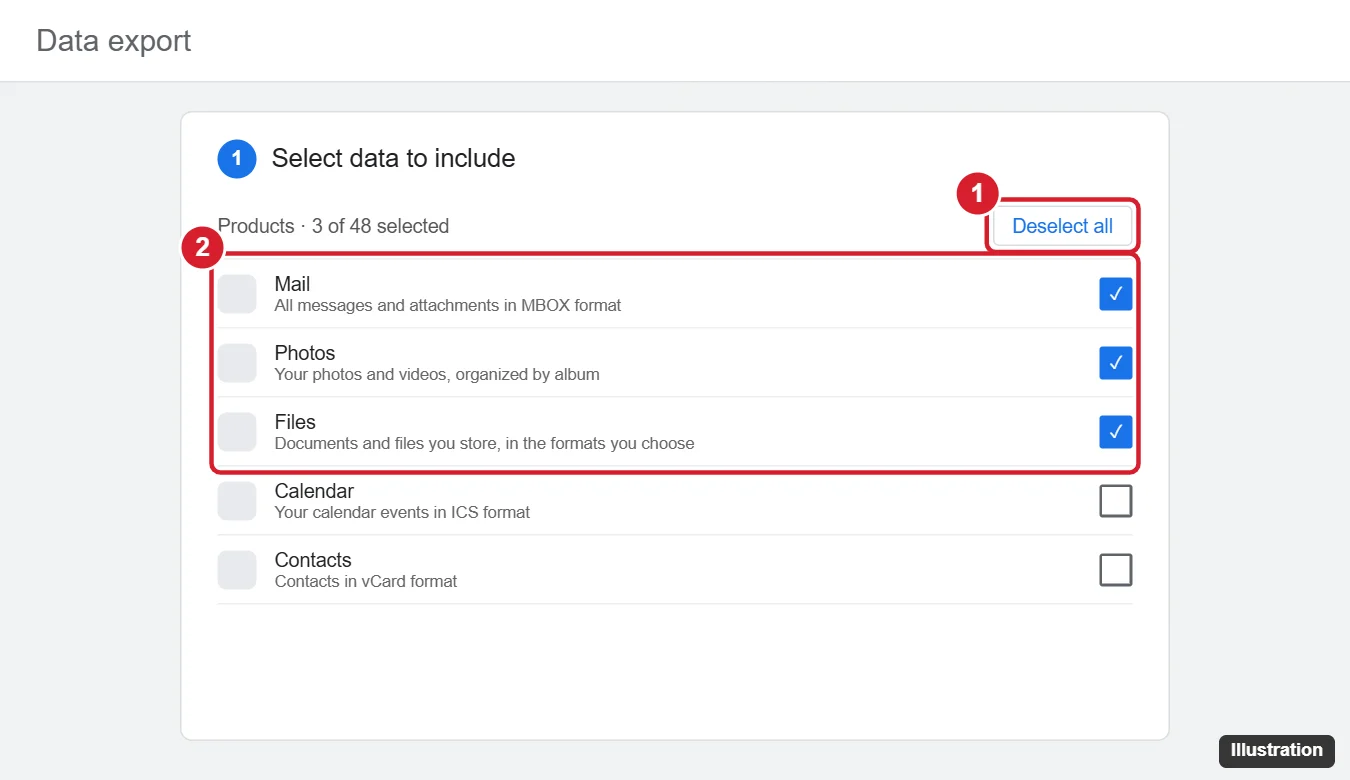
A practical example: someone leaving a school account who only needs their documents and email can uncheck everything except Drive and Mail, which turns a sprawling export into two products that are easy to check afterward.
Pick the delivery method, export type and file size
The second page has four settings. Google names them Delivery method, Export type, File type and Archive size.
Delivery method
| Option | What happens | Keep in mind |
|---|---|---|
| Send download link via email | Google emails you when the archive is ready, with a Download archive button | The archive expires in about 7 days |
| Add to Drive | The archive is saved in your Google Drive | It counts toward your Google storage |
| Add to Dropbox | Google uploads the archive to your Dropbox | You link the account first; Google suggests not sharing that Dropbox folder with anyone |
| Add to Microsoft OneDrive | Google uploads the archive to your OneDrive | Once it arrives, Google is no longer responsible for it |
| Add to Box | Google uploads the archive to your Box account | If Box’s maximum upload size is smaller, your archive size shrinks to match |
Email is the simplest choice for a one-off copy. On a shared or public computer, Google suggests Drive or another space only you use, so nothing is left on that machine.
Export type
Choose One-time archive for a single copy. Scheduled exports create an archive every 2 months for one year, and the first one is created right away. For Google Photos, Google also offers scheduled exports of new and updated data, which keeps later archives smaller; Google says Photos must be the only product selected for that export.
File type and archive size
- Zip files open on almost any computer, according to Google. Pick this unless you have a reason not to.
- Tgz files may need additional software to open on Windows, and Google notes they can’t hold Unicode file names.
- Archive size sets the largest single file Google will make. If your data is bigger, Google splits it into several archives. Choosing the 50 GB limit reduces splitting; Google suggests a smaller archive size if an export fails.
When the settings look right, select Create export. Google starts building the archive and emails you when it’s ready.
Download the archive before it expires
Google says an export can take anywhere from a few minutes to a few days, depending on how much data you chose, and most people get the link the same day. Accounts enrolled in Google’s Advanced Protection Program have the archive scheduled two days in the future, and scheduled exports aren’t available to them.
- Wait for Google’s email. For email delivery it contains a Download archive button. For a cloud destination, the button takes you to the archive in Drive, Dropbox, OneDrive or Box instead.
- Select the button and download each part. If the export was split, you’ll see one link per archive.
- Sign in again if asked. Google may ask for your password, and for an extra 2-Step Verification step, before the download starts.
- Save the files somewhere with enough free space, such as a computer’s internal drive or an external drive.
Each archive can be downloaded 5 times and expires in about 7 days; after that, you request a new export. If a download keeps failing, stop and fix the cause (see the fixes below) before you burn through the attempts.
Open the files and check what you got
On Windows, right-click a .zip file and choose Extract All; on a Mac, double-click it. Inside, you’ll find a folder for each product and a file named archive_browser.html. Open that file in a browser first: Google uses it to explain which file formats are in your archive and how to open them.
A few product details that save confusion:
For Google Maps lists in particular, transferring saved places to another account shows how a Saved export can become a My Maps map.
- Common formats. HTML files open in a browser, and Google says CSV and JSON files open in a text editor. Calendar files open in a calendar app, and contacts come out as vCard files.
- Gmail. Your labels survive as text: Google stores them in an X-Gmail-Labels header on each message.
- Google Photos. The archive holds your original photo and video files. Google says photo details are kept in the file itself, while extras such as comments go into a separate JSON file. Your computer may show the download date rather than the date a photo was taken, so check a photo’s details before assuming the date is lost.
- YouTube. Videos you uploaded come out in their original format or as MP4. If some are missing, they may belong to a Brand Account; switch to that account and export again.
Before you rely on the copy, open a few emails, documents and photos from different years.
Fixes when an export fails or data is missing
| What you see | Likely cause | What to do |
|---|---|---|
| The export failed | Too much data in one request, or a temporary problem | Create the export again, choose fewer products (Google suggests one product at a time), a smaller archive size or another delivery method |
| Takeout is blocked on a work or school account | Your administrator manages data downloads | Ask the administrator; there is no setting you can change yourself |
| The link no longer works | About 7 days have passed or the 5 downloads are used up | Request a new export |
| Recent emails or edits are missing | Changes after the request may not be included | Run a new export of that product |
| Some YouTube videos are missing | They belong to a Brand Account | Switch to the Brand Account and export from there |
If you plan to delete your Google Account after exporting to Drive, move the archive out of Drive first; Google points out that an archive stored in Drive goes away with the account.
Where to go from here
For a Photos-only copy, the options for downloading all Google Photos at once compare Takeout with selecting photos or albums on the website. To keep that copy offline, see how to copy Google Photos to a USB flash drive, including which drive format to use. If you only need a few recent shots, getting Google Photos from your phone to your computer is quicker than a full export.
For a single big Drive file rather than a whole account, the fixes for downloading large files from Google Drive help more. And a one-time archive isn’t the same as ongoing protection: set up regular copies with a Google Photos backup plan, or, if you are switching accounts, use the steps to transfer Google Photos from one account to another.
Google Takeout questions
Can I export only the emails from one label or the photos from one album?
Often, yes: use the product’s All data included button to narrow the selection. Date filters aren’t supported.
Does Takeout keep who a Drive file was shared with?
Don’t count on it. Google’s help page only mentions that recent changes to a Drive file’s sharing or permissions may not appear in the archive, and it doesn’t describe restoring sharing anywhere else, so treat the archive as a copy of the files and note any sharing you need to recreate.
Files you reach through a team space are a separate case, and finding a shared Google Drive explains where they live.
Can I give the archive to another app or service?
Yes. Once it’s downloaded, or added to Dropbox, OneDrive or Box, it’s an ordinary set of files you can upload wherever you like. Google lists sharing a copy of your data with a third party as a separate option in its help, and points out that once an archive reaches a non-Google provider, Google is no longer responsible for it.

Kermit Matthews runs Live2Tech from just outside Philadelphia. He is an IT specialist with over 20 years of experience, from a university help desk to small-business IT, IT management and his own consulting practice, and has written tech guides full time since 2020. Steps are checked against the current software on a real device or the maker’s official documentation. More about Kermit.