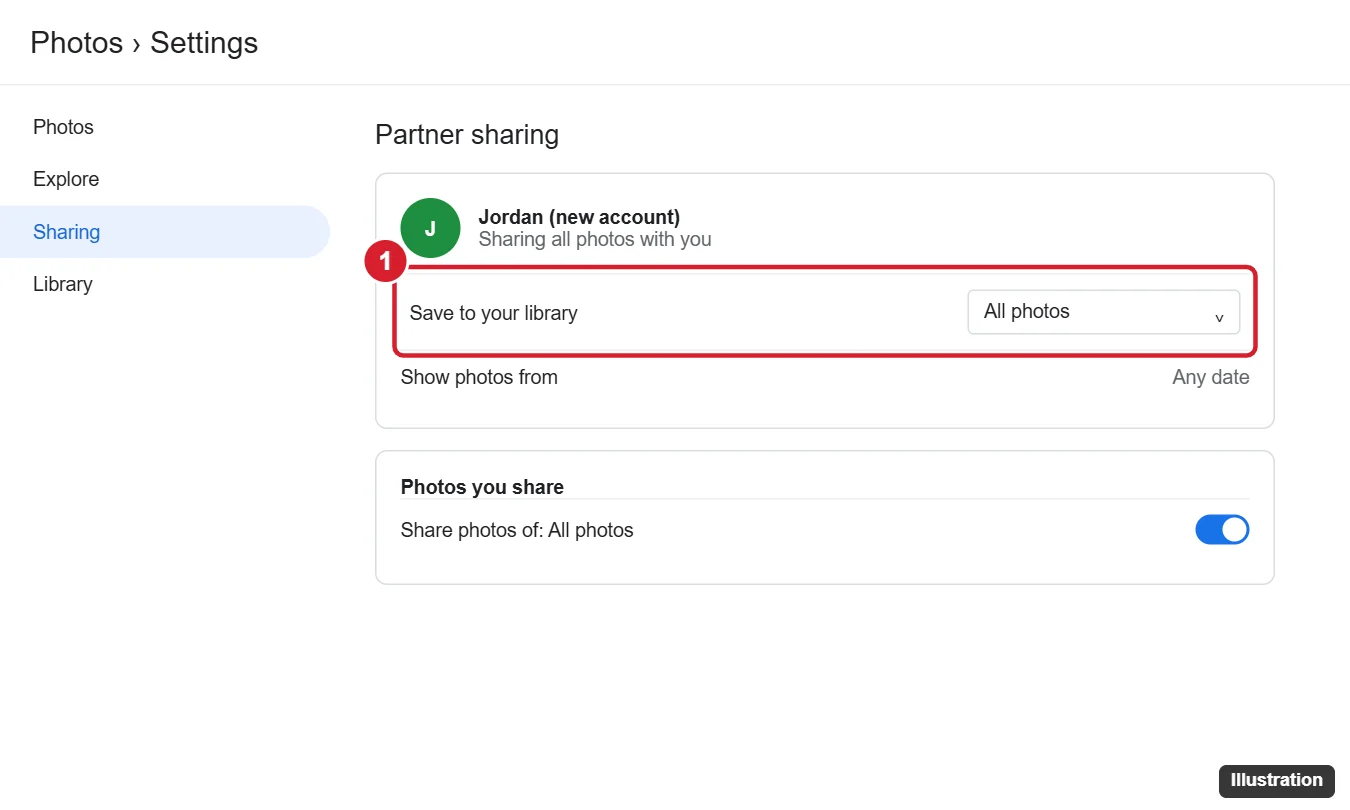
Google Photos doesn’t have a “move my library to another account” button. The most reliable route is Partner sharing: in the old account, open Google Photos > Settings > Sharing > Partner sharing and share All photos with the new account’s address. In the new account, accept the invite and turn on Save to your library for All photos. The photos are copied into the new library, where you can keep them even if you later stop sharing. Google Takeout and shared albums also work.
Method 1: Partner Sharing (Recommended)
In the old account
- Open photos.google.com (or the app) signed in to the old account.
- Go to Settings (gear icon) > Sharing > Partner sharing (in the app: profile picture > Photos settings > Sharing > Partner sharing).
- Click Get started and enter the new account’s email address.
- Choose All photos (or photos of specific people, or from a start date).
- Send the invitation.
In the new account
- Open Google Photos signed in to the new account and accept the invitation (check Sharing or your email).
- Choose to share back only if you want to; it’s optional.
- In partner sharing settings, turn on Save to your library and choose All photos.
Saving can take hours or days for large libraries. Saved photos use the new account’s storage. Partner sharing may not include some items, such as certain edits, videos in progress, or photos in Locked Folder.
Method 2: Google Takeout (Complete Download)
- In the old account, go to takeout.google.com.
- Click Deselect all, then check only Google Photos.
- Choose Send download link via email, a file type (.zip), and size (larger files mean fewer downloads).
- Click Create export and wait for the email; large exports can take hours or days.
- Download and unzip the files on a computer.
- Sign in to the new account at photos.google.com and drag the photo folders onto the page, or use Google Drive for desktop to back up the folder.
Takeout includes separate JSON files with metadata; uploaded photos keep their capture dates in most cases, but album organization isn’t recreated automatically.
- In the old account, create an album, add the photos, and share it with the new account.
- In the new account, open the shared album, select the photos, and click Save to your photos (the cloud icon or download option, depending on version).
Which Method Should You Use?
| Goal | Best method |
|---|---|
| Copy an entire library and keep adding new photos | Partner sharing |
| Full backup, or moving away from the old account | Google Takeout |
| A handful of photos or one event | Shared album |
Can I merge two Google Photos accounts?
Not directly. Partner sharing with Save to your library is the closest option.
Things to Check
- Storage: the new account needs enough free space (Google accounts include 15 GB free, shared with Gmail and Drive).
- Quality: partner sharing and Takeout keep the quality stored in the old account.
- Change backup account on your phone: in the Google Photos app, go to Photos settings > Backup and switch the account so new photos go to the new one.
- Don’t delete the old account until you’ve confirmed everything arrived.
Will this work with a work or school account?
Your organization may block partner sharing or Takeout. Use a download and upload instead, or ask your admin.
On a personal account, the settings for an export, from delivery method to archive size, are explained in this walkthrough of Google Takeout.

Kermit Matthews runs Live2Tech from just outside Philadelphia. He is an IT specialist with over 20 years of experience, from a university help desk to small-business IT, IT management and his own consulting practice, and has written tech guides full time since 2020. Steps are checked against the current software on a real device or the maker’s official documentation. More about Kermit.