If an app says it needs a newer version of Google Play services, open its page in the Settings app and tap Update or Install, as Google’s Play services help page describes. The separate Google Play system update and the Play Store app have their own update routes, covered below.
Everything here applies to Android phones and tablets. Google says Google Play services is supported only on Android 7.0 (API level 24) and up.
Four things that get called a Play update
Error messages and settings screens use similar names for different pieces of Android. Before you start tapping, work out which one you actually need to update.
| What it is | What it does | Where you update it |
|---|---|---|
| Google Play services | A part of Android that apps rely on for Google features. Google says it is not the same as the Play Store app. | Settings app, through its Google Play services page (steps below) |
| Google Play Store app | The store you install apps from | Play Store > profile picture > Settings > About > Update Play Store |
| Your other apps | Everything you installed from the Play Store | Play Store > profile picture > Manage apps & device |
| Google Play system update and Android itself | Core system components and the operating system | Android: Settings > System > Software updates (varies by phone). The Google Play system update date is listed under Settings > About phone > Android version. |
If an app tells you it needs newer Google Play services, the first row is the one to work on.
Update Google Play services from Settings
This is the route Google prints on its own help page.
- Open the Settings app.
- Tap your profile picture, then tap All services.
- Under Privacy & Security, tap System services > Google Play services.
- Tap Update or Install.
If neither Update nor Install appears, Google does not tell you to keep hunting for a button. Its next steps are clearing the cache and data of Google Play services and then of the Play Store, which are covered in the troubleshooting section further down.
The App info route on other phones
Settings menus differ between phone makers, and not every phone shows the profile picture and All services layout. Google’s help page uses the app list to reach Google Play services for its cache steps (see troubleshooting below). It does not describe an update button there, but on some phones the screen links to the Play Store page:
- Open Settings and tap Apps > Google Play services.
- If Google Play services isn’t listed, tap See all apps first.
- On that screen, look for a link to the app’s Play Store page. If it opens and shows Update, tap it.
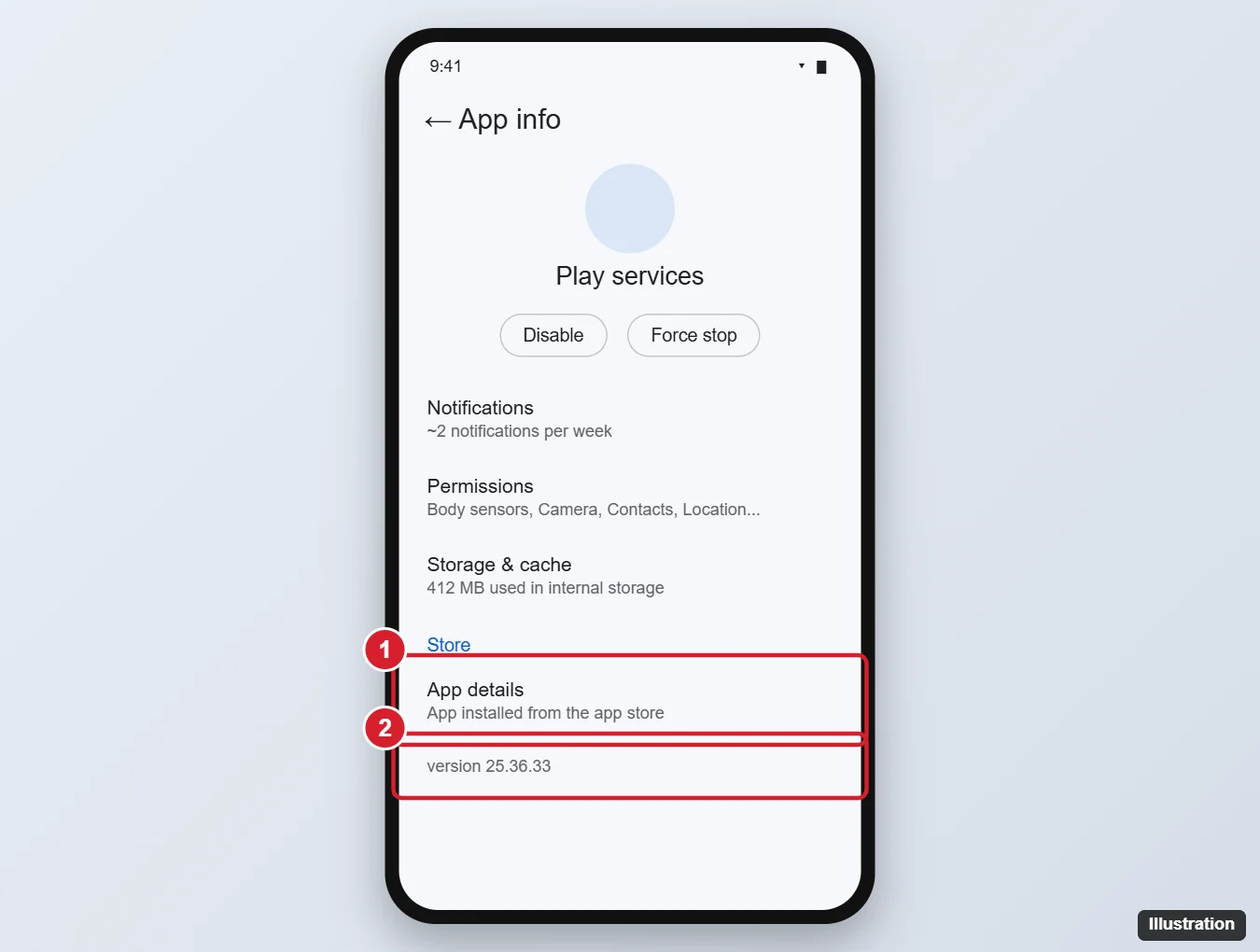
The illustration shows an older App info layout. The label for the store link and the spot where a version number appears can look different on your phone, and Google’s help pages do not describe either one.
Keep the Play Store and your apps updating on their own
Updating the Play Store app itself is a separate job. Google lists these steps:
- Open the Google Play Store app and tap your profile picture.
- Tap Settings > About > Update Play Store.
- If you see a message that the Play Store is up to date, tap Got it. Otherwise the update installs automatically within a few minutes.
To let your apps update automatically, Google’s app update page gives this path: open the Google Play app, select your profile picture, then Settings > Network Preferences > Auto-update apps. The choices are:
- Update all apps over Wi-Fi or mobile data
- Update with limited amount of mobile data
- Update over Wi-Fi only
- Don’t auto-update apps
To update apps by hand, tap your profile picture > Manage apps & device > Updates available > See details, then Update next to an app or Update all. A few notes from Google’s page explain why an update might wait:
- Some updates need new permissions, so you have to approve them yourself.
- An update may ask you to restart the device.
- If an account on your device has a sign-in error, apps may not update automatically.
- Google may install critical security updates regardless of your settings.
Where the Google Play system update fits
A Google Play system update is not the same as updating Google Play services. On Google’s Android version page, you can see it by opening Settings > About phone (or About tablet) > Android version, which lists your Android version, Android security update, Google Play system update and build number.
That page does not name a separate update button for the Google Play system update. For system updates in general, Google points you to Settings > System > Software updates, and it notes that update schedules vary by device, manufacturer and mobile carrier. Older guides that send you to a Security menu for this may not match your phone.
When Google Play services will not update or keeps stopping
Work through these in order and try the update again after each one. Google’s app update page notes that an update might need you to restart your device, so restarting the phone is a sensible first try.
- Clear the Google Play services cache. In Settings, tap Apps > Google Play services (tap See all apps if needed), then Storage & cache > Clear cache.
- Clear the Play Store cache and data. Open the Google Play Store’s app info, tap Storage & cache > Clear cache, then Clear storage > Delete. Clearing Play Store data resets your auto-update settings and mobile data budget, so check them afterward.
- Uninstall Play Store updates. In the Play Store’s app info, tap More > Uninstall updates > OK, then open the Play Store again. This is documented for the Play Store app only, not for Google Play services.
- Remove and re-add your Google Account on the device, the last step on Google’s Play Store troubleshooting page. Google says to back up any important information before you do this step.
Read this before you clear Google Play services storage: Google says it is not recommended unless you have tried all other troubleshooting options, because it may delete information saved to your device, such as saved passwords, transit cards and virtual payment cards in Google Pay. You may need to sign back in to your Google Account and set up payments again. If you go ahead, the path is Storage & cache > Clear storage > Clear all data > Delete. Before you clear it, you can check what your phone backs up with Google Backup on Android.
Phones without Google Play services
Some Android devices are sold without Google Play services, and Google’s help pages do not document a way to add it to them. Installing system software from third-party sites is risky. If your phone runs a version older than Android 7.0, it is below the version Google supports for Play services.
Once your updates are running, you can manage the rest of your Play Store activity, such as finding the reviews you have left on Google Play.
Play services update answers
Can I uninstall or force stop Google Play services?
No. Google states that you can’t force stop or uninstall Google Play services.
Does Google Play services drain the battery?
Google says Google Play services doesn’t make your battery drain faster or use too much of your mobile data plan. If your battery use looks high, check which apps are listed in your phone’s battery settings.
Is Google Play services the same as the Play Store?
No. Google describes Play services as part of Android, separate from the Google Play Store app, which is why each has its own update steps.
Does an iPhone need Google Play services?
No. Google Play services is part of Android. Google’s apps on iPhone come from Apple’s App Store, as explained in whether the Google Play Store works on an iPhone.

Kermit Matthews runs Live2Tech from just outside Philadelphia. He is an IT specialist with over 20 years of experience, from a university help desk to small-business IT, IT management and his own consulting practice, and has written tech guides full time since 2020. Steps are checked against the current software on a real device or the maker’s official documentation. More about Kermit.