When people on a call keep saying you sound faint, the fix is rarely one slider. A quiet mic in Windows 10 is a stack of controls: the microphone’s own switch or dial, the Windows input level, an optional boost, and the calling app’s automatic level. Any one of them can hold you down. Speak into the Windows mic test for ten seconds first; what the meter does tells you which layer to fix, and the sections below go through them in order.
Find which layer is making you quiet
Open Start > Settings > System > Sound, pick your microphone under Input, and speak normally while watching the level bar. For a fuller walkthrough of the meter and recording test, see how to test your microphone on Windows 10.
| What the meter does | Layer to fix |
|---|---|
| Does not move at all | Wrong device, privacy block, mute switch or driver |
| Barely moves when you talk | Physical setup, then the Windows input level |
| Moves well, but you are faint in one app | That app’s input setting or auto-level |
| Starts fine, then drops during calls | An app or Windows turning you down |
Settle the physical basics first
Software gain cannot fix a muted or badly placed mic, and boosting a weak signal raises the hiss with it.
- Look for an inline mute switch or volume wheel on the headset cable or earcup.
- A 3.5 mm mic plug belongs in the mic jack (often pink) or a combo headset jack.
- For a USB mic, try another USB port, preferably one directly on the PC rather than a hub.
- Keep the mic a hand’s width from your mouth and pointed at you; a laptop’s built-in mic is often several feet away by comparison.
If a USB mic keeps dropping and reconnecting with a chime, you can stop the USB connection sound and find which device is causing it, which often points to a loose cable or port.
Raise the Windows input level and read the meter
- Press Windows + I and open System > Sound.
- Under Input, choose the microphone you speak into. Laptops with a headset attached often list two mics; picking the wrong one is a common reason the level looks dead.
- Open the microphone’s properties page. Windows 10 shows a Device properties link under the input device; Microsoft’s combined Windows 10 and 11 instructions describe the same page as the device’s Properties.
- Drag the volume slider up. Start around 80 rather than jumping straight to 100.
- Use the test on that page (Start test, speak, then Stop test) to see how high you peak.
A useful rule of thumb, not a Windows requirement: aim for normal speech to peak around two-thirds of the bar, which leaves room for laughing or raising your voice without clipping.
If you have several mics and want Windows to use one every time, set it as the default; the process to change the default microphone is similar in Windows 10.
Add boost only when the level is maxed
Microphone Boost is extra gain applied by the audio driver, in decibel steps. It is the right tool when the input level is already at 100 and you are still faint, and the wrong one before that.
- In Settings > System > Sound, open the classic Sound Control Panel link, then the Recording tab.
- Select your microphone and choose Properties.
- Open the Levels tab and set the microphone level near 100.
- If a Microphone Boost slider appears, raise it one step, select Apply, and test again before adding another step.
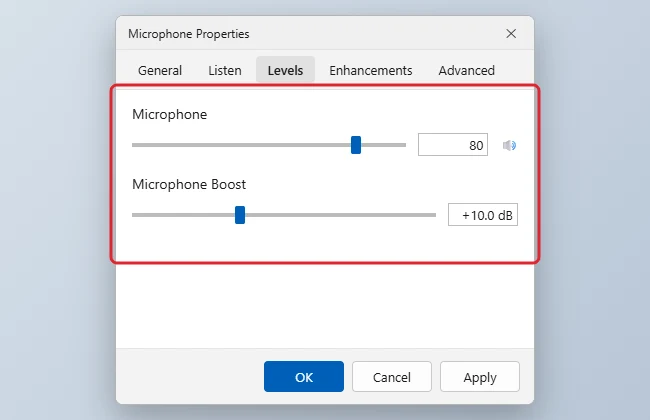
The boost range depends on the driver, and many USB and Bluetooth headsets show no boost slider at all because they handle gain inside the headset. If boost adds hiss, back it off a step and see whether you can turn on noise suppression in Windows 10 through your driver instead.
Keep apps and Windows from turning you down again
If the level starts right and then sinks mid-call, something is changing it after you set it.
- The app’s own auto-level. Most meeting and chat apps have their own input setting and an option to adjust the mic level automatically. Select the same mic there and turn the automatic option off if your level keeps drifting.
- Exclusive control. In the microphone’s Properties, the Advanced tab has options that let apps take exclusive control of the device. Clearing them can stop some apps from changing the level, though an app’s own auto-level setting still applies. The approach to stop the microphone from auto-adjusting uses this same dialog.
- Driver effects. Some drivers add noise suppression or echo cancellation on an Enhancements tab. These can lower your voice along with the noise, so test with them off.
When Windows hears nothing at all
A flat meter is a different problem from a quiet one.
- Privacy settings. Open Settings > Privacy > Microphone and make sure microphone access is on for the device, for apps, and for desktop apps. A blocked app hears silence, not a quiet signal.
- The driver. In Device Manager, check the mic under Audio inputs and outputs or Sound, video and game controllers. A yellow warning icon means a driver problem; you can install or update the audio driver from Windows Update or the PC maker.
- The troubleshooter. Microsoft offers a Recording Audio troubleshooter for microphones. In Windows 10, search for Troubleshoot settings and look for it in the additional troubleshooters list.
Windows 10 support status and what changes on Windows 11
Windows 10 reached end of support on October 14, 2025. Mic settings keep working, but security updates now come only through Extended Security Updates, which for consumers run until October 12, 2027.
If you move to Windows 11, the same layers apply. Microsoft’s microphone setup and test page calls the main slider Input volume on the device’s properties page, and the privacy switches sit under Privacy & security > Microphone.
Back out your changes
If the mic sounds worse after tuning, undo in reverse order: lower boost to 0, set the level back to where it was, recheck the exclusive control boxes if an app relied on them, and turn driver effects back on. Then test once more so you know which change made the difference.
Windows 10 mic level questions
Why does my mic level reset after a restart?
An app with automatic adjustment or a driver update is the usual cause. Turn off the app’s auto-level and try clearing the exclusive control options; if it still resets, reinstall the driver from the PC maker.
Is it safe to leave Microphone Boost on?
Yes. Boost is extra gain applied by the audio driver, so the cost is noise rather than damage: each step raises hiss and room sound along with your voice.
Why is boost missing for my USB headset?
Many USB and Bluetooth headsets do their gain inside the headset, so Windows shows only the main level. Check the headset maker’s app if it has one.
Why do I sound fine in one app but quiet in another?
Each app keeps its own input device and level. Pick the same mic in that app and switch off its automatic level.
Do I need ESU to keep using a mic on Windows 10?
No. ESU only adds security updates; your microphone and its settings work without it.

Kermit Matthews runs Live2Tech from just outside Philadelphia. He is an IT specialist with over 20 years of experience, from a university help desk to small-business IT, IT management and his own consulting practice, and has written tech guides full time since 2020. Steps are checked against the current software on a real device or the maker’s official documentation. More about Kermit.