To use an Apple Magic Mouse on Windows 10, pair it in Settings > Devices > Bluetooth & other devices, then install Apple’s Boot Camp mouse driver (AppleWirelessMouse64.exe, from Boot Camp Support Software) to enable scrolling on the original Magic Mouse or Magic Mouse 2. A third-party driver such as Magic Utilities also supports the newer USB-C model. Clicking works right away, but Windows sees the mouse as a basic two-button mouse, so touch scrolling needs a driver.
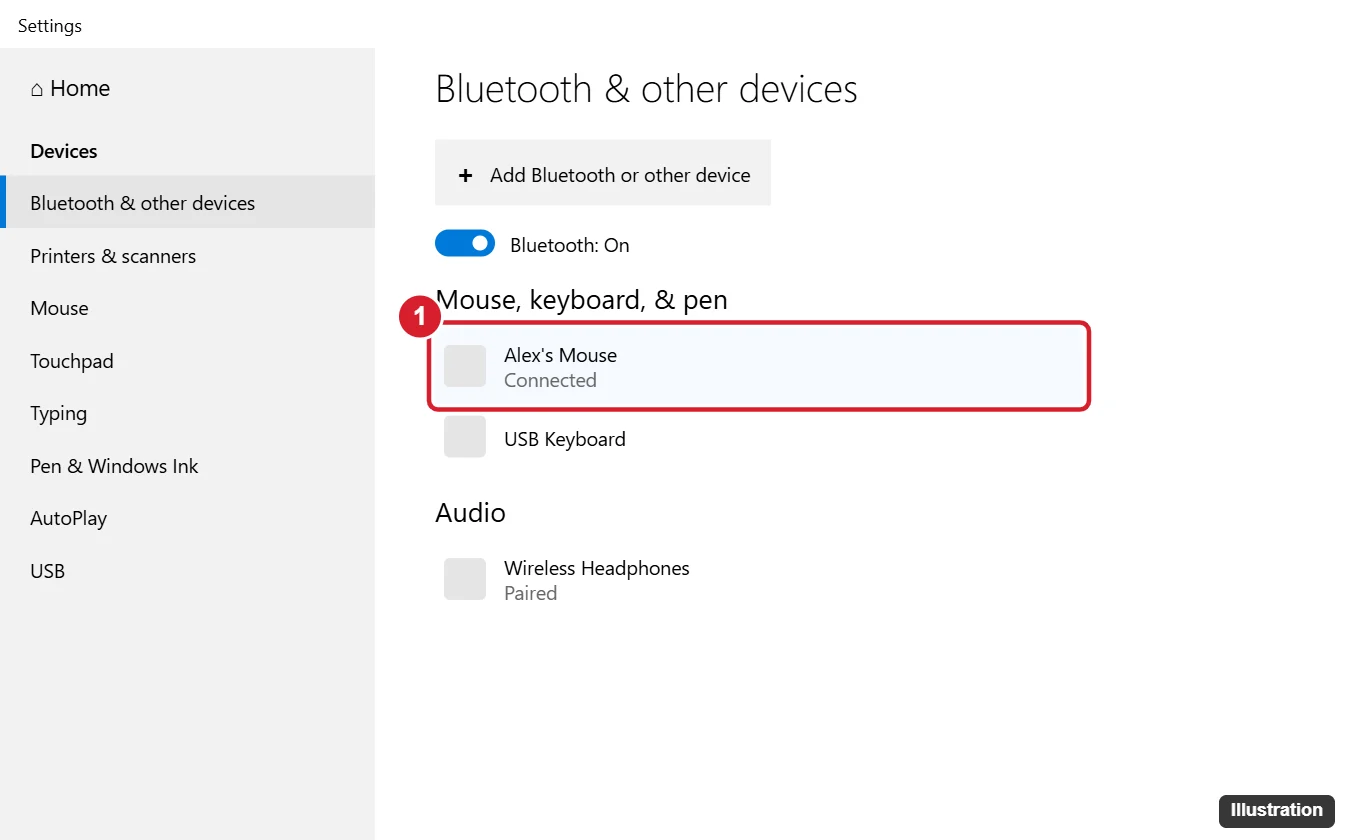
Step 1: Pair the Magic Mouse
- If the mouse is paired with a Mac, turn off Bluetooth on the Mac or remove the mouse there so it’s free to pair.
- Turn the mouse off and on with the switch underneath; the light blinks when it’s discoverable.
- On the PC, go to Settings > Devices > Bluetooth & other devices.
- Click Add Bluetooth or other device > Bluetooth and select the mouse.
- If asked for a PIN, enter 0000.
Does this work on Windows 11?
Yes. Pair it in Settings > Bluetooth & devices; the driver options are the same.
Step 2: Enable Scrolling
Option A: Apple’s Boot Camp driver (Magic Mouse 1 and 2)
- Get the Boot Camp Support Software. On a Mac, open Boot Camp Assistant and choose Action > Download Windows Support Software; Apple also publishes Boot Camp support packages on its support site.
- Copy the files to the PC and open the BootCamp > Drivers > Apple folder.
- Run AppleWirelessMouse64.exe as administrator.
- Restart the PC, then remove and re-pair the mouse if scrolling still doesn’t work.
This driver is designed for Macs running Windows, so Apple doesn’t guarantee it on other PCs, and it may not enable scrolling on the USB-C Magic Mouse.
Option B: Third-party driver
- Magic Utilities is a paid Windows driver for Apple mice and keyboards with a free trial. It supports smooth scrolling, gestures, battery level, and the newer models.
- Free, open-source drivers are also shared on GitHub; they vary in quality and model support. Download only from the project’s official page and read recent issues before installing.
Use only one driver at a time; installing several can cause conflicts.
Will gestures like swipe between pages work?
Only with third-party drivers that support gestures.
Adjust Scrolling and Clicks
- Scroll direction: most drivers offer natural (Mac-style) or traditional scrolling. Windows itself controls wheel direction only through a registry setting, so use the driver’s option if available.
- Speed: Settings > Devices > Mouse sets lines per scroll and pointer speed.
- Right-click: by default, clicking the right side works as a right-click; switch primary buttons in Mouse settings if needed.
If the Mouse Drops Out or Won’t Scroll
- Mouse disconnects or lags: keep it close to the PC, charge it, and turn off Bluetooth power saving in Device Manager > Bluetooth adapter > Power Management.
- Scrolling stopped after a Windows update: reinstall the driver and re-pair the mouse.
- Can’t find the mouse when pairing: make sure it isn’t connected to a Mac or iPad nearby.
Related: Troubleshoot Magic Mouse right-click on a Mac.

Kermit Matthews runs Live2Tech from just outside Philadelphia. He is an IT specialist with over 20 years of experience, from a university help desk to small-business IT, IT management and his own consulting practice, and has written tech guides full time since 2020. Steps are checked against the current software on a real device or the maker’s official documentation. More about Kermit.