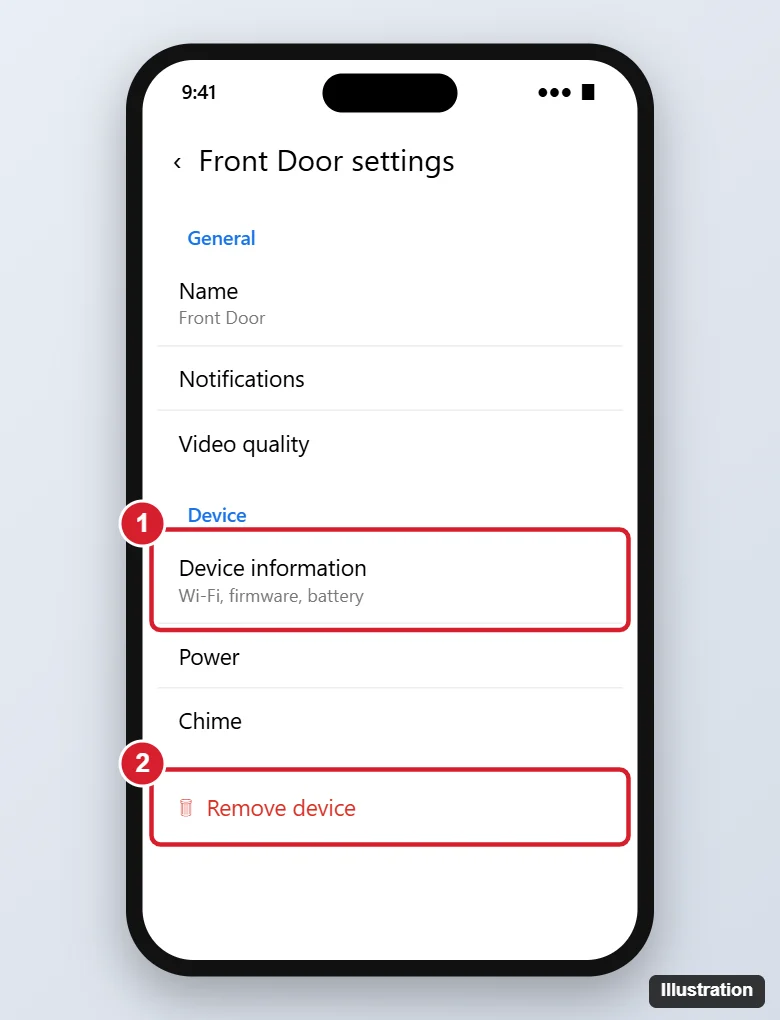
To reset a Google Nest Doorbell, open the Google Home app, select your doorbell, tap Settings, and choose Remove device. For a full factory reset, press and hold the reset button on the doorbell (usually on the back, which means removing it from its mount) for about 10 to 15 seconds until the light ring indicates a reset, then set it up again in the Google Home app. A reset can fix connection problems, prepare it for a new Wi-Fi network, or clear it before you sell it.
Button locations and hold times can vary by model and firmware. If your doorbell behaves differently, follow the instructions in the Google Nest Help Center for your specific model.
Restart vs. Factory Reset
| Restart | Factory reset | |
|---|---|---|
| What it does | Turns the doorbell off and on | Erases settings and returns it to out-of-box state |
| Keeps settings? | Yes | No; you must set it up again |
| Use it for | Freezing, brief connection issues | Persistent problems, new owner, new account |
Try a restart first. For many models, pressing and holding the reset button for a shorter time (about 5 seconds) restarts it, while a longer hold performs a factory reset. Check your model's instructions to avoid resetting by accident.
Step 1: Remove the Doorbell From Google Home
- Open the Google Home app.
- Tap your doorbell, then tap Settings (gear icon).
- Tap Remove device and confirm.
For older doorbells still managed in the Nest app, open the Nest app, select the doorbell, tap Settings, and choose Remove. Removing it deletes the doorbell from your account and can delete video history, so download any clips you want to keep first.
Step 2: Factory Reset the Doorbell
Nest Doorbell (battery)
- Remove the doorbell from its mounting plate using the release tool that came in the box (insert it into the hole on the bottom of the mount).
- Find the reset button on the back of the doorbell.
- Press and hold it until the light ring changes (about 12 seconds), then release.
- Wait for the doorbell to restart.
Nest Doorbell (wired, 2nd gen)
Remove the doorbell from its mount to reach the reset button on the back, then press and hold it until the light indicates a reset. Turn off power at the breaker if you need to disconnect wires.
Nest Doorbell (wired, 1st gen / Nest Hello)
This model uses a small reset pinhole. Use a paperclip or the included tool to press and hold the button for about 10 seconds until the light ring turns off, then release.
Step 3: Set Up the Doorbell Again
- Open the Google Home app.
- Tap + > Set up device > New device.
- Choose your home and follow the prompts to scan the QR code on the doorbell and connect to Wi-Fi.
- Reattach the doorbell to its mount.
How long does a reset take?
The reset itself takes about a minute. Setup afterward takes a few more minutes.
Reinstalling? Follow how to install a Google Nest Doorbell.
Problems During or After the Reset
The doorbell will not connect after reset
Make sure your phone is on the same 2.4 GHz or compatible Wi-Fi network, Bluetooth is on, and you are close to the router. Restart your router if needed.
I cannot remove the doorbell from the mount
Use the release tool provided with the doorbell. If you lost it, a paperclip may work in some mounts, or check Google's support for replacement tools.
The doorbell still appears in the app
Remove it again from Google Home, sign out and back in, and check that you are in the right home.
Nest cameras follow a separate set of button locations and timings, covered in how to reset a Google Nest camera.

Kermit Matthews runs Live2Tech from just outside Philadelphia. He is an IT specialist with over 20 years of experience, from a university help desk to small-business IT, IT management and his own consulting practice, and has written tech guides full time since 2020. Steps are checked against the current software on a real device or the maker’s official documentation. More about Kermit.