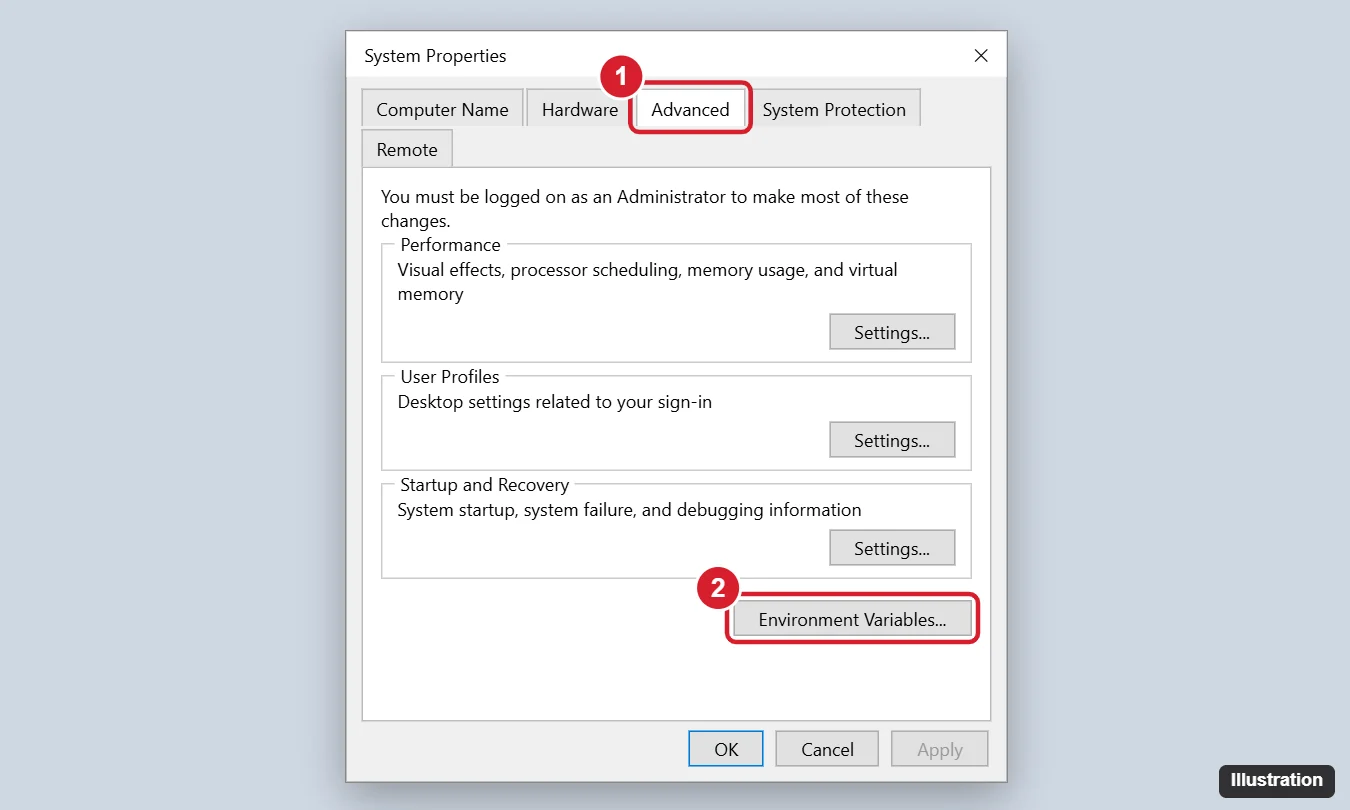
The classic System Properties window in Windows 10 is where you rename your PC, join a domain or workgroup, change virtual memory and visual effects, edit environment variables, set up System Restore, and allow Remote Desktop. The fastest way in is to press Windows + R, type sysdm.cpl and press Enter, which opens the Computer Name tab. For the Advanced tab directly, run SystemPropertiesAdvanced. Recent Windows 10 updates moved the old System page into Settings, so the familiar shortcuts don’t always open it.
Method 1: Run Command (Fastest)
- Press Windows + R.
- Type sysdm.cpl and press Enter.
This also works from the Start menu search box, Command Prompt and PowerShell.
Typing control in any of those places opens the full Control Panel instead, as shown in how to open Control Panel in Windows 10.
Does sysdm.cpl work on Windows 11?
Yes. All the commands above work on Windows 11. Windows 10 reached end of support on October 14, 2025.
Method 2: Open a Specific Tab Directly
| Command | Opens |
|---|---|
| SystemPropertiesComputerName | Computer Name tab (rename, domain, workgroup) |
| SystemPropertiesHardware | Hardware tab (Device Manager, driver install settings) |
| SystemPropertiesAdvanced | Advanced tab (performance, profiles, startup, environment variables) |
| SystemPropertiesPerformance | Performance Options (visual effects, virtual memory) |
| SystemPropertiesProtection | System Protection tab (System Restore, restore points) |
| SystemPropertiesRemote | Remote tab (Remote Assistance, Remote Desktop) |
Type any of these in the Run box (Windows + R) and press Enter.
Method 3: Through Settings
- Press Windows + I and click System.
- Scroll down the left pane and click About.
- Under Related settings on the right (or at the bottom), click Advanced system settings.
Windows + Pause/Break opens this About page on current Windows 10 versions. On older versions it opened the Control Panel System page.
Method 4: From This PC
- Right-click This PC on the desktop or in File Explorer and choose Properties.
- Click Advanced system settings.
Method 5: Control Panel or Desktop Shortcut
- Control Panel: type control sysdm.cpl in the Run box, or open Control Panel and search for “advanced system settings.”
- Shortcut: right-click the desktop > New > Shortcut, enter sysdm.cpl as the location, and name it System Properties.
What You Can Do in System Properties
- Computer Name: click Change to rename the PC or join a domain/workgroup.
- Hardware: open Device Manager or choose whether Windows downloads device apps automatically.
- Advanced: adjust visual effects and virtual memory (Performance), manage user profiles, set startup and crash dump options, and edit Environment Variables such as PATH.
- System Protection: turn on System Restore, create a restore point, or roll back.
- Remote: allow Remote Assistance and, on Pro editions, Remote Desktop connections.
Most changes need an administrator account.
Why is Remote Desktop grayed out on the Remote tab?
Windows 10 Home can’t host Remote Desktop connections; only Pro, Enterprise and Education can.

Kermit Matthews runs Live2Tech from just outside Philadelphia. He is an IT specialist with over 20 years of experience, from a university help desk to small-business IT, IT management and his own consulting practice, and has written tech guides full time since 2020. Steps are checked against the current software on a real device or the maker’s official documentation. More about Kermit.