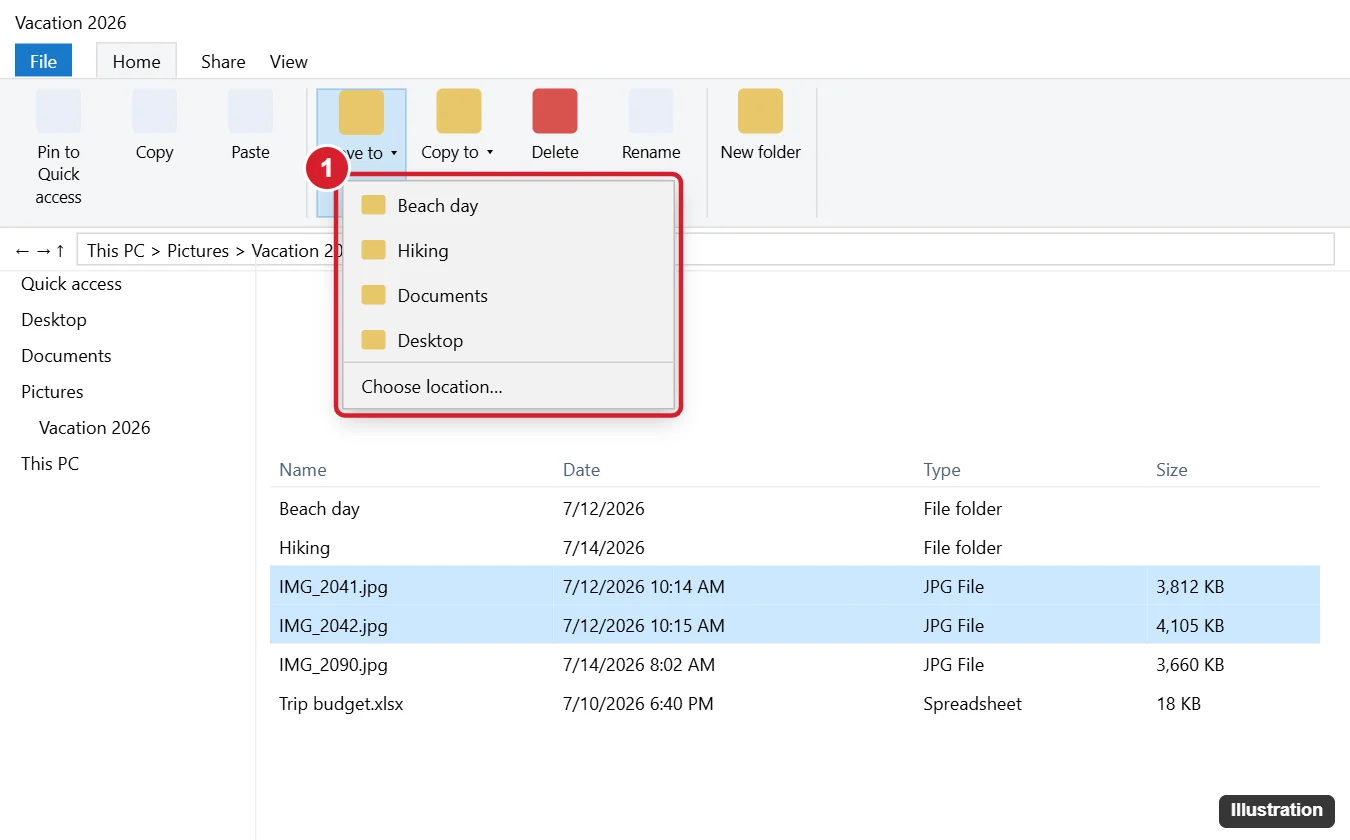
In a Windows 10 folder, you can move files or rearrange their order. To move files, select them and drag them onto another folder, or use Home > Move to, or Ctrl + X then Ctrl + V in the destination. To rearrange them, right-click empty space and use Sort by or Group by; for a custom order, add numbers to the start of file names (01, 02, 03). Inside a regular folder, you can’t drag icons to any spot you like the way you can on the desktop.
Select the Files First
- One file: click it.
- Several separate files: hold Ctrl and click each one.
- A range: click the first file, hold Shift, and click the last.
- Everything: press Ctrl + A.
- Drag a box around files with the mouse (start in empty space).
To make selecting easier, turn on View > Item check boxes.
Ways to Move Files Into Another Folder
Drag and drop
- Select the files.
- Drag them onto a folder in the file list or in the left navigation pane. A tooltip says “Move to [folder].”
- Release the mouse.
Dragging to a folder on the same drive moves files. Dragging to a different drive (like a USB stick) copies them instead. Hold Shift while dragging to force a move, or Ctrl to force a copy. Drag with the right mouse button to choose from a menu when you let go.
Home > Move to
- Select the files.
- On the Home tab, click Move to.
- Pick a recent folder, or Choose location to browse (you can create a new folder there).
Cut and paste
- Select the files and press Ctrl + X (or right-click > Cut).
- Open the destination folder and press Ctrl + V (or right-click > Paste).
Put selected files in a new folder
- Click Home > New folder (or press Ctrl + Shift + N) and name it.
- Drag the selected files onto it.
Made a mistake? Press Ctrl + Z right away to undo the move.
Does moving a file change its date?
Moving within the same drive keeps the Date modified. Copying creates a new file with a new Date created.
Is moving faster than copying?
On the same drive, moving is almost instant because Windows only updates the file’s location. Between drives, it copies and then deletes the original.
Rearrange Files Within a Folder
File Explorer always keeps files in a sorted order inside folders. You can choose the order, but you can’t place icons freely.
Sort
- Right-click empty space in the folder and choose Sort by.
- Pick Name, Date modified, Type, or Size, and Ascending or Descending.
In Details view, click a column header to sort by it; click again to reverse.
Group
Right-click > Group by > Type (or Date, Size) to gather similar files under headings, which helps in large folders.
Create a custom order
Rename files with a number prefix, for example 01 Intro.docx, 02 Chapter.docx, then sort by Name. Use leading zeros (01, 02 … 10) so 10 doesn’t sort before 2. To rename a batch at once, select them, press F2, type a name, and press Enter; Windows adds (1), (2), (3).
Apply the same view to similar folders
Set up the view you like, then click View > Options > View tab > Apply to Folders to use it for all folders of the same type.
Free Placement: The Desktop Only
On the desktop, you can drag icons anywhere. Right-click the desktop > View and turn off Auto arrange icons (and Align icons to grid for completely free placement).
When a move fails or files snap back
- “You need permission to perform this action”: the folder is protected (for example, Program Files) or owned by another user. Move files elsewhere, or approve the administrator prompt if it’s your PC.
- “The action can’t be completed because the file is open”: close the file in its app, then try again.
- Files snap back after dragging: that’s sorting at work. Use a custom name order instead.
- Moved files disappeared: press Ctrl + Z, or search for the file name from This PC.
Related: Move files in Windows 11.

Kermit Matthews runs Live2Tech from just outside Philadelphia. He is an IT specialist with over 20 years of experience, from a university help desk to small-business IT, IT management and his own consulting practice, and has written tech guides full time since 2020. Steps are checked against the current software on a real device or the maker’s official documentation. More about Kermit.